**If you have not set up your desktop OneDrive, you will be prompted to do so once you clicked on OneDrive. Follow the prompts to sign in.**
[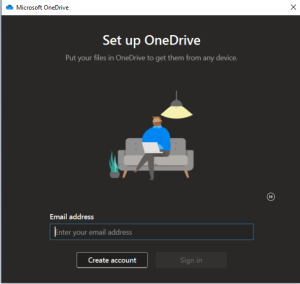](https://docs.northshorecollege.edu/uploads/images/gallery/2022-11/HIiVWBbv4WYnNfir-onedrive-sign-in.png)[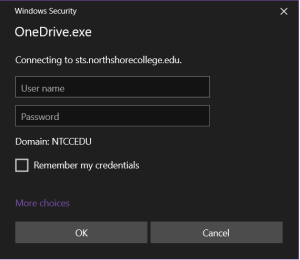](https://docs.northshorecollege.edu/uploads/images/gallery/2022-11/AYAr1cb3HVmUHNuv-od-sign-in.png) 3.) Your desktop OneDrive will look like any File Explorer for Microsoft. What you do in your desktop OneDrive will affect your web version of OneDrive and vise versa. [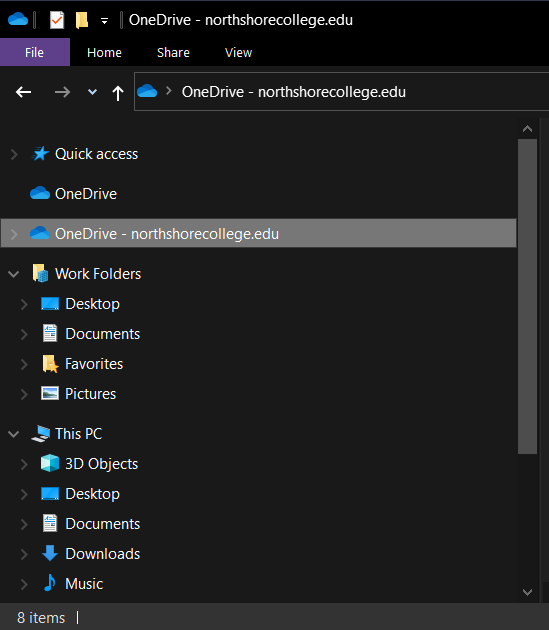](https://docs.northshorecollege.edu/uploads/images/gallery/2022-10/MelNA2Nh5EwHHi4U-onedrive.png) #### ## **Accessing the web version.** 1.) Log into your GatorMail like normal. 2.) Once you are in your Office 365, click on the **OneDrive** icon. [](https://docs.northshorecollege.edu/uploads/images/gallery/2022-11/dWfc57MKNBhauYNo-webversion-onedrive.png) 3.) You are now in your OneDrive and can add/remove/share files as needed. To share: [Sharing OneDrive files](https://kb.northshorecollege.edu:8443/display/ITST/Sharing+Teams+Recordings) Sharing can only be done in the web version. [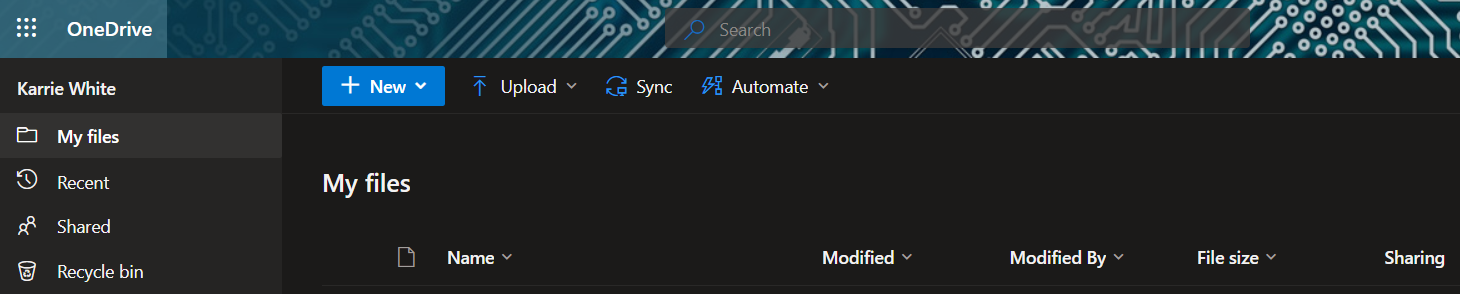](https://docs.northshorecollege.edu/uploads/images/gallery/2022-11/lQRwvfAt5agGkQep-share-web.png) # How to open a shared email mailbox. ##### If you have been granted access to a shared email mailbox, you can access it from webmail easily. 1\. Open your webmail. You should see your list of emails in your inbox or other folder. 2\. Click on your initials or picture in the upper-right corner of the screen (depending on whether you have uploaded a profile picture or not. [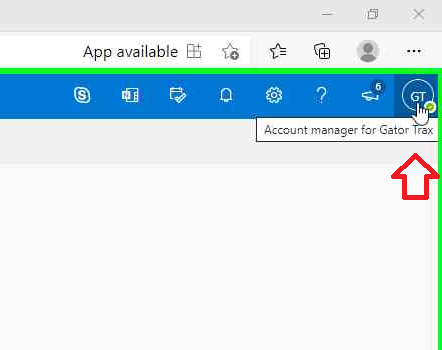](https://docs.northshorecollege.edu/uploads/images/gallery/2022-10/sukOZGBidXIK0NkJ-click-on-initials.png) 3\. Click on "Open another mailbox". [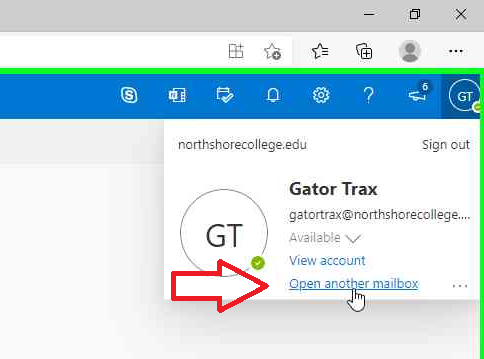](https://docs.northshorecollege.edu/uploads/images/gallery/2022-10/fiJD76F6mR9SuN0i-click-shared-mailbox.png) 4\. In the Open another mailbox dialog box that opens up, start to type the email address/name of the mailbox you are trying to open. Autocomplete should find the mailbox. [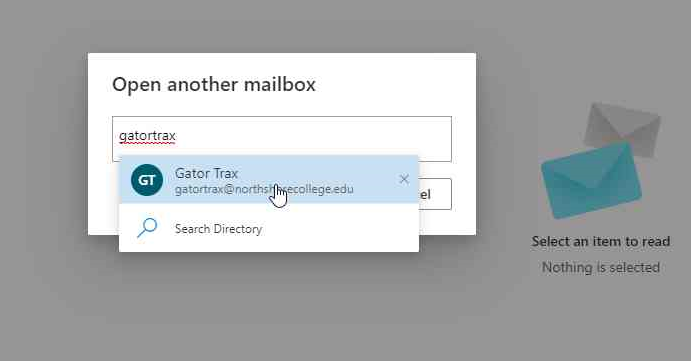](https://docs.northshorecollege.edu/uploads/images/gallery/2022-10/5bXiMAQ2MxooM3xr-find-mailbox.png) 5\. Click "Open" to open the mailbox [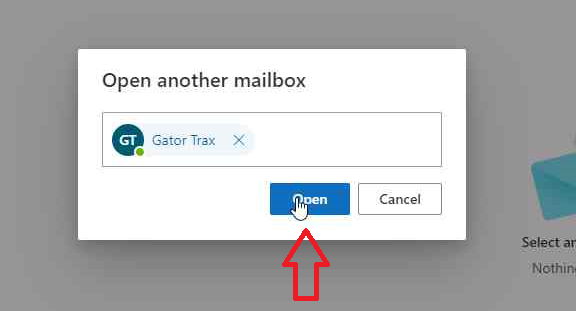](https://docs.northshorecollege.edu/uploads/images/gallery/2022-10/THbk6tRubPfL4XZV-click-open.png)If you receive an error message like the one below that says "Something went wrong. You don't have permission to perform this action," you do not have permissions to access this mailbox. If you feel that you should have access to that shared mailbox, please have the manager of that shared mailbox submit a helpdesk ticket to request that you be given access. This helpdesk ticket must come from the manager of the mailbox. IT will not grant access to shared mailboxes without the permission of the manager who controls that mailbox. [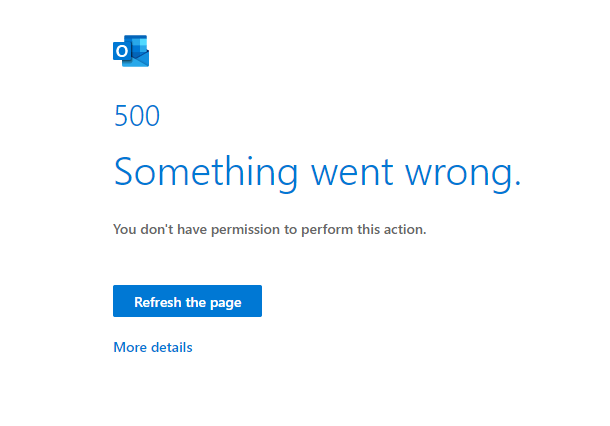](https://docs.northshorecollege.edu/uploads/images/gallery/2022-10/ADExpDZoruNzhmon-something-went-wrong.PNG)
# How to create a signature in Outlook ##### When you want to have a customized signature in your emails. Click on images to enlarge. ## **Creating a signature in the desktop app.** 1.) After opening the Outlook desktop app, select the **File** tab. [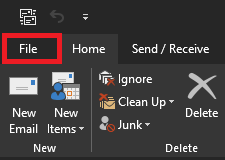](https://docs.northshorecollege.edu/uploads/images/gallery/2022-10/mCur3QAN3xQVJ4b5-file.png) 2.) Click on **Options.** **[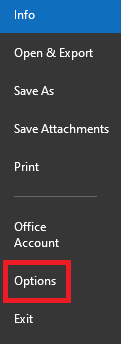](https://docs.northshorecollege.edu/uploads/images/gallery/2022-10/LuJBvOz3KgMcJ6zn-options.png)** 3\. Click on **Mail** then click on **Signatures.** **[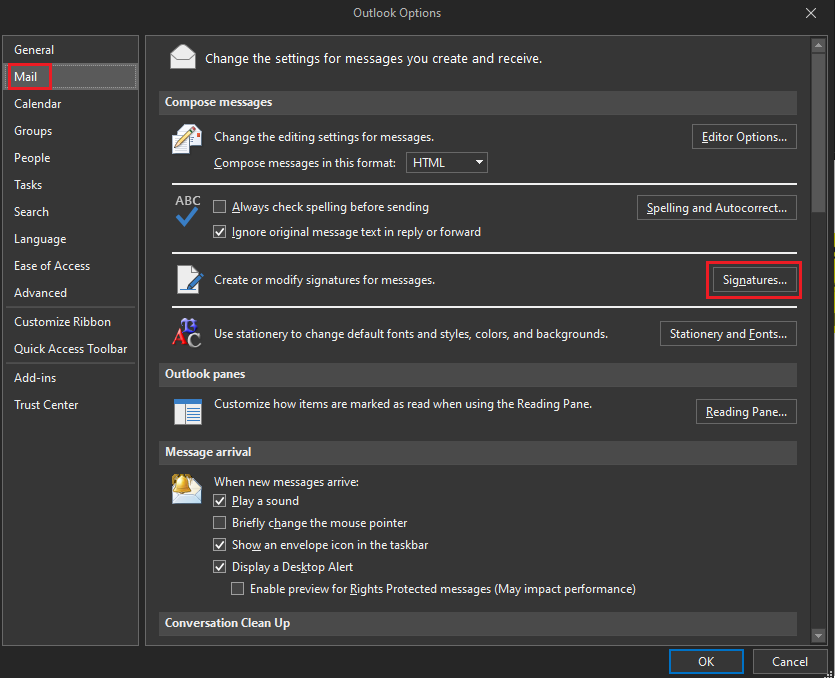](https://docs.northshorecollege.edu/uploads/images/gallery/2022-10/cmHzH7u3CNedxi0D-signature.png)** 4\. Click **New** and type what your want the signature to be called then **OK**. [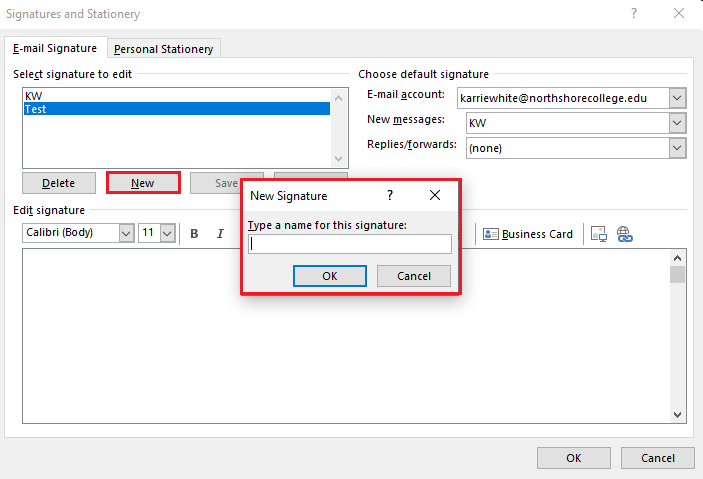](https://docs.northshorecollege.edu/uploads/images/gallery/2022-10/iwQ9v1vgZ5IcR6Rp-name.png) 5\. Write your message in the **Edit signature** box. **Note**: Make sure you use the drop down box for **New messages:** to select the signature you want to use. You can also choose to have it for replies and forwards as well. 6\. Click **OK.** **[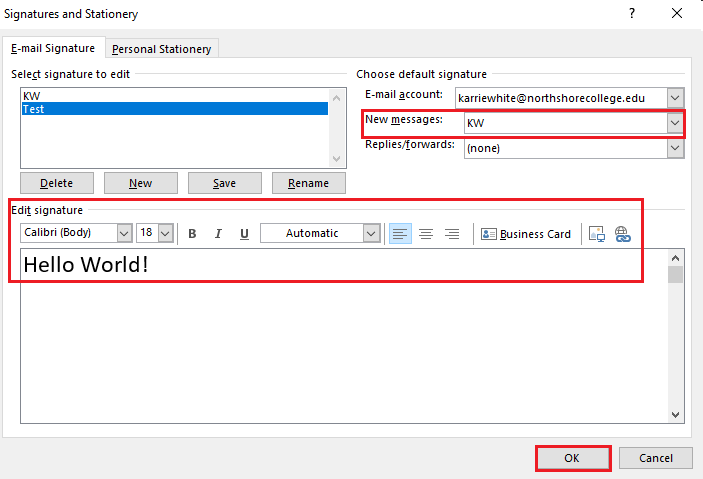](https://docs.northshorecollege.edu/uploads/images/gallery/2022-10/TAO6h6m6zQWzDzvW-save.png)** ### **Creating a signature in the web app.** 1.) Sign into Gatormail like normal. At the top right corner, select the **Settings** icon. [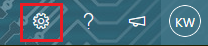](https://docs.northshorecollege.edu/uploads/images/gallery/2022-10/owUYlmTozfqMjYyL-settings.png) 2. At the bottom of the newly opened panel, click **View all Outlook settings.** [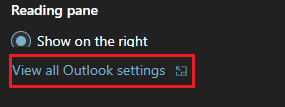](https://docs.northshorecollege.edu/uploads/images/gallery/2022-10/4Iwu9eRRAV2EyqDw-view-outlook.png) 3. Select **Mail** then select **Compose and reply**. [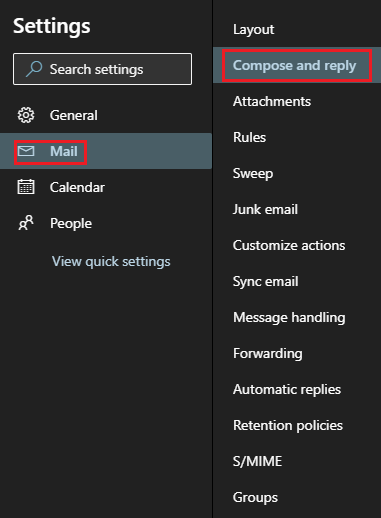](https://docs.northshorecollege.edu/uploads/images/gallery/2022-10/HlYdWq5HxZOH24Lt-mail.png) 4\. Click **+ New signature**. 5\. In **Edit signature name** create a name to identify your signature. 6\. Create your message for the signature. 7\. Make sure you use the drop down box for **New messages:** to select the signature you want to use. You can also choose to have it for replies and forwards as well. 8\. Click **Save**. [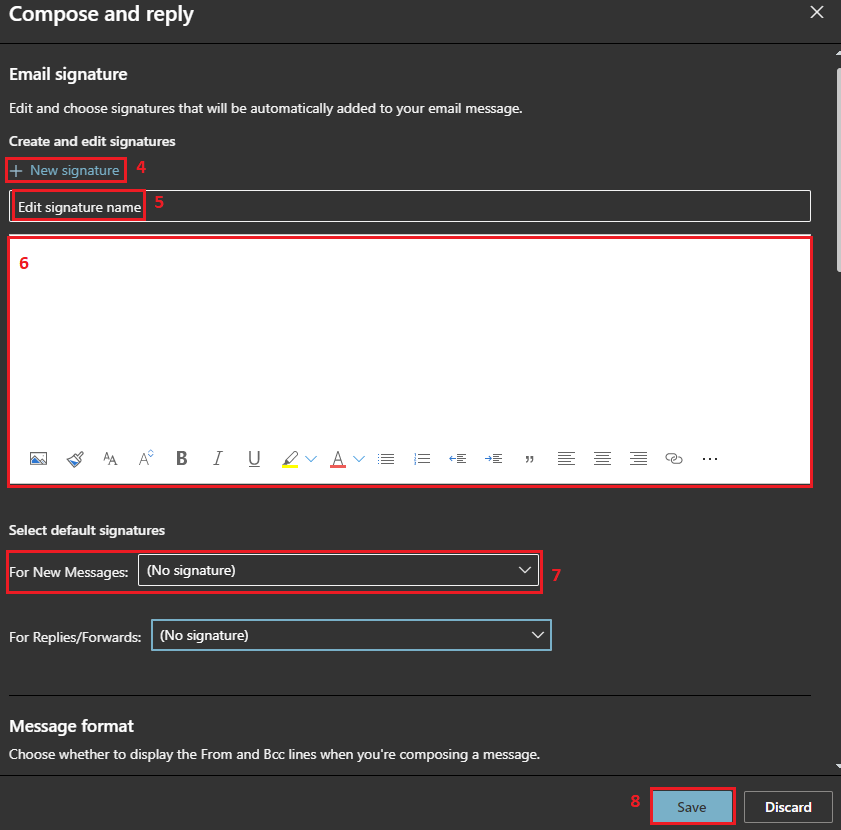](https://docs.northshorecollege.edu/uploads/images/gallery/2022-10/OJ9LiWSMDpG8BL2i-options.png) # How to create a Contact List in Office 365 ##### Use a contact group (formerly called a “distribution list”) to send an email to multiple people Click on the images to enlarge. ### **Desktop Guide** 1.) Select **People**. **[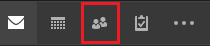](https://docs.northshorecollege.edu/uploads/images/gallery/2022-10/R8Syb3c1RuxOtRE5-outlook-people.png)** 2\. Select **New Contact Group**. [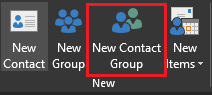](https://docs.northshorecollege.edu/uploads/images/gallery/2022-10/Mqc3Z7ljGX1tMBGG-new-contact-group.png) 3.) Name your group. [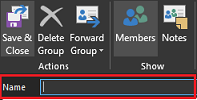](https://docs.northshorecollege.edu/uploads/images/gallery/2022-10/LMvfNbDh8rQCO9lQ-name-group.png) 4.) Select **Add Members.** **[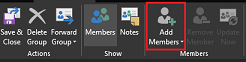](https://docs.northshorecollege.edu/uploads/images/gallery/2022-10/Lo5Xkx03loGoBpTi-add-memebers.png)** 5.) Choose **From Outlook Contacts** to add people from your contacts. Choose **From Address Book** to add people within the NTCC Global Address list. [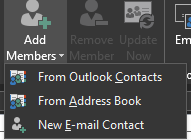](https://docs.northshorecollege.edu/uploads/images/gallery/2022-10/jLNc7Mfw8JFLAQpM-search-contacts.png) 6\. **Save & Close** [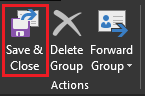](https://docs.northshorecollege.edu/uploads/images/gallery/2022-10/XNzcorodKVDgdLHL-save.png) ### **Webapp Guide** 1.) Select **People.** **[](https://docs.northshorecollege.edu/uploads/images/gallery/2022-10/jyblRYrAKxcn2fdN-people.png)** 2.) Select **Your contact lists.** **[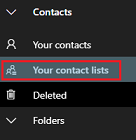](https://docs.northshorecollege.edu/uploads/images/gallery/2022-10/V43LPgOWZzHCnmpj-your-contact-list.png)** 3\. Select **+Create a contact list.** [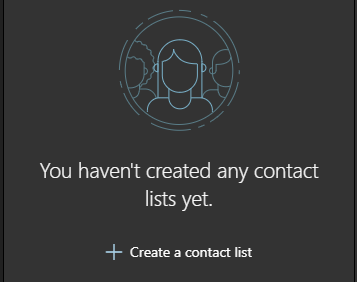](https://docs.northshorecollege.edu/uploads/images/gallery/2022-10/pHqQ1RiQhlJXnuys-create-a-contact-list.png) 4\. Name your list 5\. Type the names to search and add emails 6\. **Create** **[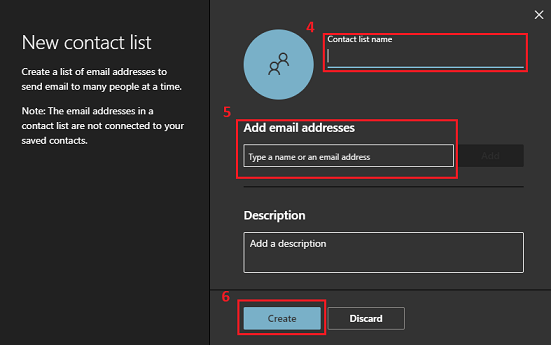](https://docs.northshorecollege.edu/uploads/images/gallery/2022-10/dslZ3lUKexb9sAWL-new-contact.png)** # How to create an Out of Office message in Outlook ##### When you need to have an automated message sent when not in office. ### Create an OOO on desktop app. 1.) 1. After opening the Outlook desktop app, select the **File** tab. [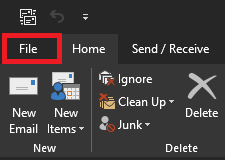](https://docs.northshorecollege.edu/uploads/images/gallery/2022-10/zWVhx6rjhx3KEdYW-outlook-file.png) 2.) Click on the **Automatic Replies** button. [](https://docs.northshorecollege.edu/uploads/images/gallery/2022-10/jOfrg9tueA0zipzS-ooo.png) 3.) Choose **Send automatic replies** 4.) Click the **Only send during this time range:** box. Then choose your dates and times when you will be out of office. 5.) Create your message. 6.) Click **OK**. [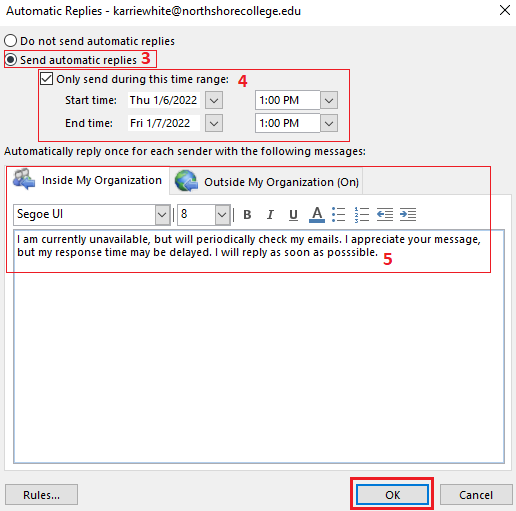](https://docs.northshorecollege.edu/uploads/images/gallery/2022-10/TWUKkSvlc8VwGUSW-ooosetup.png)**NOTE:** Best security practice is to give as little information about your absence as possible. No locations and if possible no dates. Avoid having the Outside My Organization or a contact if possible. If not possible, continue to provide as little as information as you can.
**OPTIONAL**: You can set up rules for your messages. On the left hand bottom corner click **Rules...** **[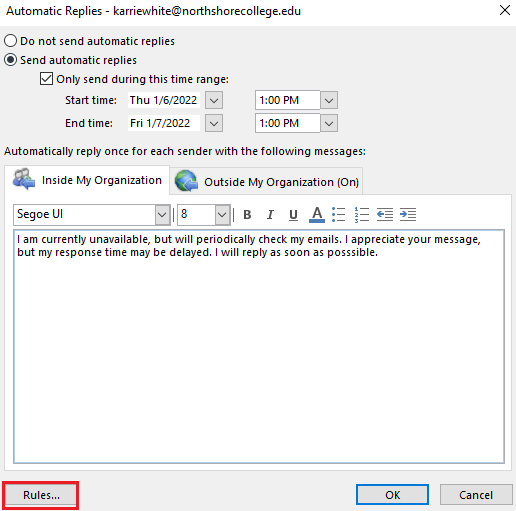](https://docs.northshorecollege.edu/uploads/images/gallery/2022-10/PO4e4AhTgG1zI4MA-oorules.png)** Click on **Add Rule...** **[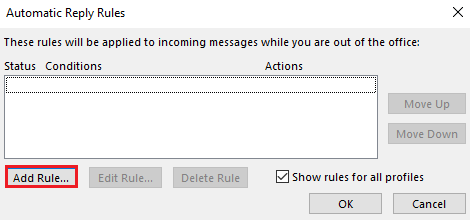](https://docs.northshorecollege.edu/uploads/images/gallery/2022-10/FsX0RJFnl8Zdews1-rulesadd.png)** Set up the various rules you wish to have, including automatic forwarding to certain individuals. You can create multiple rules to really customize your messages. [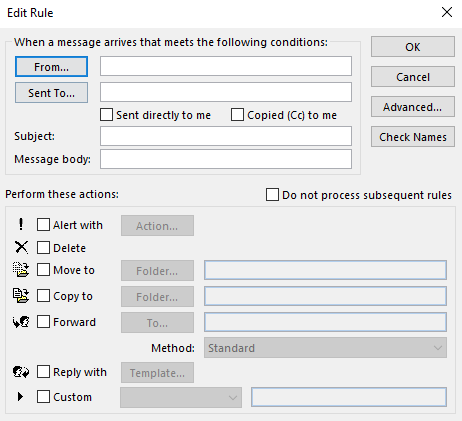](https://docs.northshorecollege.edu/uploads/images/gallery/2022-10/g9iZMfVXGww9Uq87-rulesconditions.png) ### Create an OOO in the web app. 1.) 1. Sign into Gatormail like normal. At the top right corner, select the **Settings** icon. [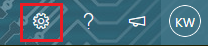](https://docs.northshorecollege.edu/uploads/images/gallery/2022-10/lOyNSLUnnOfWQTY1-settings.png) 2\. At the bottom of the newly opened panel, click **View all Outlook settings.** **[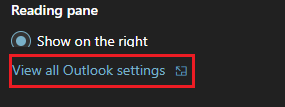](https://docs.northshorecollege.edu/uploads/images/gallery/2022-10/6uxpbrOqwkQthUde-view-settings.png)** 3\. Select **Mail** then select **Automatic replies**. [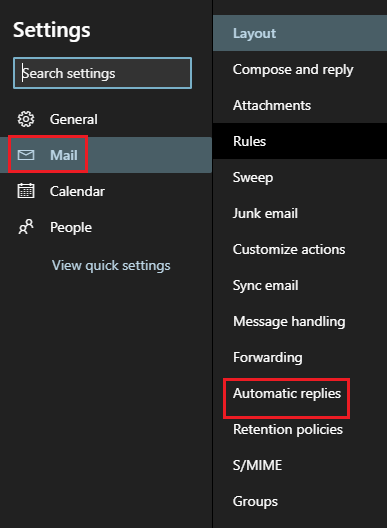](https://docs.northshorecollege.edu/uploads/images/gallery/2022-10/t8YlEIfiuXBUfq50-mail-replies.png) 4\. Click on the **Automatic replies on** button. Fill out like you would in the desktop app. 5\. Click **Save**. [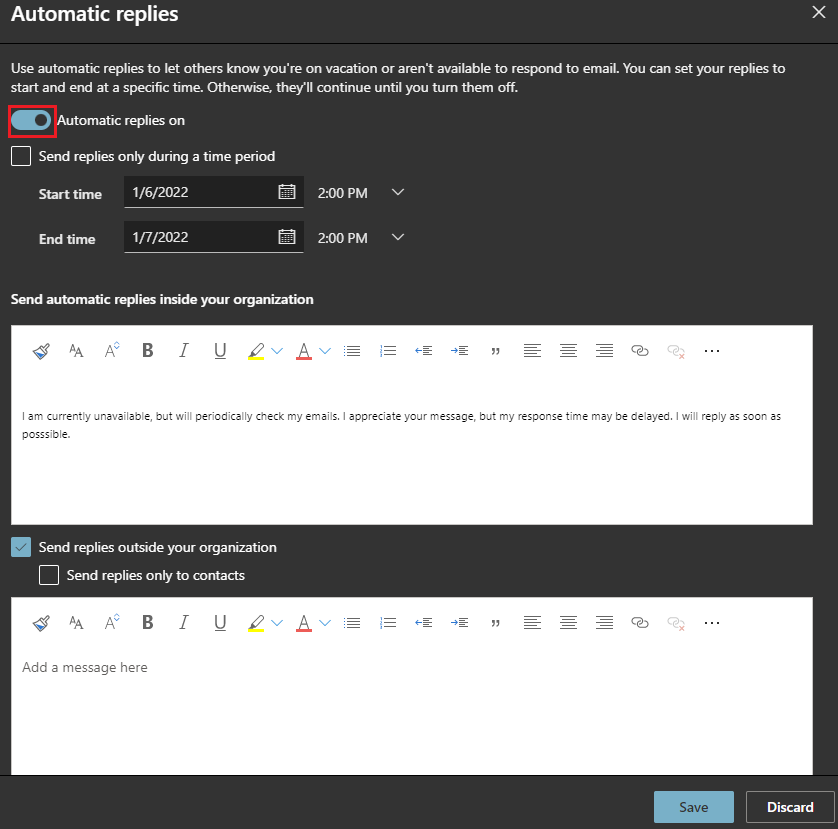](https://docs.northshorecollege.edu/uploads/images/gallery/2022-10/1vaUX7Q4mpfE3yBE-set-up-reply.png) # How to use Outlook to search employee phone numbers. ##### To use Outlook to lookup Faculty/Staff work phone numbers ### **Searching with desktop app.** 1.) Hover the mouse over **People.** **[](https://docs.northshorecollege.edu/uploads/images/gallery/2022-10/R8Syb3c1RuxOtRE5-outlook-people.png)** 2.) In the **Search People** bar, type the name of the person you are looking up. [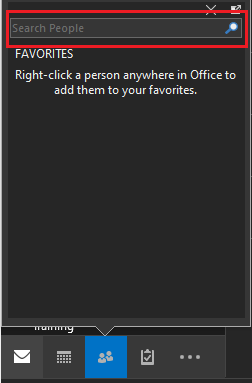](https://docs.northshorecollege.edu/uploads/images/gallery/2022-10/qZ5CcOkNNO06a0gr-search-people.png) 3.) Once you have started your search, you can hover over the name to expand details. Click the ▼ **Open Contact Card.** [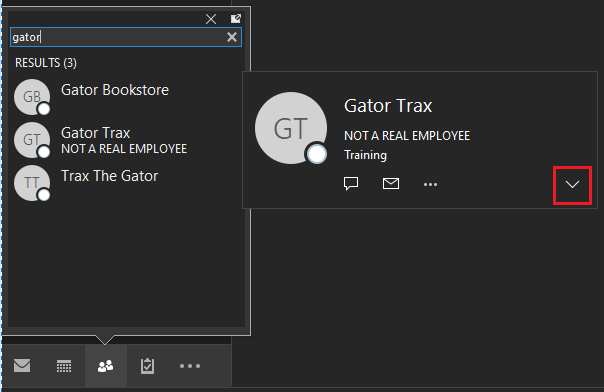](https://docs.northshorecollege.edu/uploads/images/gallery/2022-10/c4WlpMkptXXILMy0-open-contact.png) 4.) With the expanded view you can now see phone number. [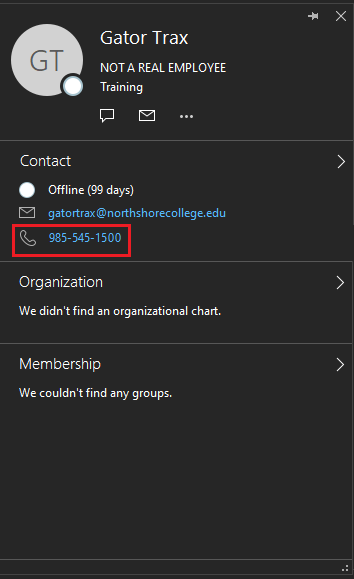](https://docs.northshorecollege.edu/uploads/images/gallery/2022-10/lv2I9DuNiKNKNXz2-phone.png) ### **Searching with the web app.** 1.) Select **People.** **[](https://docs.northshorecollege.edu/uploads/images/gallery/2022-10/jyblRYrAKxcn2fdN-people.png)** 2.) Type the name of the person in the search bar at the top of the page and click on that person. [](https://docs.northshorecollege.edu/uploads/images/gallery/2022-10/pyX5nWis6gG5sCSd-seach-contacts.png) 3.) Contact details are show. [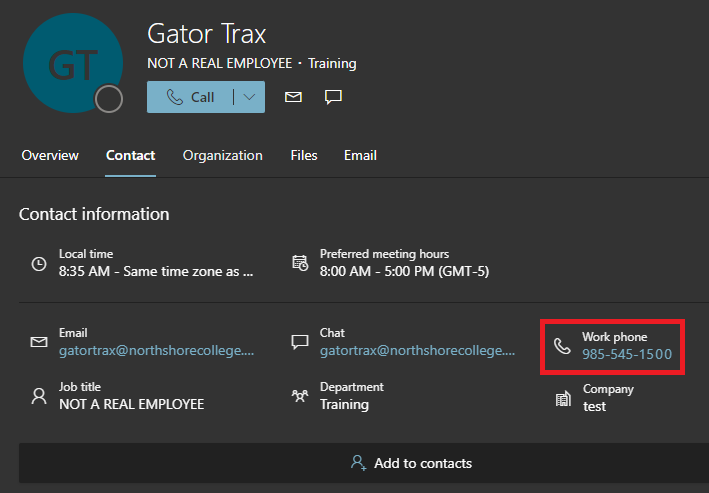](https://docs.northshorecollege.edu/uploads/images/gallery/2022-10/9YBFLqIiWh2jw552-webphone.png) # Reserving Rooms and Vehicles #### **Students are only permitted to book Learning Commons Collaboration Rooms (currently only Lacombe-Collaboration Room 201B)** Click on images to enlarge. ### **Reserving through desktop app.** 1.) Go to **Calendar** and select **New Appointment** at the top tool bar. [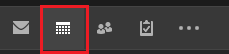](https://docs.northshorecollege.edu/uploads/images/gallery/2022-10/1RQsxLjP8WVjY8XQ-outlookcalendar.png) [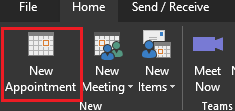](https://docs.northshorecollege.edu/uploads/images/gallery/2022-10/k7CBUbAyeqkZGm5p-new-appointment.png) 2.) Click **Invite Attendees.** [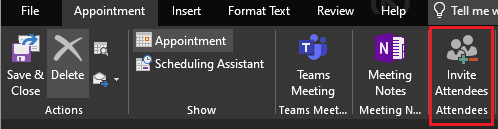](https://docs.northshorecollege.edu/uploads/images/gallery/2022-10/ZPkHgIIb6nnNqqUr-outlook-attendees.png) 3\. Click **Rooms...** at the end right-hand side of the window under Subject. [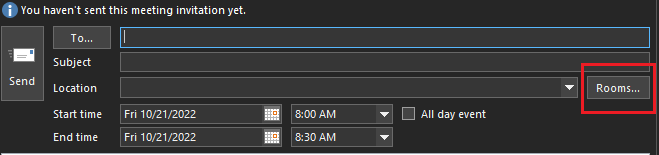](https://docs.northshorecollege.edu/uploads/images/gallery/2022-10/3jZ5zjADzWOeELdJ-outlook-rooms.png) 4\. Select the vehicle or room you wish to reserve. 5\. Click **Rooms** so that the bar next to it shows the one you want. 6\. Click **OK**. 7\. Fill out the rest of the details and click **Send** 8\. Once you send the appointment, you will receive an email stating that the appointment has been set on the calendar. If the vehicle or room requires approval, the approver will receive an email notifying him or her of your request. You will be notified once the approver approves or declines the request. [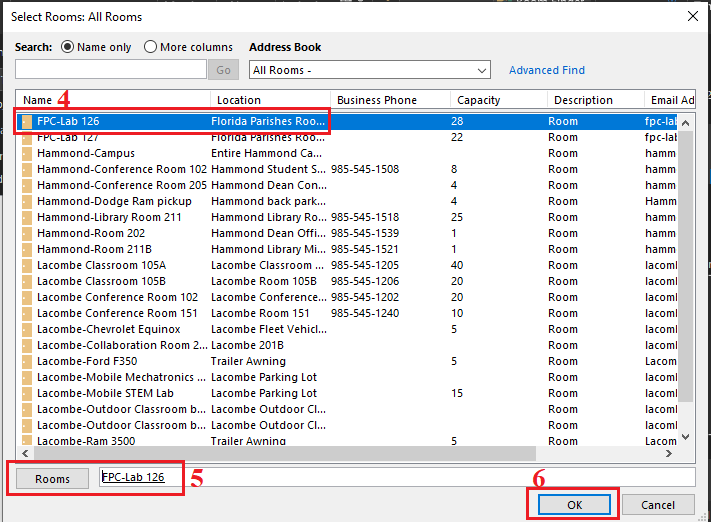](https://docs.northshorecollege.edu/uploads/images/gallery/2022-10/iI4zncPq1Fq0DUu7-outlook-room-choice.png) ### **Reserving through webmail.** 1.) In webmail, go to **Calendar** and select **New Event** at the top tool bar. [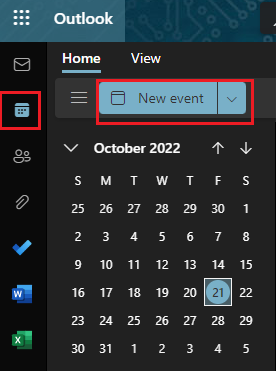](https://docs.northshorecollege.edu/uploads/images/gallery/2022-10/KLBdhOv52GZVtjBw-web-calendar.png) 2.) Click **Search for a room or location**. [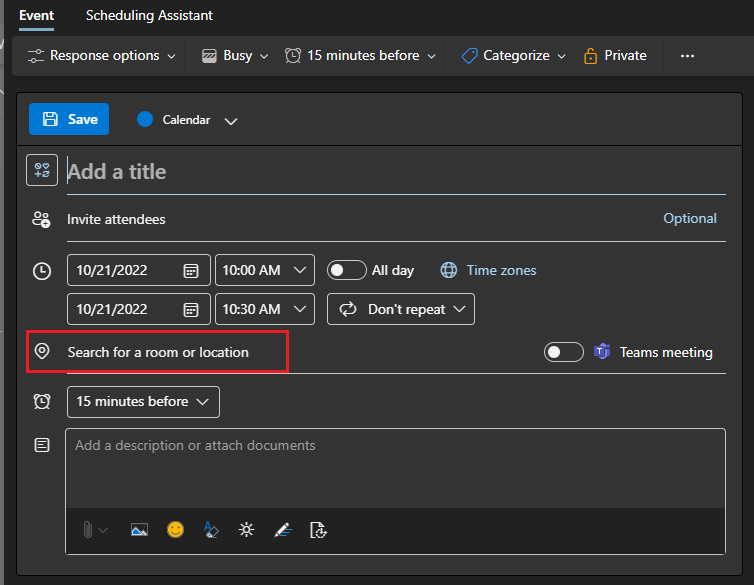](https://docs.northshorecollege.edu/uploads/images/gallery/2022-10/cK6dfcixTdZITSBQ-web-rooms.png) 3\. Type in the search bar the room or vehicle you are looking to reserve. 4\. Click on the location to select it. 5\. Fill out the rest of the details and click send. 6\. Once you send the appointment, you will receive an email stating that the appointment has been set on the calendar. If the vehicle or room requires approval, the approver will receive an email notifying him or her of your request. You will be notified once the approver approves or declines the request. [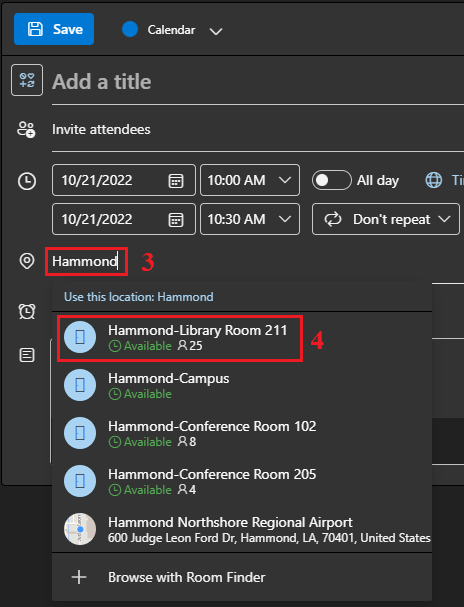](https://docs.northshorecollege.edu/uploads/images/gallery/2022-10/lYqhi7W9YQu2pkzK-web-locations.png) # How to view Rooms calendar. When you want to see if a room/vehicle is available. ## Using the desktop app. 1.) In the desktop app, click on the **Calendar** icon at the bottom. [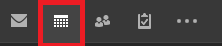](https://docs.northshorecollege.edu/uploads/images/gallery/2022-10/TbwP2rnPrEe0oAg8-image.png) 2.) At the top tool bar, click on **Open Calendar**. [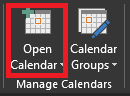](https://docs.northshorecollege.edu/uploads/images/gallery/2022-10/UStBRiMj6I8pOsuE-image.png) 3.) From the drop down list select **From Room List...** [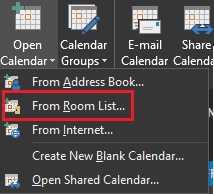](https://docs.northshorecollege.edu/uploads/images/gallery/2022-10/4Ap7l18H3dH9kKVX-image.png) 4.) Double click on room you wish to view then click **OK**. [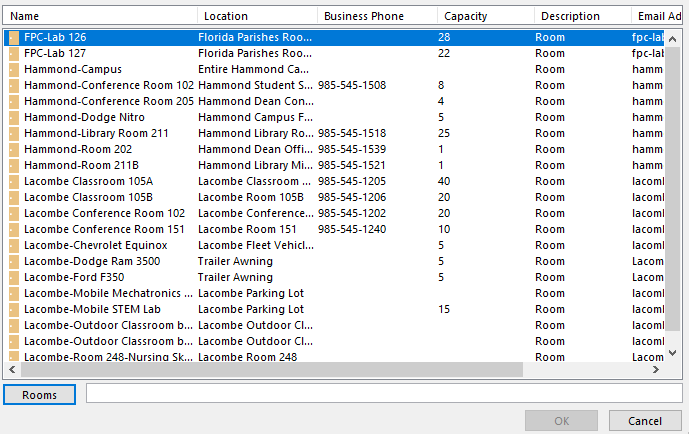](https://docs.northshorecollege.edu/uploads/images/gallery/2022-10/JsZvvP9DZtuy1L0x-image.png) 5.) Now you can view the room. [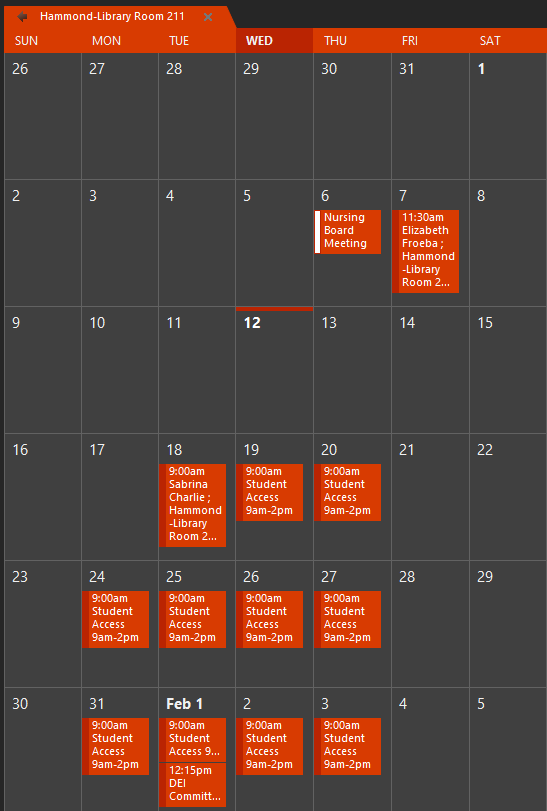](https://docs.northshorecollege.edu/uploads/images/gallery/2022-10/QjoH5biOGMH5DqYS-image.png) ### Using the web app. 1.) In the web app, click on the **Calendar** icon then select **Add calendar**. [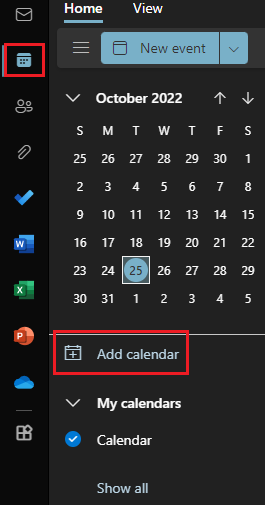](https://docs.northshorecollege.edu/uploads/images/gallery/2022-10/FJsYoysGLEPKrHMl-web-calendar.png) 2.) Click **Add from directory** then type the name of the vehicle or room you wish to add. [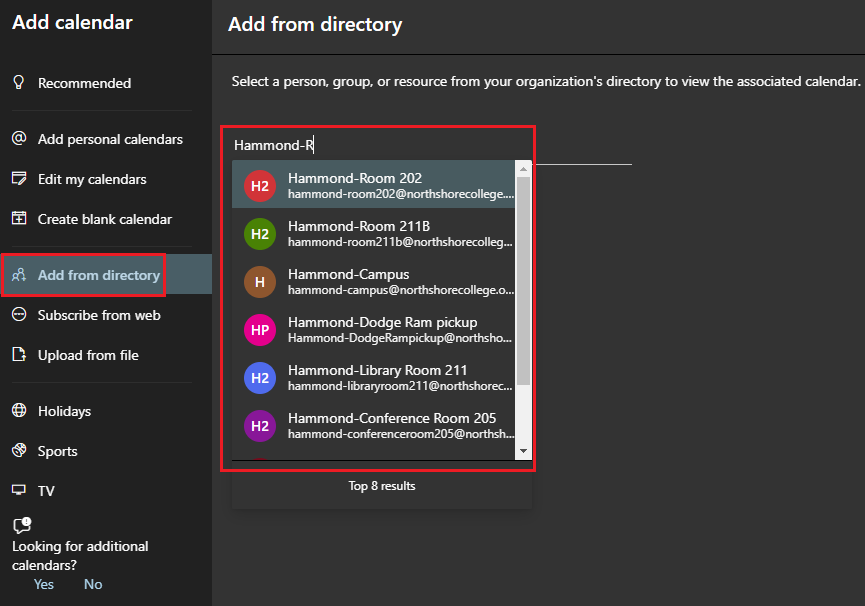](https://docs.northshorecollege.edu/uploads/images/gallery/2022-10/zenC1KdyrE1IyAKU-room-calendar.png) 3.) Under **Add to,** use the drop down box to select **Rooms**. Click **Add**. [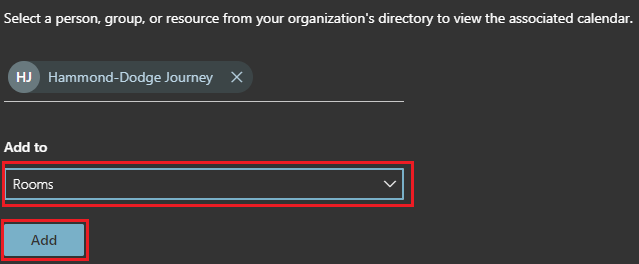](https://docs.northshorecollege.edu/uploads/images/gallery/2022-10/2ZSWmG2UflIvdocT-room-add.png) 4.) You can select the calendar to view it. [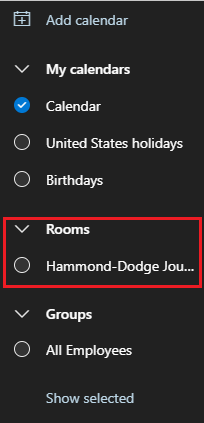](https://docs.northshorecollege.edu/uploads/images/gallery/2022-10/Xgx4FnbiJaCSmrAb-calendar-drop-down.png) # What is my NTCC employee email? - #### Your email is your LoLA username+@northshorecollege.edu such as gatortrax1@northshorecollege.edu - #### Your username is the first part of your email without the @northshorecollege.edu - #### Always use lowercase for username and emails.Sometimes your username is not the same as your LoLA. Your supervisor will inform you if this is the case.
# Scheduling Recurring Events ### Introduction Scheduling recurring events is a great way to better define when an event that is spanning multiple days is occurring on your calendar. For example, a meeting that is happening Monday through Wednesday between 9am and 4:30pm. ### Step-by-Step #### Webmail 1. Log into your NTCC webmail, then go to the calendar 2. Click on New Event 1. [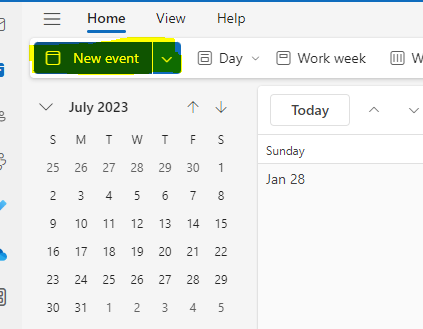](https://docs.northshorecollege.edu/uploads/images/gallery/2024-02/xakEfm2lKYagNWcw-image.png) 3. Select the date and times that the first day of the multi-day event occurs 1. [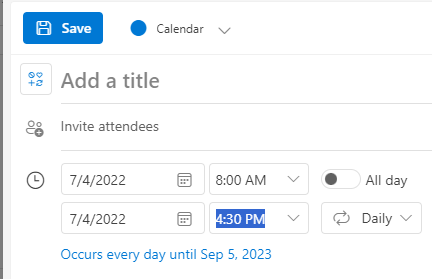](https://docs.northshorecollege.edu/uploads/images/gallery/2024-02/wC1T9qdlamR0gbL1-image.png) 4. Select Daily under the repeat dropdown 1. [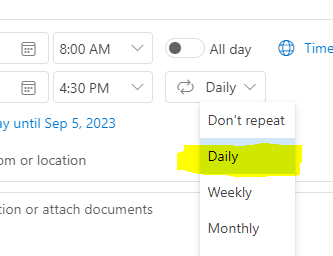](https://docs.northshorecollege.edu/uploads/images/gallery/2024-02/wJQQ5N9UtVUGbtoe-image.png) 5. Choose to repeat the event every day applicable. Be sure to set the end date to the last day of the event 1. [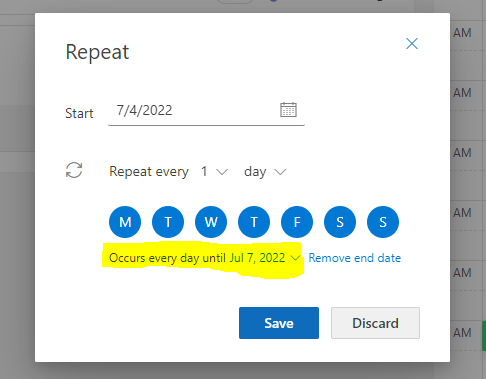](https://docs.northshorecollege.edu/uploads/images/gallery/2024-02/UEX9ZwbTIgJOyxW8-image.png) # Organizational Chart There may be times when you need to determine who a person reports to, or who are a person's direct reports. Office 365 has this information available. Please note that some employees have multiple supervisors. In cases where a person has multiple supervisors, only that employee's primary supervisor is listed. ### Webmail 1\. From webmail, click the People icon in the left-hand column [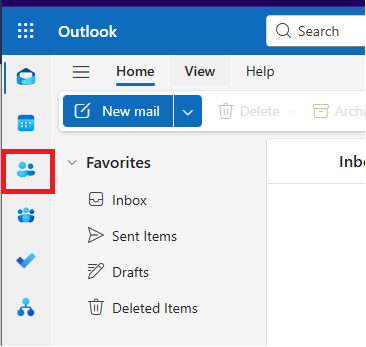](https://docs.northshorecollege.edu/uploads/images/gallery/2025-08/zQdCcnFesQ5yF5K6-image.png) 2\. Use the search bar at the top of the screen to search for the desired person [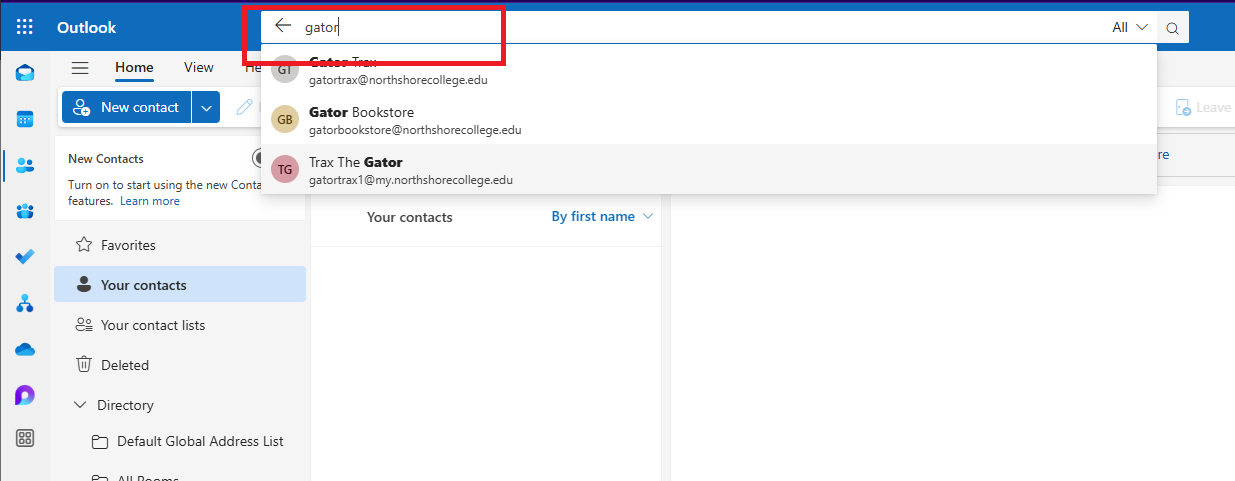](https://docs.northshorecollege.edu/uploads/images/gallery/2025-08/9vJ4bd6Zuf5IPfBx-image.png) 3\. Click on the person's name, and their contact card will show [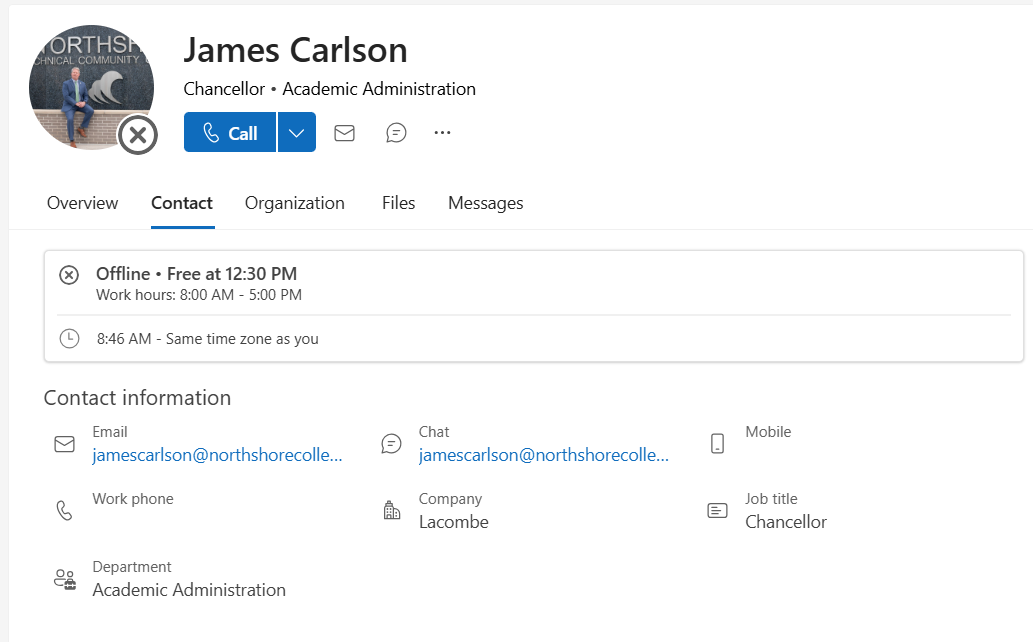](https://docs.northshorecollege.edu/uploads/images/gallery/2025-08/A0o8ww8ZxFBUO2vE-image.png) 4\. Click the organization button to show the organizational chart [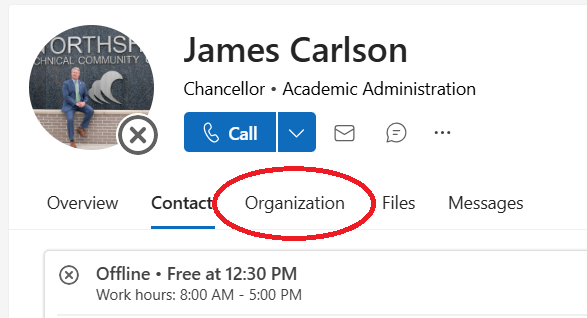](https://docs.northshorecollege.edu/uploads/images/gallery/2025-08/AGm1YjMw31qknk0d-image.png) 5\. The organizational chart will be visible and show who the person reports to and their direct reports [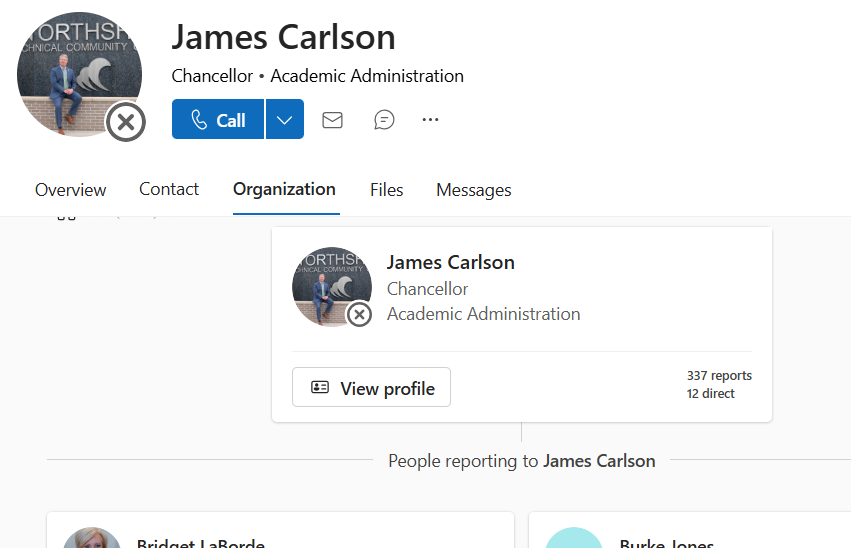](https://docs.northshorecollege.edu/uploads/images/gallery/2025-08/3LrLBi2RGEVS0hgH-image.png) ### Microsoft Teams Desktop 1\. Open Teams and search for the person in the top search bar [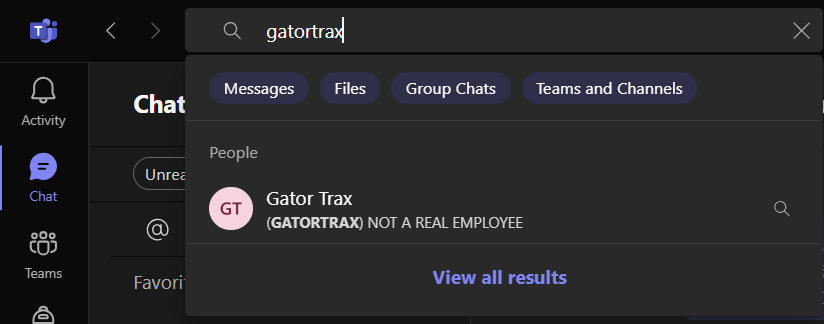](https://docs.northshorecollege.edu/uploads/images/gallery/2025-08/7DuJgUkXmKKBY1bs-image.png) 2\. Click on the person's name in the results. This will bring up a chat window for the person [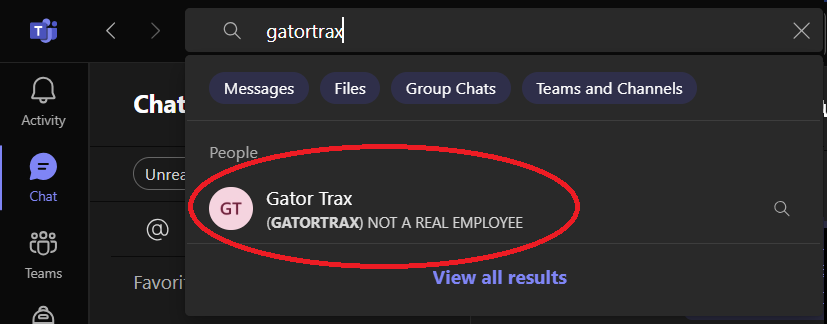](https://docs.northshorecollege.edu/uploads/images/gallery/2025-08/ZZ7umL7mmcTUaYSw-image.png) 3\. In the top of the chat window, click on the person's name. You may have to click on their name twice to bring up the full contact card. Click on the organization tab to show the organizational chart. [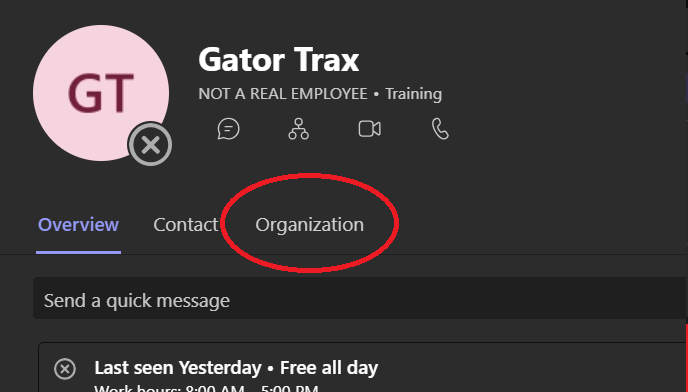](https://docs.northshorecollege.edu/uploads/images/gallery/2025-08/Bkbws2FCfnDBbGsN-image.png)