Note: You can have multiple jobs sent and choose which ones you want to print. This can be very handy in situations where confidentiality is needed as it allows you to print only when you are at that copier.
If you get the PCL error after printing, try printing without duplexing (back and front) and staples. Follow-me sometimes has issues handling these requests.
# How to use the Kyocera Staple/Punch ##### Kyocera copiers use special staples. Please do not try to load any other kind of staples. ### **On the Kyocera physical copier.** 1.) Scan your ID card to access the print screen. 2.) Select **Device Functions** and go through the prompts. [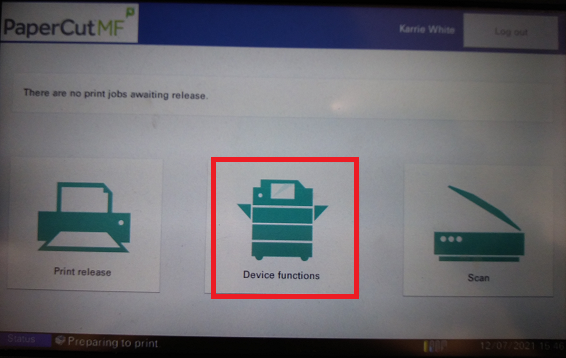](https://docs.northshorecollege.edu/uploads/images/gallery/2022-10/lXyXExz7NxGcamNH-kyocera-device-functions.png) 3\. Select the **Org./Paper/Finisher** Tab. [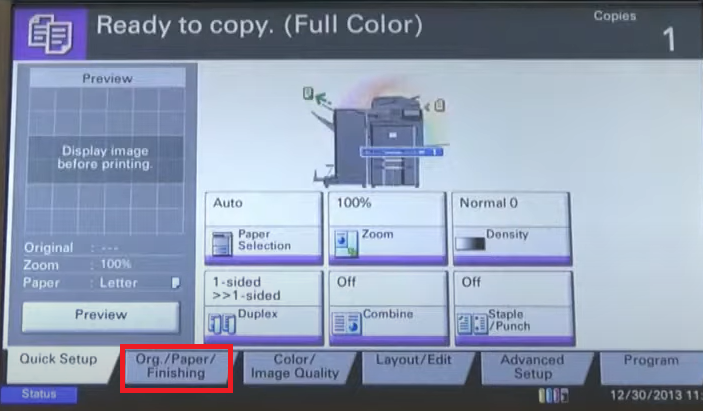](https://docs.northshorecollege.edu/uploads/images/gallery/2022-10/2ZwF39gJrFO4JBVm-kyocera-finisher.png) 4\. Select **Staple/Punch** function. [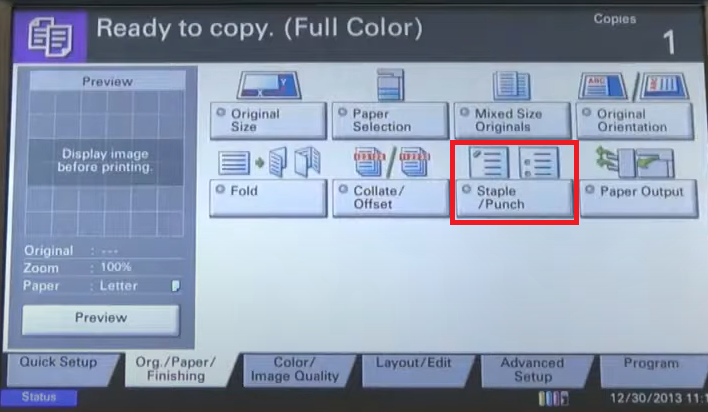](https://docs.northshorecollege.edu/uploads/images/gallery/2022-10/0gjjw7N6oGxLSmaB-kyocera-staple-punch.png) 5\. For staples: Select staple location. For hole punch: Select hole punch location. Both of these would depend on where you would like the staple/punch to go. 6\. Select **OK** 7\. Place originals in the document processor and press **Start**. [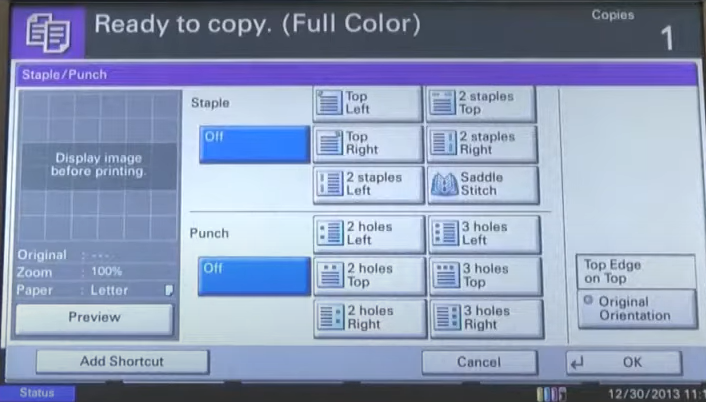](https://docs.northshorecollege.edu/uploads/images/gallery/2022-10/nOiA04ZLPlIWHbc8-kyocera-settings.png) ### **On the printer settings in the computer.** 1.) When you go to print, select **Printer Preference** before you print. 2.) When the Kyocera printer preference screen pop ups, click on **Finishing**. [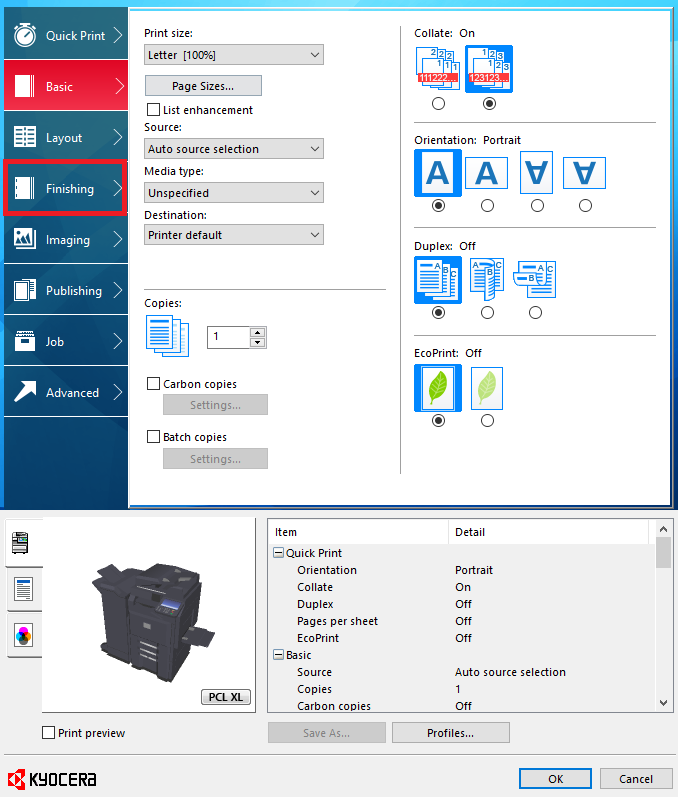](https://docs.northshorecollege.edu/uploads/images/gallery/2022-10/EBVkx71JKO2Ey7wj-print-pref-finishing.png) 3\. Choose your options for punch holes or staples. You have to enable the check box for staples if you want to use it. 4\. Click **OK** and then print as normal. [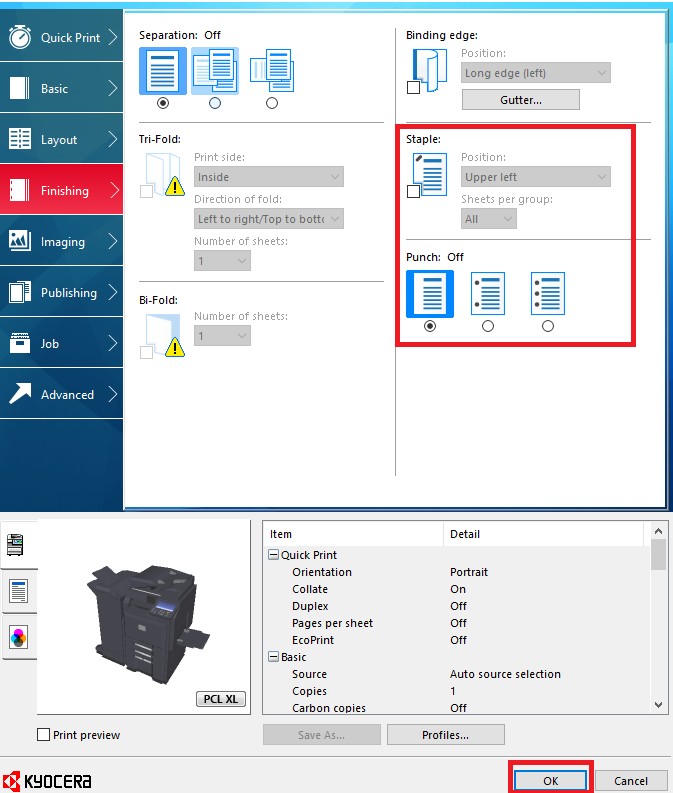](https://docs.northshorecollege.edu/uploads/images/gallery/2022-10/kBgGNnqRAMGHxe6I-print-staple-punch.png) # Teaching Assistant on Copiers ### How to find Teaching Assistant on the new copier. 1.) Use your badge to sign into the copier. [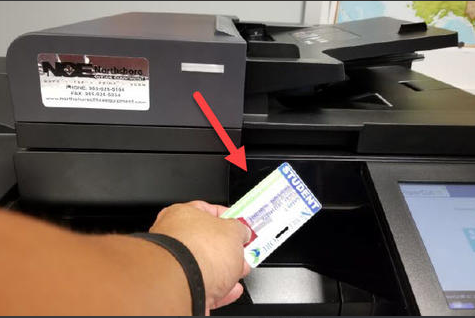](https://docs.northshorecollege.edu/uploads/images/gallery/2022-10/qR5pasjV5NGyNZnQ-scan-id.png) 2.) Select **Device Functions**. [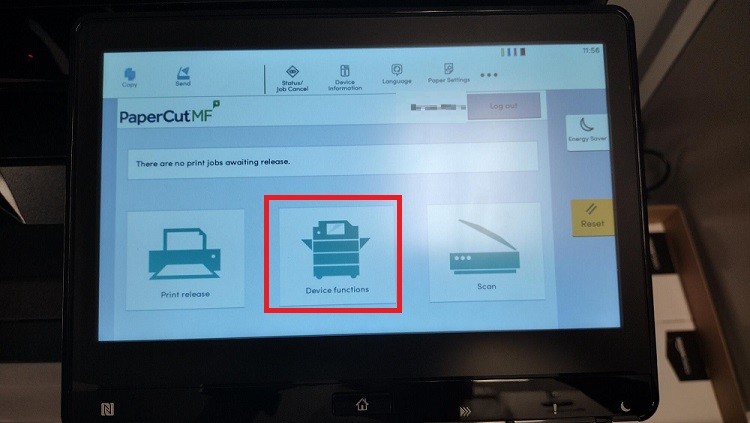](https://docs.northshorecollege.edu/uploads/images/gallery/2023-04/UAcJD3iH0FqTZeHU-devicefunctions.jpg) 3\. Select **Next**. [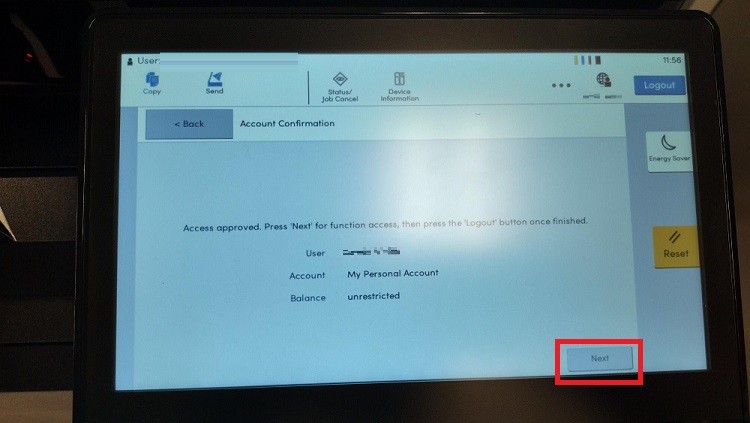](https://docs.northshorecollege.edu/uploads/images/gallery/2023-04/NhI9DjvvZgDgznPj-next.jpg) 4\. Select the **Home** button at the bottom of the screen. It is a physical button. [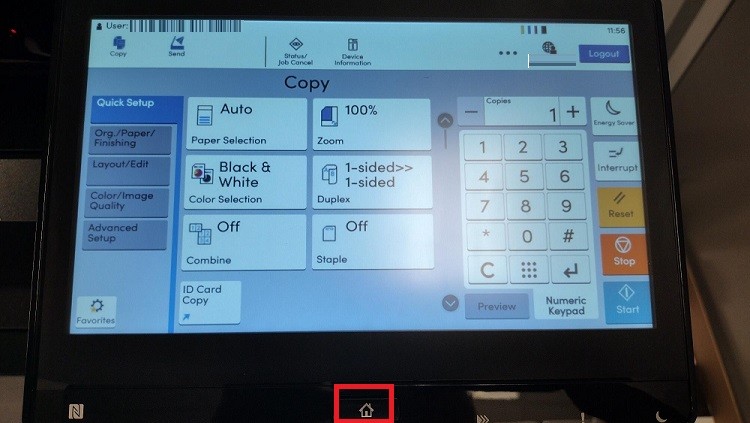](https://docs.northshorecollege.edu/uploads/images/gallery/2023-04/ms32yu2utn6dsNz8-home.jpg) 5.) Select **Teaching Assistant.** [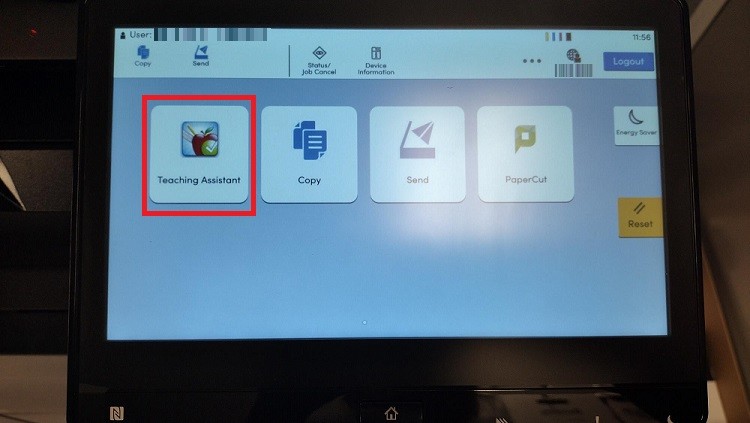](https://docs.northshorecollege.edu/uploads/images/gallery/2023-04/nBgysYcWKraD56fn-teaching-assistant.jpg) # Copier paper jam and other technical issues. - #### For any issue relating to the Kyocera copiers, call the number for Northshore Office Equipment listed on the silver tag on the front of the copy machine. NTCC IT does not service the copy machines. - #### If it is an issue using your ID badge to sign in or scans not sending, please submit a helpdesk ticket. Papercut service is the only function on the copiers that NTCC IT will work to correct. # Student Worker Printing 1. When printing as a student worker, you must make sure **Papercut** is showing. You may have to click **Run** on a box that ask for Papercut to run. 2. Print like normal, but send the print job to **Follow-Me** printer. 3. Click on the option for **Charge to shared account** when the box pops up.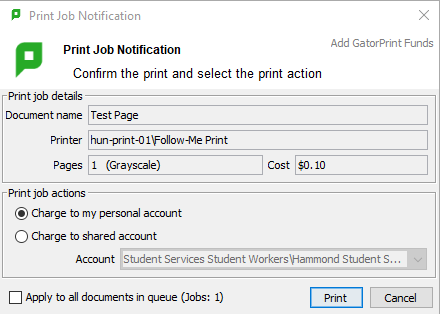 4. Go to the copier and scan your ID card. [Check out how to associate your student account with your ID.](https://docs.northshorecollege.edu/books/services/page/associate-college-id-with-papercutgatorprint) # Email/Office 365 Northshore Technical Community College uses Microsoft's Office 365 for email. # What is my student email address? #### Your student email address is your LoLA user name followed by "**@my.northshorecollege.edu**". For example, a student named Steve Jobs would have the LoLA user name "stevejobs". His email address would be stevejobs@my.northshorecollege.edu. #### Please use your full email address to log into your email. ##### NOTICE: Sometimes your email may contain an number behind it depending on how my other students have the same last name as yours. # How do I log into my NTCC email account? #### ATTENTION: All NEW students will need to reset their password with Password Reset Tool before logging into their College email account for the first time. ### **To reset your password.** 1.) Go to [www.northshorecollege.edu](http://www.northshorecollege.edu/) and select the **GatorMail** link located on the top menu bar. [](https://docs.northshorecollege.edu/uploads/images/gallery/2022-10/CbXOBxPuE4O6ODiu-gatormail.png) 2.) Scroll down till you see the **[GatorMail Password Reset Tool](https://password.northshorecollege.edu/accounts/Reset)**. Click on the link. [](https://docs.northshorecollege.edu/uploads/images/gallery/2022-10/JE7EWbXo4aLvfc9B-password-reset-tool.png) 3.) Enter the part of your username that is before the **@my.northshorecollege.edu**. It would be the same as your LoLA username. For NTCC faculty/staff it will be before **@northshorecollege.edu**. Click **Continue** **[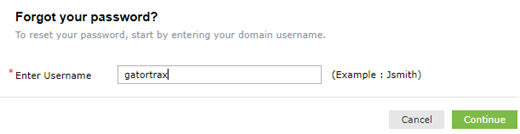](https://docs.northshorecollege.edu/uploads/images/gallery/2022-10/BvLg7ahl9t8pT1Jl-forgot-password.png)** 4.) Enter the last 4 of your Social Security Number in the field for the SSN 5.) **For Students**: Enter your birthday into the birthday field in the format MMDDYY. For example, if your birthday is July 4, 1976, you would enter 070476 **For Faculty/Staff:** It will generally be the 2 digit month and 2 digit day. No year. 6.) Enter the characters shown in the CAPTCHA picture and click **Continue** **[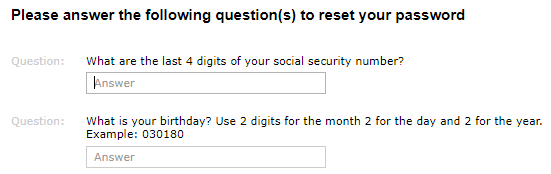](https://docs.northshorecollege.edu/uploads/images/gallery/2022-10/EEV8eNSMTlBK0Jki-password-questions.png)** 7.) Enter a password that meets all of the password requirements. When you have created a satisfactory password, all of the requirements will have a green check next to it 8.) Enter the characters shown in the CAPTCHA picture and click **Reset Password**. 9.) Wait 3 minutes for the password to sync to the cloud 10.) Log into your email at [http://northshorecollege.edu/webmail](http://northshorecollege.edu/webmail) [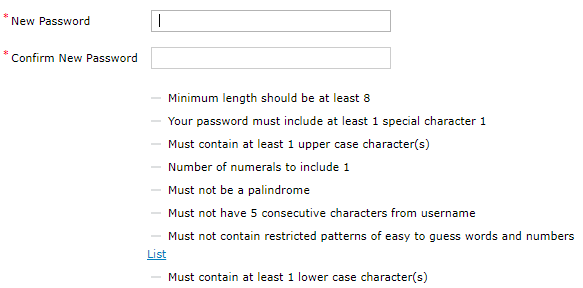](https://docs.northshorecollege.edu/uploads/images/gallery/2022-10/nmUN7f3mGYJW0ySV-create-password.png) ##### Reminder: Students use @**my.**northshorecollege.edu for their logins while Faculty/Staff use just the @northshorecollege.edu. If you are having trouble logging into your email, check to make sure this is correct. ### To log into your email account. ##### Please allow between 2 to 5 minutes before trying to log in after you reset your password so that the email servers will have time to sync your new password. Failure to do so will show an incorrect username/password error. Too many failures will lock your account and you will have to wait 15 minutes for the account to automatically unlock. **HOW TO LOGIN STUDENT EMAIL ACCOUNT** 1\. Go to [www.northshorecollege.edu/webmail](http://northshorecollege.edu/webmail) or [www.northshorecollege.edu](http://northshorecollege.edu/) and click on the GatorMail link on the home page. 2\. Scroll down the page and click on the "**GatorMail Login**" link 2\. Enter your full email address which is the same as your LoLA username + my.northshorecollege.edu (example: **LoLAusername@my.northshorecollege.edu**) 3\. Enter your email password (will **not** be the same password as your LoLA password) **HOW TO LOGIN FACULTY/STAFF EMAIL ACCOUNT** The same as the students except you will have @northshorecollege.edu instead. You will also be prompted for your 2-Factor Authentication. # How long can I use my student email address? ### You can use your NTCC student email address as long as you are a student. - ##### If you are graduating soon, please save any important information prior to your graduation date. - ##### Change out any accounts you have that use your student email to a personal one so you do not lose access to those accounts. # OneDrive When you need to add files/folders to your OneDrive. ## **Accessing the desktop app.** 1.) Click on the **Windows** button and scroll till you see **OneDrive**. 2.) Click on **OneDrive** [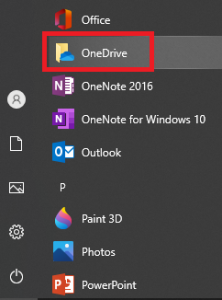](https://docs.northshorecollege.edu/uploads/images/gallery/2022-11/rbLUQmYzdpTh5AZl-onedrive.png)**If you have not set up your desktop OneDrive, you will be prompted to do so once you clicked on OneDrive. Follow the prompts to sign in.**
[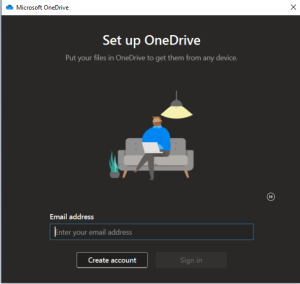](https://docs.northshorecollege.edu/uploads/images/gallery/2022-11/HIiVWBbv4WYnNfir-onedrive-sign-in.png)[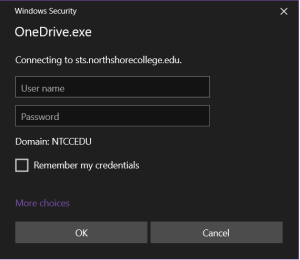](https://docs.northshorecollege.edu/uploads/images/gallery/2022-11/AYAr1cb3HVmUHNuv-od-sign-in.png) 3.) Your desktop OneDrive will look like any File Explorer for Microsoft. What you do in your desktop OneDrive will affect your web version of OneDrive and vise versa. [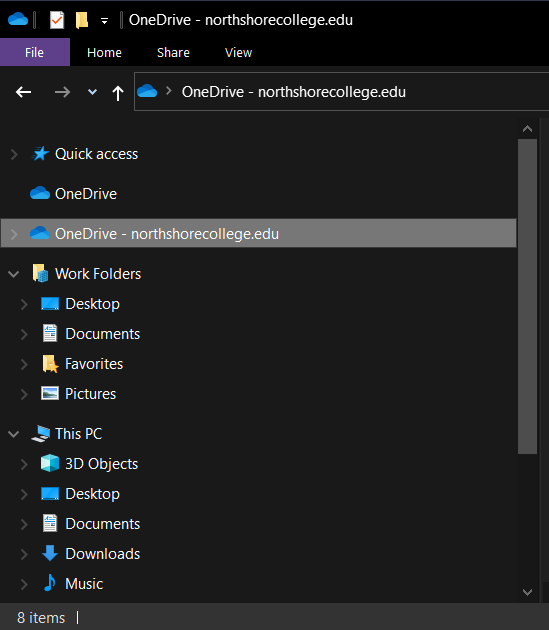](https://docs.northshorecollege.edu/uploads/images/gallery/2022-10/MelNA2Nh5EwHHi4U-onedrive.png) #### ## **Accessing the web version.** 1.) Log into your GatorMail like normal. 2.) Once you are in your Office 365, click on the **OneDrive** icon. [](https://docs.northshorecollege.edu/uploads/images/gallery/2022-11/dWfc57MKNBhauYNo-webversion-onedrive.png) 3.) You are now in your OneDrive and can add/remove/share files as needed. To share: [Sharing OneDrive files](https://kb.northshorecollege.edu:8443/display/ITST/Sharing+Teams+Recordings) Sharing can only be done in the web version. [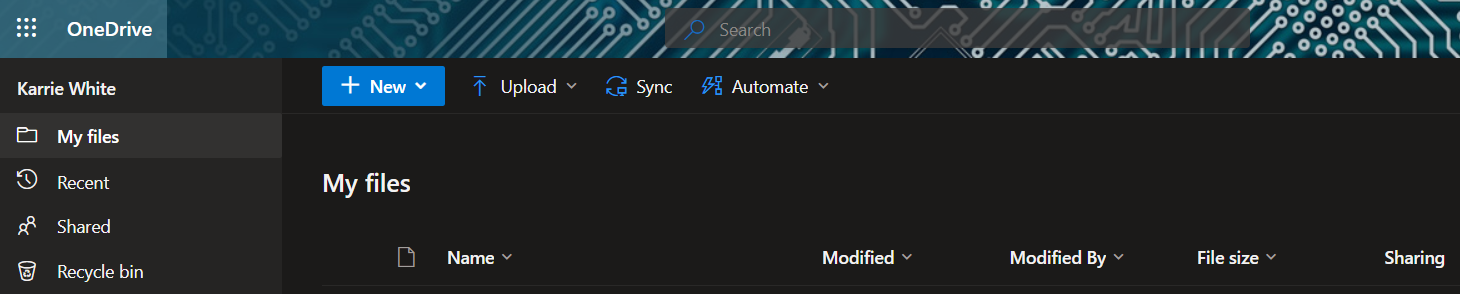](https://docs.northshorecollege.edu/uploads/images/gallery/2022-11/lQRwvfAt5agGkQep-share-web.png) # How to open a shared email mailbox. [This page has been moved. The page can now be found in Confluence.](https://ntcc.atlassian.net/wiki/spaces/IT/pages/137461761/Log+into+a+shared+mailbox) # How to create a signature in Outlook ##### When you want to have a customized signature in your emails. Click on images to enlarge. ## **Creating a signature in the desktop app.** 1.) After opening the Outlook desktop app, select the **File** tab. [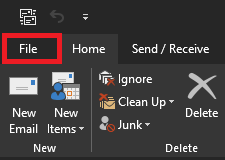](https://docs.northshorecollege.edu/uploads/images/gallery/2022-10/mCur3QAN3xQVJ4b5-file.png) 2.) Click on **Options.** **[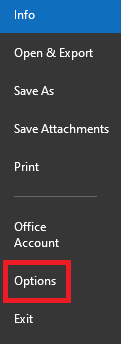](https://docs.northshorecollege.edu/uploads/images/gallery/2022-10/LuJBvOz3KgMcJ6zn-options.png)** 3\. Click on **Mail** then click on **Signatures.** **[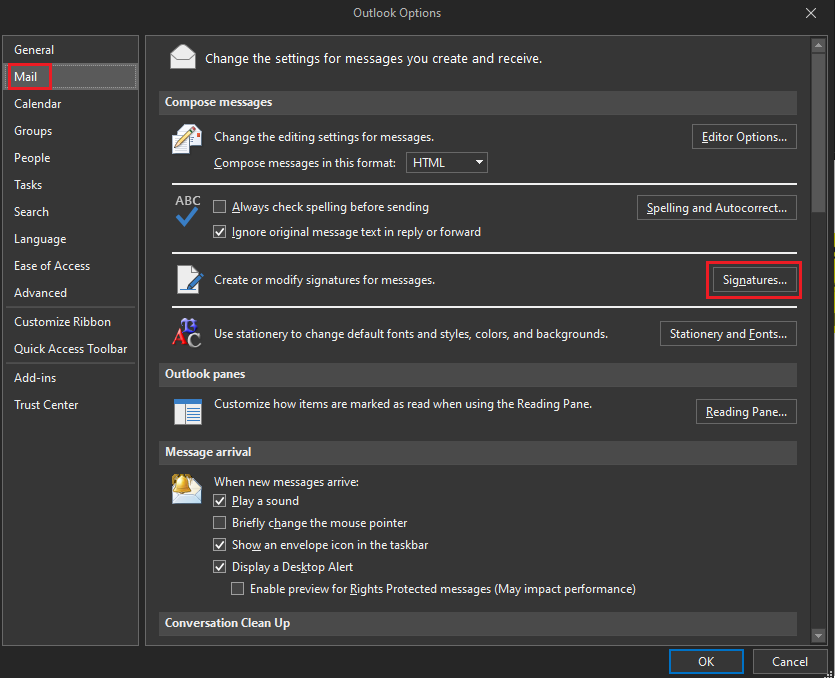](https://docs.northshorecollege.edu/uploads/images/gallery/2022-10/cmHzH7u3CNedxi0D-signature.png)** 4\. Click **New** and type what your want the signature to be called then **OK**. [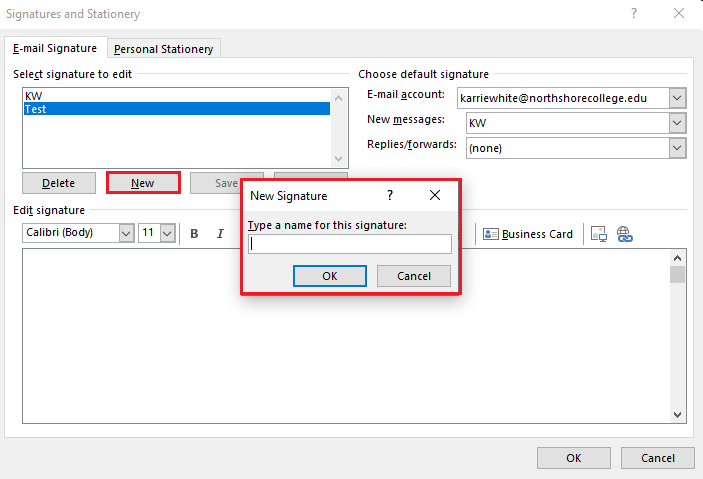](https://docs.northshorecollege.edu/uploads/images/gallery/2022-10/iwQ9v1vgZ5IcR6Rp-name.png) 5\. Write your message in the **Edit signature** box. **Note**: Make sure you use the drop down box for **New messages:** to select the signature you want to use. You can also choose to have it for replies and forwards as well. 6\. Click **OK.** **[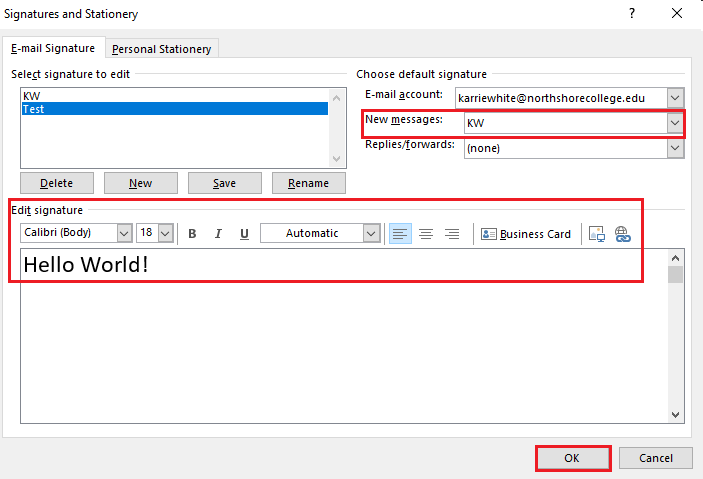](https://docs.northshorecollege.edu/uploads/images/gallery/2022-10/TAO6h6m6zQWzDzvW-save.png)** ### **Creating a signature in the web app.** 1.) Sign into Gatormail like normal. At the top right corner, select the **Settings** icon. [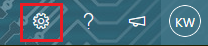](https://docs.northshorecollege.edu/uploads/images/gallery/2022-10/owUYlmTozfqMjYyL-settings.png) 2. At the bottom of the newly opened panel, click **View all Outlook settings.** [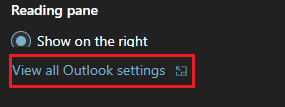](https://docs.northshorecollege.edu/uploads/images/gallery/2022-10/4Iwu9eRRAV2EyqDw-view-outlook.png) 3. Select **Mail** then select **Compose and reply**. [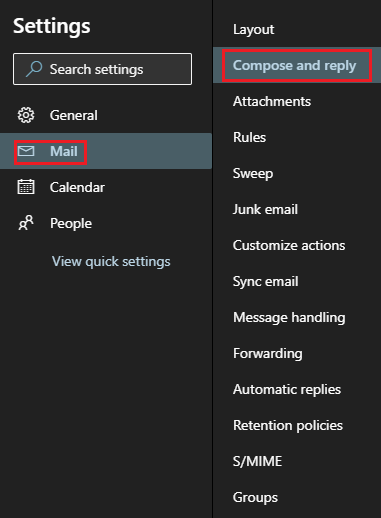](https://docs.northshorecollege.edu/uploads/images/gallery/2022-10/HlYdWq5HxZOH24Lt-mail.png) 4\. Click **+ New signature**. 5\. In **Edit signature name** create a name to identify your signature. 6\. Create your message for the signature. 7\. Make sure you use the drop down box for **New messages:** to select the signature you want to use. You can also choose to have it for replies and forwards as well. 8\. Click **Save**. [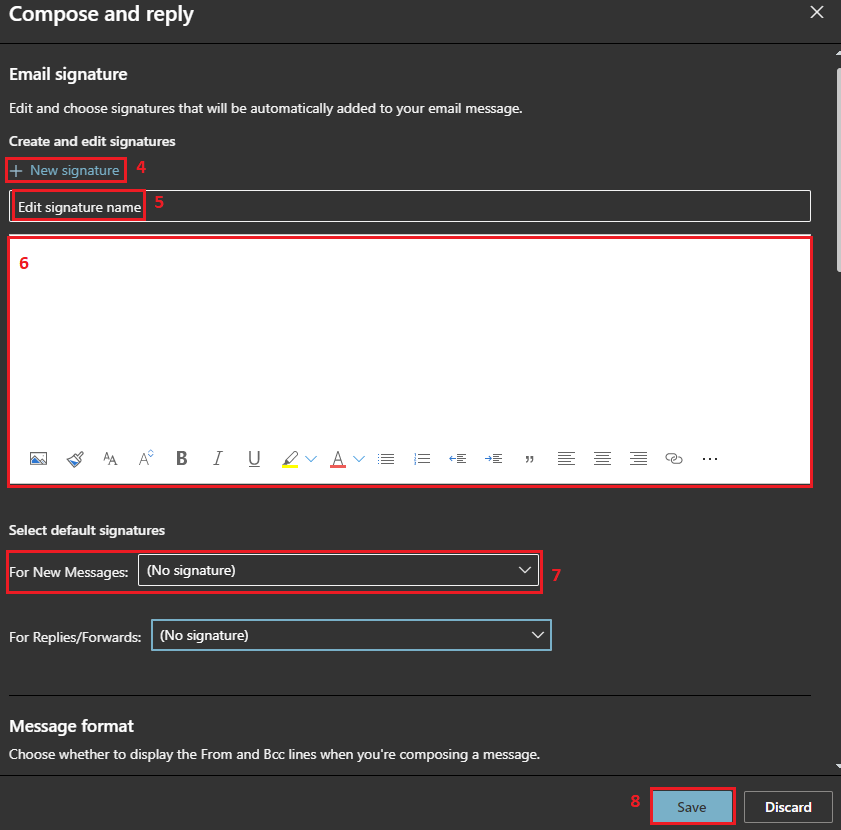](https://docs.northshorecollege.edu/uploads/images/gallery/2022-10/OJ9LiWSMDpG8BL2i-options.png) # How to create a Contact List in Office 365 ##### Use a contact group (formerly called a “distribution list”) to send an email to multiple people Click on the images to enlarge. ### **Desktop Guide** 1.) Select **People**. **[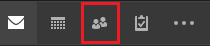](https://docs.northshorecollege.edu/uploads/images/gallery/2022-10/R8Syb3c1RuxOtRE5-outlook-people.png)** 2\. Select **New Contact Group**. [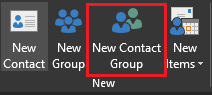](https://docs.northshorecollege.edu/uploads/images/gallery/2022-10/Mqc3Z7ljGX1tMBGG-new-contact-group.png) 3.) Name your group. [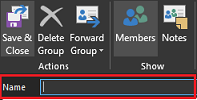](https://docs.northshorecollege.edu/uploads/images/gallery/2022-10/LMvfNbDh8rQCO9lQ-name-group.png) 4.) Select **Add Members.** **[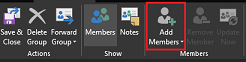](https://docs.northshorecollege.edu/uploads/images/gallery/2022-10/Lo5Xkx03loGoBpTi-add-memebers.png)** 5.) Choose **From Outlook Contacts** to add people from your contacts. Choose **From Address Book** to add people within the NTCC Global Address list. [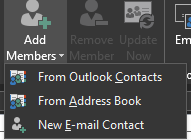](https://docs.northshorecollege.edu/uploads/images/gallery/2022-10/jLNc7Mfw8JFLAQpM-search-contacts.png) 6\. **Save & Close** [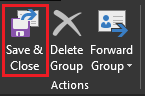](https://docs.northshorecollege.edu/uploads/images/gallery/2022-10/XNzcorodKVDgdLHL-save.png) ### **Webapp Guide** 1.) Select **People.** **[](https://docs.northshorecollege.edu/uploads/images/gallery/2022-10/jyblRYrAKxcn2fdN-people.png)** 2.) Select **Your contact lists.** **[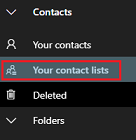](https://docs.northshorecollege.edu/uploads/images/gallery/2022-10/V43LPgOWZzHCnmpj-your-contact-list.png)** 3\. Select **+Create a contact list.** [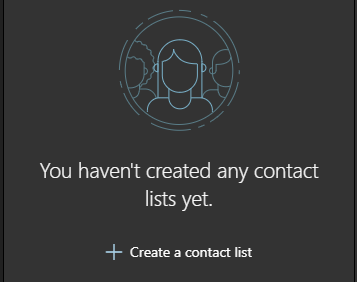](https://docs.northshorecollege.edu/uploads/images/gallery/2022-10/pHqQ1RiQhlJXnuys-create-a-contact-list.png) 4\. Name your list 5\. Type the names to search and add emails 6\. **Create** **[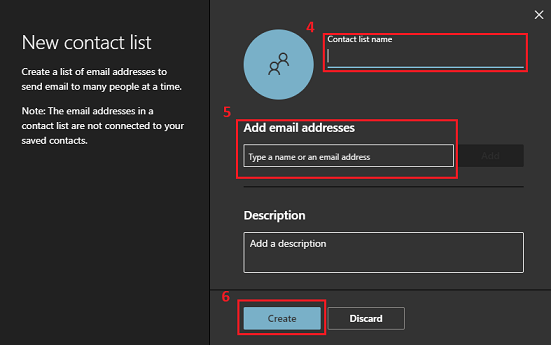](https://docs.northshorecollege.edu/uploads/images/gallery/2022-10/dslZ3lUKexb9sAWL-new-contact.png)** # How to create an Out of Office message in Outlook ##### When you need to have an automated message sent when not in office. ### Create an OOO on desktop app. 1.) 1. After opening the Outlook desktop app, select the **File** tab. [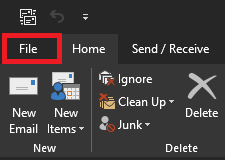](https://docs.northshorecollege.edu/uploads/images/gallery/2022-10/zWVhx6rjhx3KEdYW-outlook-file.png) 2.) Click on the **Automatic Replies** button. [](https://docs.northshorecollege.edu/uploads/images/gallery/2022-10/jOfrg9tueA0zipzS-ooo.png) 3.) Choose **Send automatic replies** 4.) Click the **Only send during this time range:** box. Then choose your dates and times when you will be out of office. 5.) Create your message. 6.) Click **OK**. [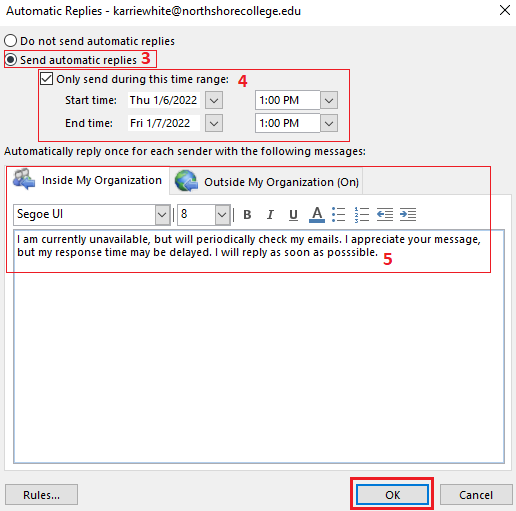](https://docs.northshorecollege.edu/uploads/images/gallery/2022-10/TWUKkSvlc8VwGUSW-ooosetup.png)**NOTE:** Best security practice is to give as little information about your absence as possible. No locations and if possible no dates. Avoid having the Outside My Organization or a contact if possible. If not possible, continue to provide as little as information as you can.
**OPTIONAL**: You can set up rules for your messages. On the left hand bottom corner click **Rules...** **[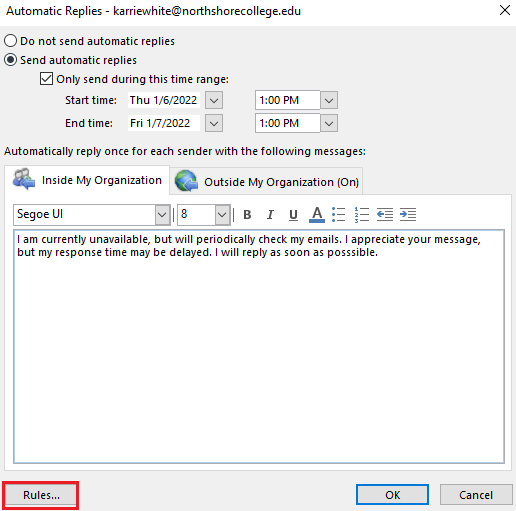](https://docs.northshorecollege.edu/uploads/images/gallery/2022-10/PO4e4AhTgG1zI4MA-oorules.png)** Click on **Add Rule...** **[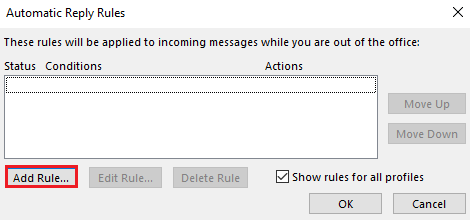](https://docs.northshorecollege.edu/uploads/images/gallery/2022-10/FsX0RJFnl8Zdews1-rulesadd.png)** Set up the various rules you wish to have, including automatic forwarding to certain individuals. You can create multiple rules to really customize your messages. [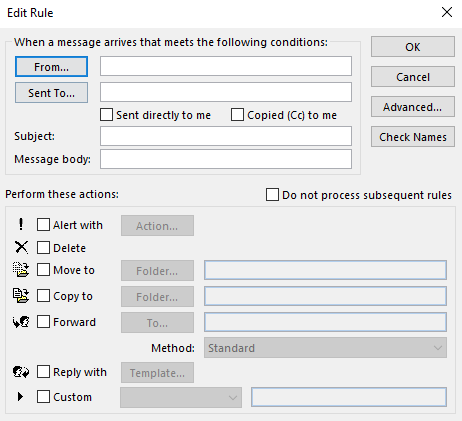](https://docs.northshorecollege.edu/uploads/images/gallery/2022-10/g9iZMfVXGww9Uq87-rulesconditions.png) ### Create an OOO in the web app. 1.) 1. Sign into Gatormail like normal. At the top right corner, select the **Settings** icon. [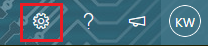](https://docs.northshorecollege.edu/uploads/images/gallery/2022-10/lOyNSLUnnOfWQTY1-settings.png) 2\. At the bottom of the newly opened panel, click **View all Outlook settings.** **[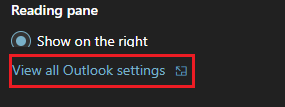](https://docs.northshorecollege.edu/uploads/images/gallery/2022-10/6uxpbrOqwkQthUde-view-settings.png)** 3\. Select **Mail** then select **Automatic replies**. [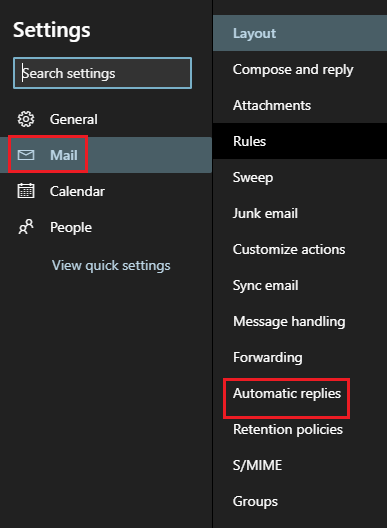](https://docs.northshorecollege.edu/uploads/images/gallery/2022-10/t8YlEIfiuXBUfq50-mail-replies.png) 4\. Click on the **Automatic replies on** button. Fill out like you would in the desktop app. 5\. Click **Save**. [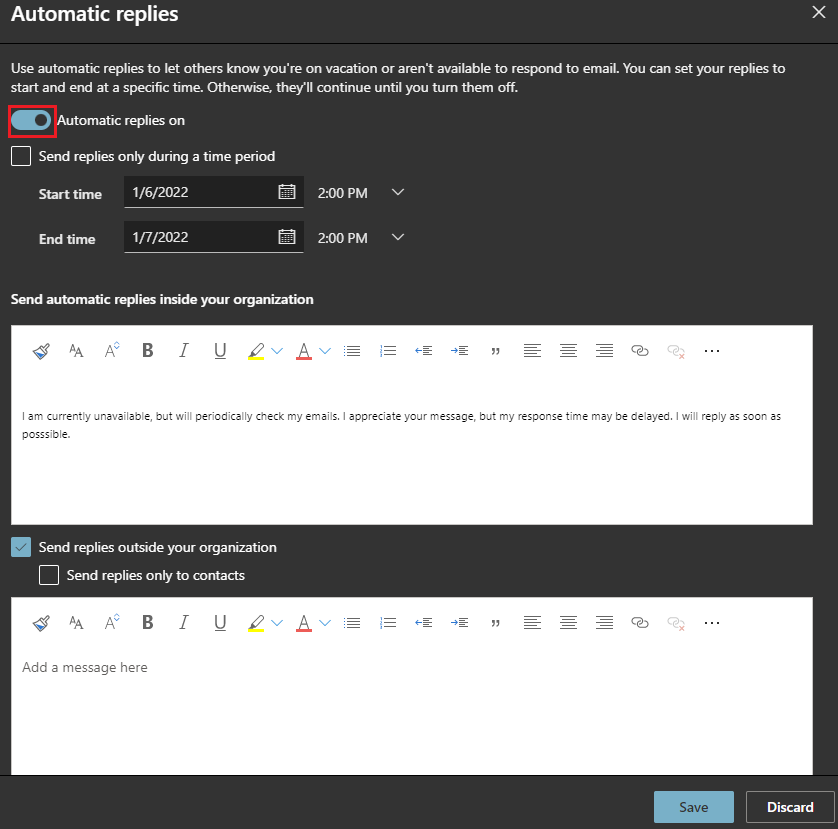](https://docs.northshorecollege.edu/uploads/images/gallery/2022-10/1vaUX7Q4mpfE3yBE-set-up-reply.png) # How to use Outlook to search employee phone numbers. ##### To use Outlook to lookup Faculty/Staff work phone numbers ### **Searching with desktop app.** 1.) Hover the mouse over **People.** **[](https://docs.northshorecollege.edu/uploads/images/gallery/2022-10/R8Syb3c1RuxOtRE5-outlook-people.png)** 2.) In the **Search People** bar, type the name of the person you are looking up. [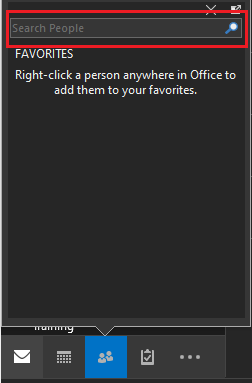](https://docs.northshorecollege.edu/uploads/images/gallery/2022-10/qZ5CcOkNNO06a0gr-search-people.png) 3.) Once you have started your search, you can hover over the name to expand details. Click the ▼ **Open Contact Card.** [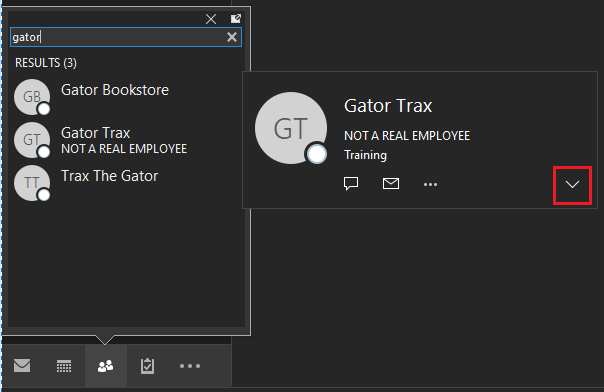](https://docs.northshorecollege.edu/uploads/images/gallery/2022-10/c4WlpMkptXXILMy0-open-contact.png) 4.) With the expanded view you can now see phone number. [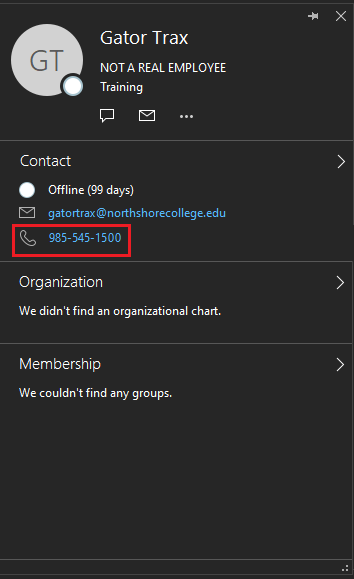](https://docs.northshorecollege.edu/uploads/images/gallery/2022-10/lv2I9DuNiKNKNXz2-phone.png) ### **Searching with the web app.** 1.) Select **People.** **[](https://docs.northshorecollege.edu/uploads/images/gallery/2022-10/jyblRYrAKxcn2fdN-people.png)** 2.) Type the name of the person in the search bar at the top of the page and click on that person. [](https://docs.northshorecollege.edu/uploads/images/gallery/2022-10/pyX5nWis6gG5sCSd-seach-contacts.png) 3.) Contact details are show. [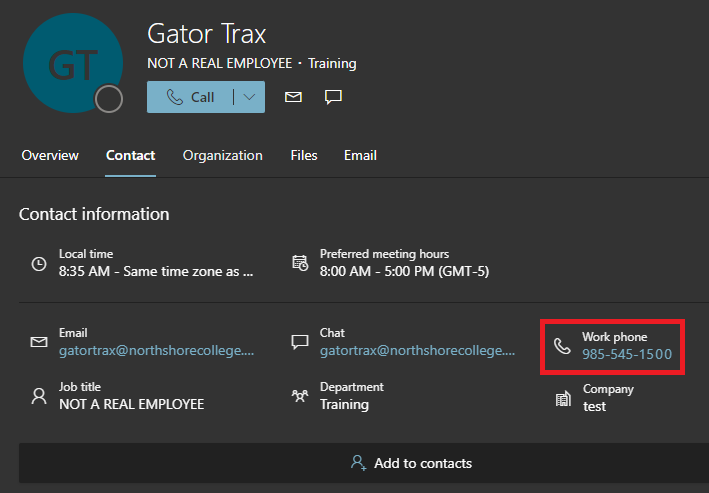](https://docs.northshorecollege.edu/uploads/images/gallery/2022-10/9YBFLqIiWh2jw552-webphone.png) # Reserving Rooms and Vehicles #### **Students are only permitted to book Learning Commons Collaboration Rooms (currently only Lacombe-Collaboration Room 201B)** Click on images to enlarge. ### **Reserving through desktop app.** 1.) Go to **Calendar** and select **New Appointment** at the top tool bar. [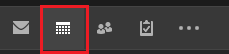](https://docs.northshorecollege.edu/uploads/images/gallery/2022-10/1RQsxLjP8WVjY8XQ-outlookcalendar.png) [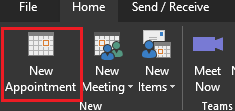](https://docs.northshorecollege.edu/uploads/images/gallery/2022-10/k7CBUbAyeqkZGm5p-new-appointment.png) 2.) Click **Invite Attendees.** [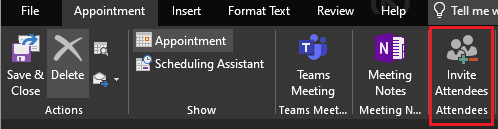](https://docs.northshorecollege.edu/uploads/images/gallery/2022-10/ZPkHgIIb6nnNqqUr-outlook-attendees.png) 3\. Click **Rooms...** at the end right-hand side of the window under Subject. [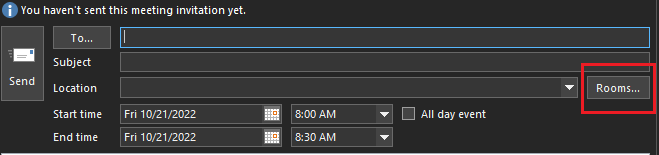](https://docs.northshorecollege.edu/uploads/images/gallery/2022-10/3jZ5zjADzWOeELdJ-outlook-rooms.png) 4\. Select the vehicle or room you wish to reserve. 5\. Click **Rooms** so that the bar next to it shows the one you want. 6\. Click **OK**. 7\. Fill out the rest of the details and click **Send** 8\. Once you send the appointment, you will receive an email stating that the appointment has been set on the calendar. If the vehicle or room requires approval, the approver will receive an email notifying him or her of your request. You will be notified once the approver approves or declines the request. [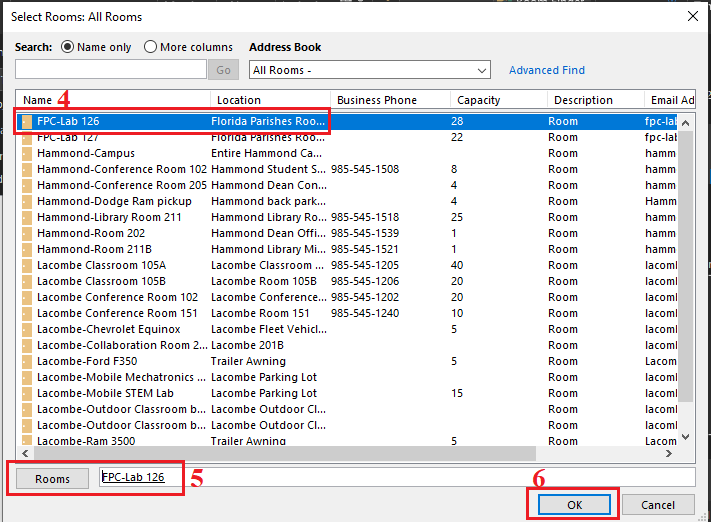](https://docs.northshorecollege.edu/uploads/images/gallery/2022-10/iI4zncPq1Fq0DUu7-outlook-room-choice.png) ### **Reserving through webmail.** 1.) In webmail, go to **Calendar** and select **New Event** at the top tool bar. [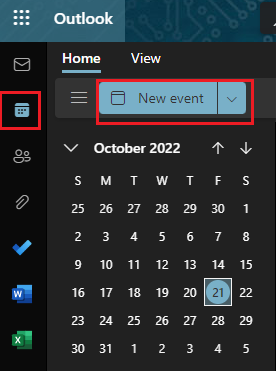](https://docs.northshorecollege.edu/uploads/images/gallery/2022-10/KLBdhOv52GZVtjBw-web-calendar.png) 2.) Click **Search for a room or location**. [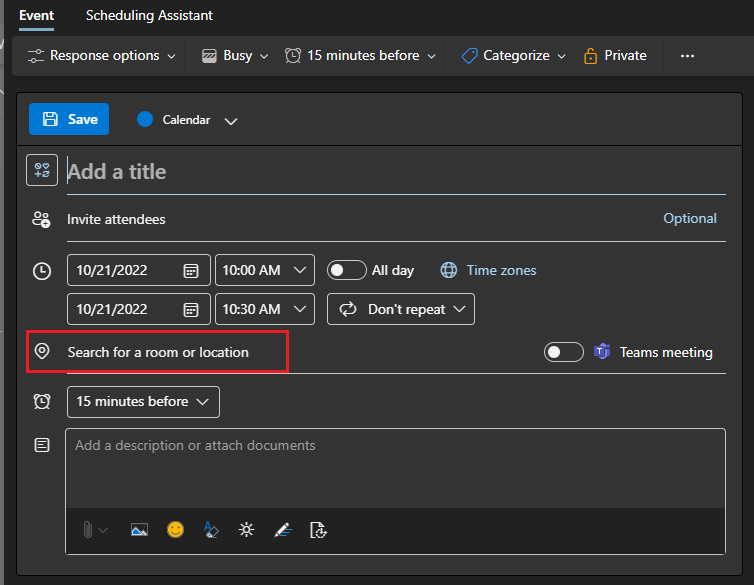](https://docs.northshorecollege.edu/uploads/images/gallery/2022-10/cK6dfcixTdZITSBQ-web-rooms.png) 3\. Type in the search bar the room or vehicle you are looking to reserve. 4\. Click on the location to select it. 5\. Fill out the rest of the details and click send. 6\. Once you send the appointment, you will receive an email stating that the appointment has been set on the calendar. If the vehicle or room requires approval, the approver will receive an email notifying him or her of your request. You will be notified once the approver approves or declines the request. [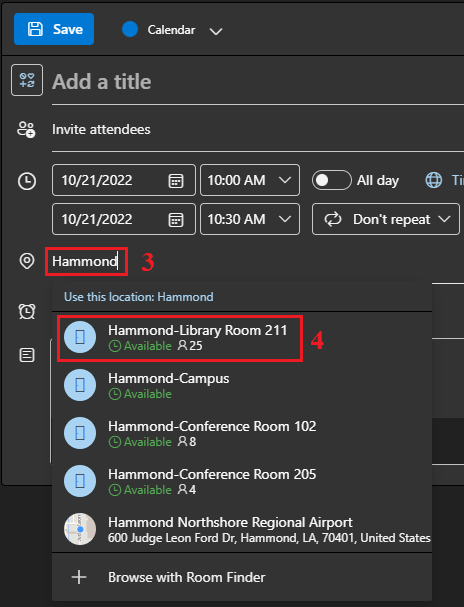](https://docs.northshorecollege.edu/uploads/images/gallery/2022-10/lYqhi7W9YQu2pkzK-web-locations.png) # How to view Rooms calendar. When you want to see if a room/vehicle is available. ## Using the desktop app. 1.) In the desktop app, click on the **Calendar** icon at the bottom. [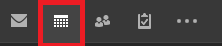](https://docs.northshorecollege.edu/uploads/images/gallery/2022-10/TbwP2rnPrEe0oAg8-image.png) 2.) At the top tool bar, click on **Open Calendar**. [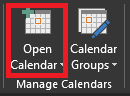](https://docs.northshorecollege.edu/uploads/images/gallery/2022-10/UStBRiMj6I8pOsuE-image.png) 3.) From the drop down list select **From Room List...** [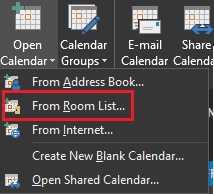](https://docs.northshorecollege.edu/uploads/images/gallery/2022-10/4Ap7l18H3dH9kKVX-image.png) 4.) Double click on room you wish to view then click **OK**. [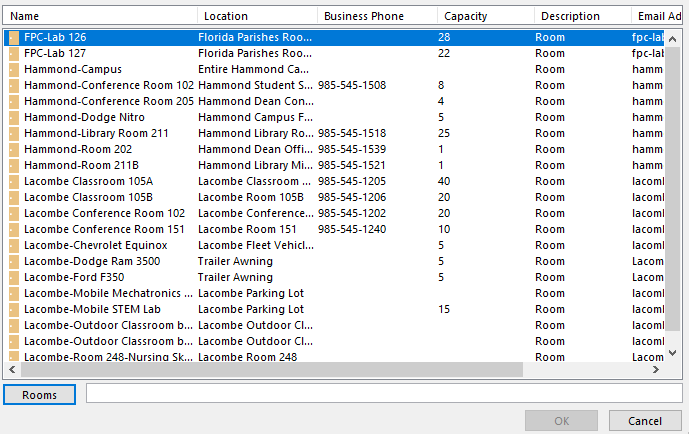](https://docs.northshorecollege.edu/uploads/images/gallery/2022-10/JsZvvP9DZtuy1L0x-image.png) 5.) Now you can view the room. [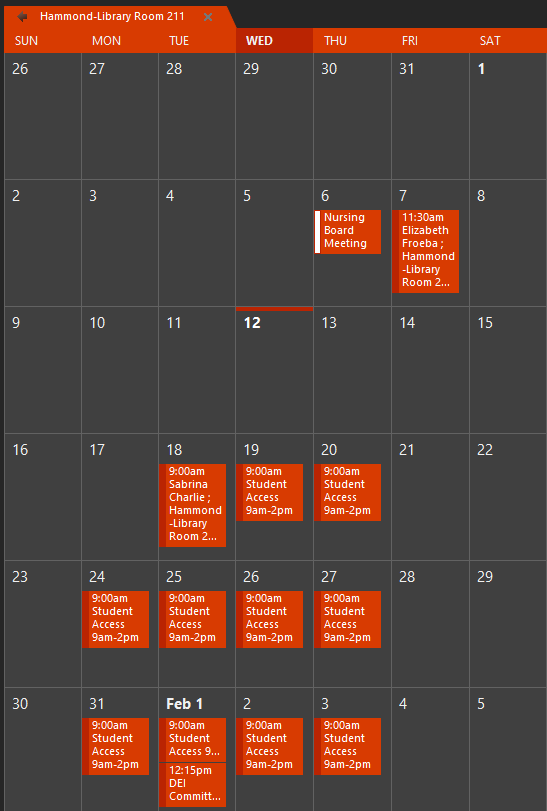](https://docs.northshorecollege.edu/uploads/images/gallery/2022-10/QjoH5biOGMH5DqYS-image.png) ### Using the web app. 1.) In the web app, click on the **Calendar** icon then select **Add calendar**. [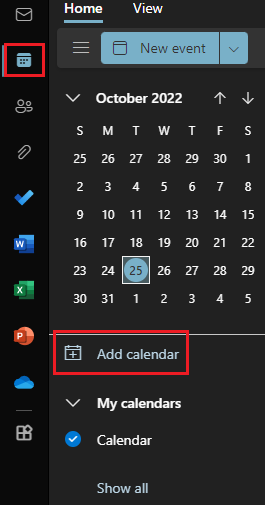](https://docs.northshorecollege.edu/uploads/images/gallery/2022-10/FJsYoysGLEPKrHMl-web-calendar.png) 2.) Click **Add from directory** then type the name of the vehicle or room you wish to add. [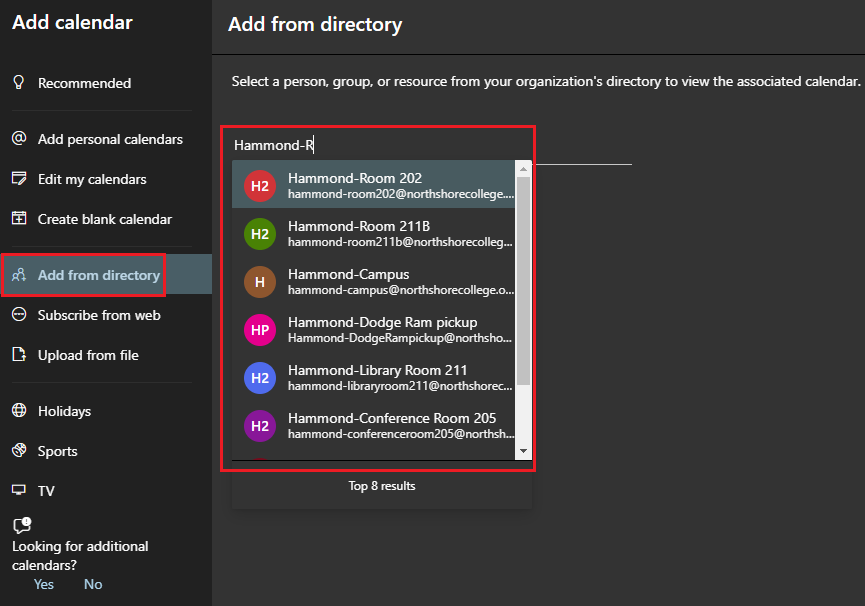](https://docs.northshorecollege.edu/uploads/images/gallery/2022-10/zenC1KdyrE1IyAKU-room-calendar.png) 3.) Under **Add to,** use the drop down box to select **Rooms**. Click **Add**. [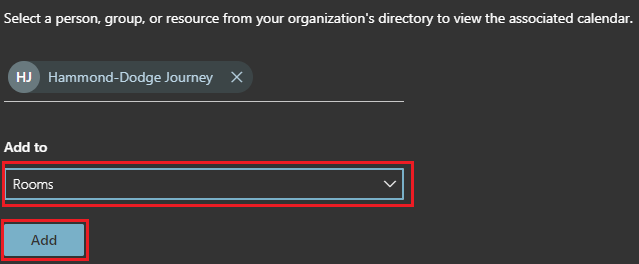](https://docs.northshorecollege.edu/uploads/images/gallery/2022-10/2ZSWmG2UflIvdocT-room-add.png) 4.) You can select the calendar to view it. [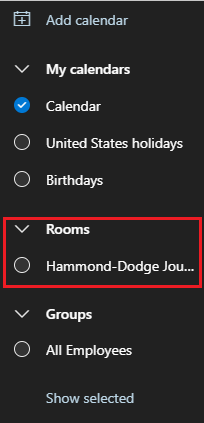](https://docs.northshorecollege.edu/uploads/images/gallery/2022-10/Xgx4FnbiJaCSmrAb-calendar-drop-down.png) # What is my NTCC employee email? - #### Your email is your LoLA username+@northshorecollege.edu such as gatortrax1@northshorecollege.edu - #### Your username is the first part of your email without the @northshorecollege.edu - #### Always use lowercase for username and emails.Sometimes your username is not the same as your LoLA. Your supervisor will inform you if this is the case.
# Scheduling Recurring Events ### Introduction Scheduling recurring events is a great way to better define when an event that is spanning multiple days is occurring on your calendar. For example, a meeting that is happening Monday through Wednesday between 9am and 4:30pm. ### Step-by-Step #### Webmail 1. Log into your NTCC webmail, then go to the calendar 2. Click on New Event 1. [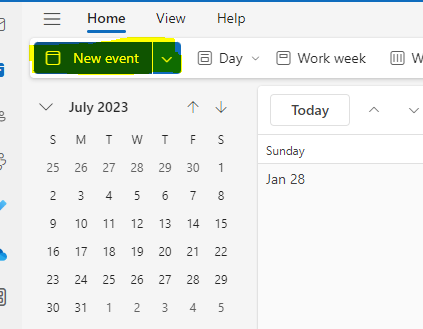](https://docs.northshorecollege.edu/uploads/images/gallery/2024-02/xakEfm2lKYagNWcw-image.png) 3. Select the date and times that the first day of the multi-day event occurs 1. [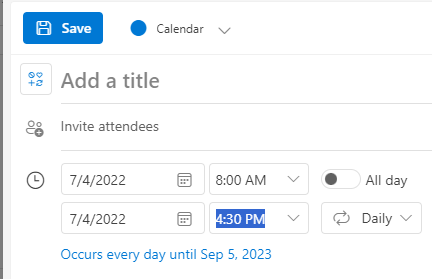](https://docs.northshorecollege.edu/uploads/images/gallery/2024-02/wC1T9qdlamR0gbL1-image.png) 4. Select Daily under the repeat dropdown 1. [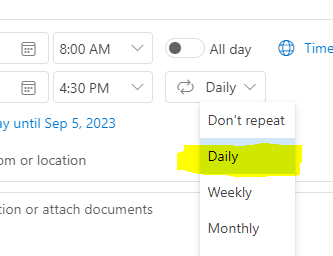](https://docs.northshorecollege.edu/uploads/images/gallery/2024-02/wJQQ5N9UtVUGbtoe-image.png) 5. Choose to repeat the event every day applicable. Be sure to set the end date to the last day of the event 1. [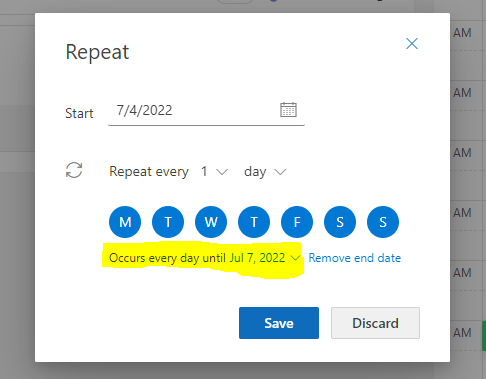](https://docs.northshorecollege.edu/uploads/images/gallery/2024-02/UEX9ZwbTIgJOyxW8-image.png) # Organizational Chart There may be times when you need to determine who a person reports to, or who are a person's direct reports. Office 365 has this information available. Please note that some employees have multiple supervisors. In cases where a person has multiple supervisors, only that employee's primary supervisor is listed. ### Webmail 1\. From webmail, click the People icon in the left-hand column [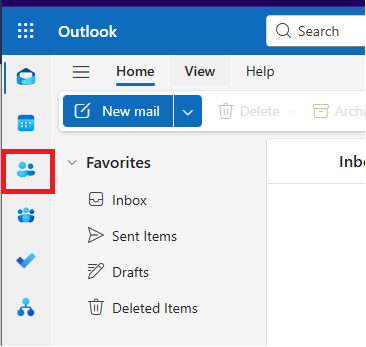](https://docs.northshorecollege.edu/uploads/images/gallery/2025-08/zQdCcnFesQ5yF5K6-image.png) 2\. Use the search bar at the top of the screen to search for the desired person [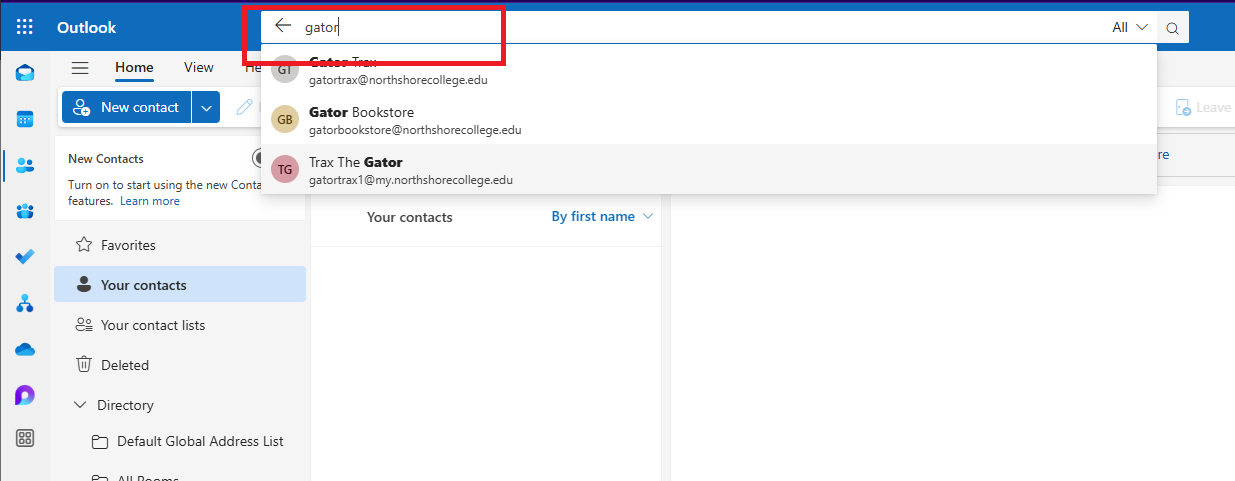](https://docs.northshorecollege.edu/uploads/images/gallery/2025-08/9vJ4bd6Zuf5IPfBx-image.png) 3\. Click on the person's name, and their contact card will show [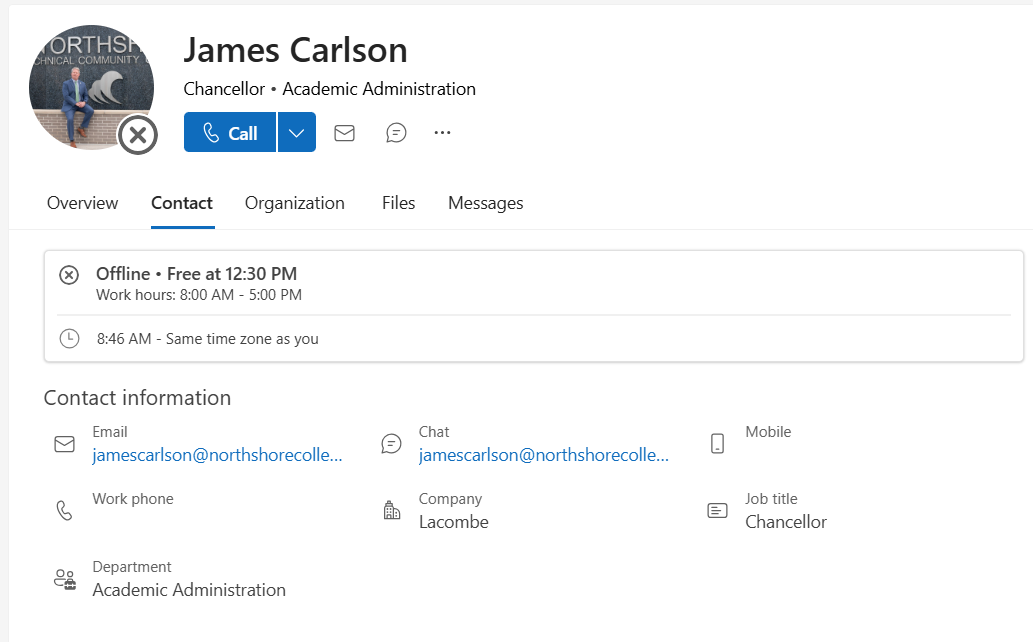](https://docs.northshorecollege.edu/uploads/images/gallery/2025-08/A0o8ww8ZxFBUO2vE-image.png) 4\. Click the organization button to show the organizational chart [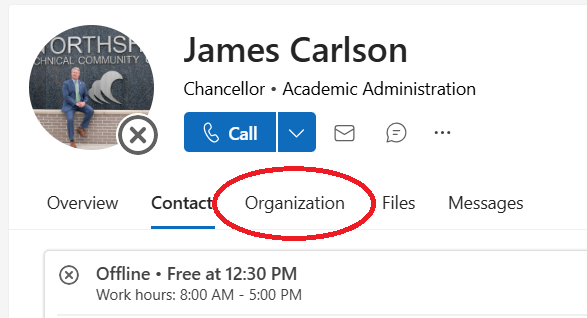](https://docs.northshorecollege.edu/uploads/images/gallery/2025-08/AGm1YjMw31qknk0d-image.png) 5\. The organizational chart will be visible and show who the person reports to and their direct reports [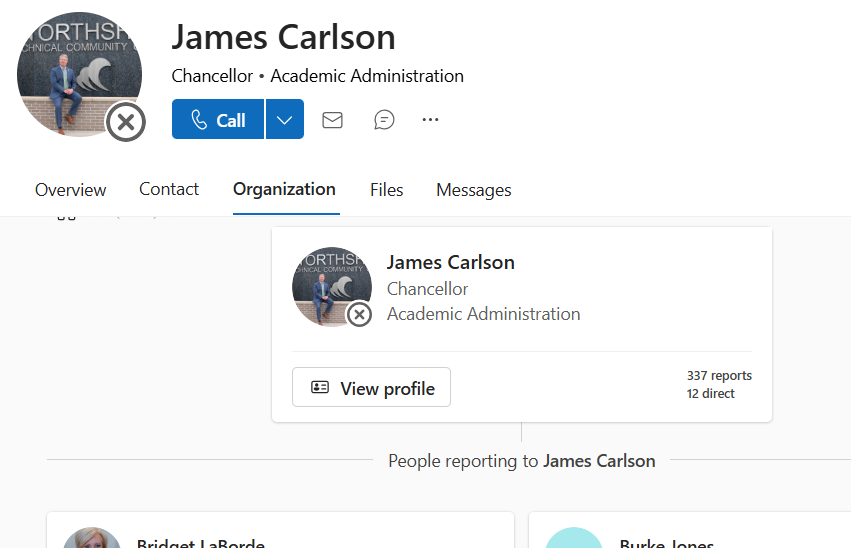](https://docs.northshorecollege.edu/uploads/images/gallery/2025-08/3LrLBi2RGEVS0hgH-image.png) ### Microsoft Teams Desktop 1\. Open Teams and search for the person in the top search bar [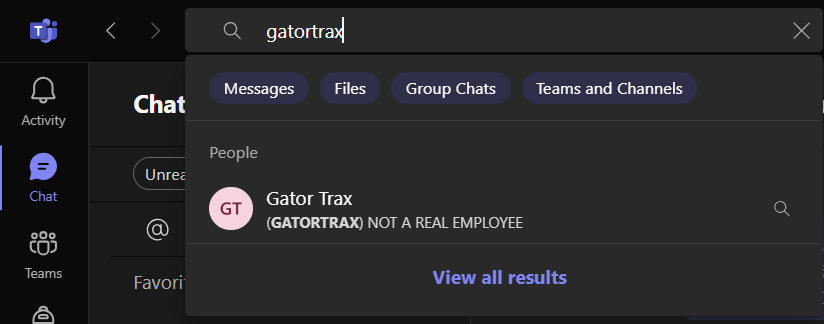](https://docs.northshorecollege.edu/uploads/images/gallery/2025-08/7DuJgUkXmKKBY1bs-image.png) 2\. Click on the person's name in the results. This will bring up a chat window for the person [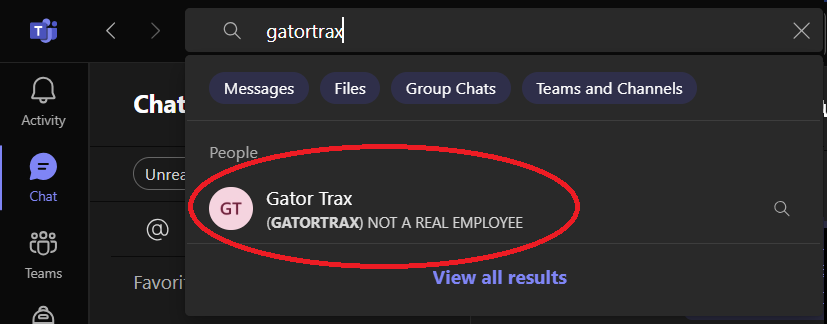](https://docs.northshorecollege.edu/uploads/images/gallery/2025-08/ZZ7umL7mmcTUaYSw-image.png) 3\. In the top of the chat window, click on the person's name. You may have to click on their name twice to bring up the full contact card. Click on the organization tab to show the organizational chart. [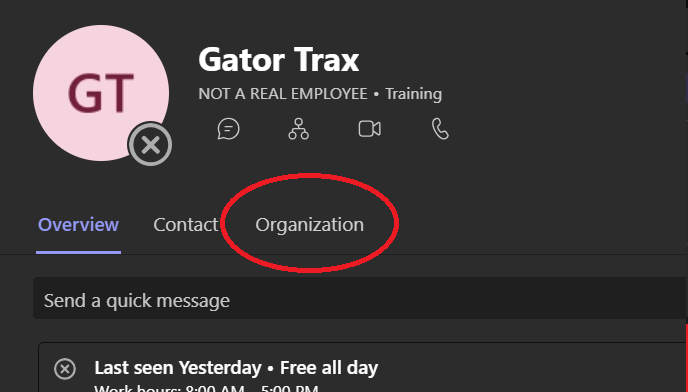](https://docs.northshorecollege.edu/uploads/images/gallery/2025-08/Bkbws2FCfnDBbGsN-image.png) # Teams Teams is a Microsoft collaboration app that helps your team stay organized and have conversations—all in one place. You can set up meetings, place video conferences and calls, and talk through chat. # How to schedule a meeting within Teams. When you want to schedule a meeting within the Teams app. 1\) In Teams, select **Calendar ** view. [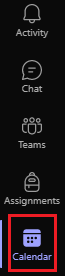](https://docs.northshorecollege.edu/uploads/images/gallery/2022-10/49LMINKspcxW19If-image.png) 2\) In the top right corner, select **+New Meeting** [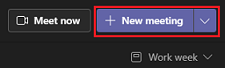](https://docs.northshorecollege.edu/uploads/images/gallery/2022-10/GYuHARZD5idq7hem-image.png) 3\) Fill out all information that is needed such as attendees and date. [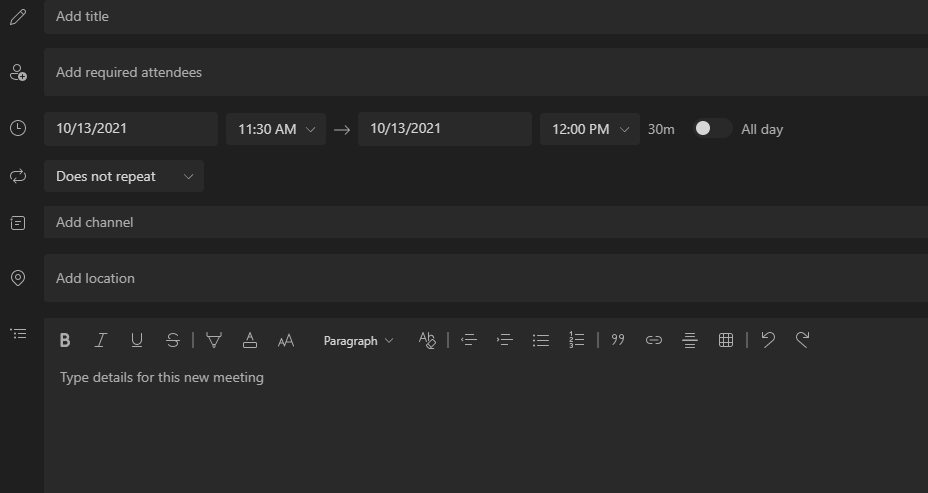](https://docs.northshorecollege.edu/uploads/images/gallery/2022-10/ZVb0oNxVXNEJOQx9-image.png) 4\) Select **Save** in the top right corner. [](https://docs.northshorecollege.edu/uploads/images/gallery/2022-10/UXGCLvI5QvorBfSn-image.png)You can also choose if you want to start a meeting right away instead of scheduling it for later.
# How to schedule Teams meetings in Outlook. When you need to create Team meetings in your Outlook calendar. ## Outlook on the Desktop 1\) Open Outlook and switch to the **Calendar** view. [](https://docs.northshorecollege.edu/uploads/images/gallery/2022-10/GQ9rvAHtEAD3f6U5-image.png) 2\) Select **New Teams Meeting** at the top of the view. [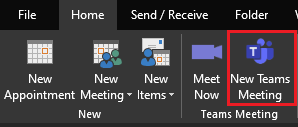](https://docs.northshorecollege.edu/uploads/images/gallery/2022-10/RhIloik7xyFfosSw-image.png)**Note:** Even if you begin by selecting **New Meeting** or **New Appointment**, you can make it a Teams meeting by selecting **Teams Meeting** at the top of the new event form.
3\) Add your invitees to the **Required** or **Optional** field(s)—you can even invite entire contact groups (formerly known as distribution lists). 4) Add your meeting subject, location (if applicable), start time, and end time. 5) Create your message. [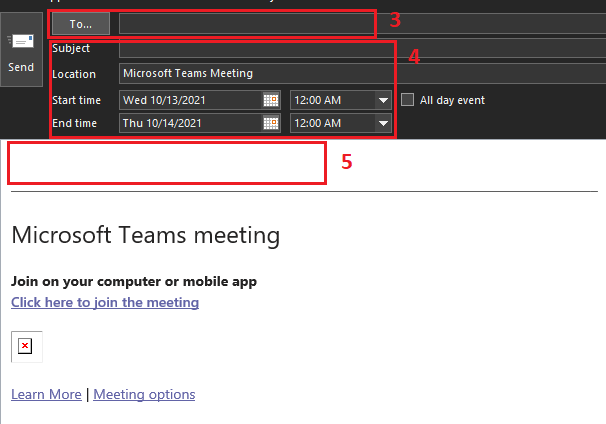](https://docs.northshorecollege.edu/uploads/images/gallery/2022-10/KyHFHCNPfX2QBYcq-image.png) 6\) Select **Send**.**Note:** The Teams meeting join details are added to the meeting invite automatically.
[](https://docs.northshorecollege.edu/uploads/images/gallery/2022-10/wzJA0DPTHEg6LVdI-image.png)If you don’t see the **New Teams Meeting** icon in the desktop version of Outlook, the Teams add-in for Outlook might not be installed properly. Please submit a ticket in the Helpdesk.
### ### Outlook on the Web 1\) Open Outlook webpage and switch to the **Calendar** view. [](https://docs.northshorecollege.edu/uploads/images/gallery/2022-10/3nnl6RUupSiykadV-image.png) 2\) Click on **New event** [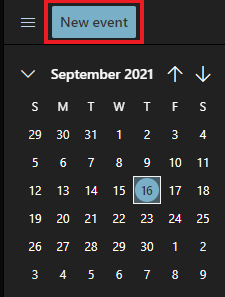](https://docs.northshorecollege.edu/uploads/images/gallery/2022-10/PEn16x120zrpba2Y-image.png) 3\) In the new event form, select the **Teams meeting** toggle to turn it on. 4\) Fill out information as needed [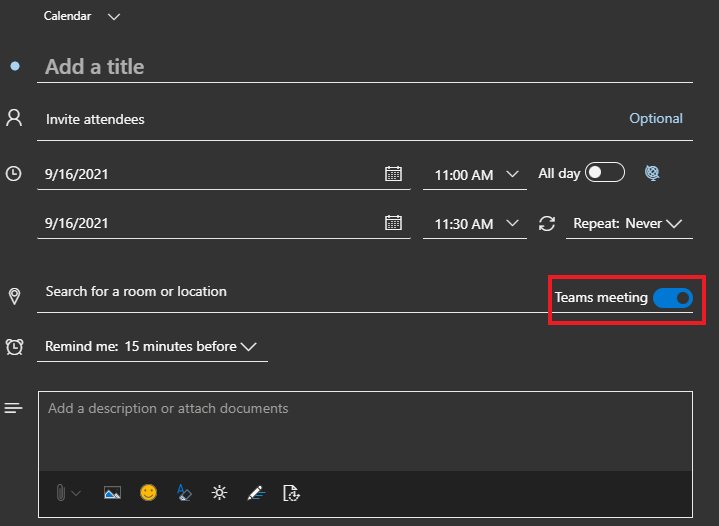](https://docs.northshorecollege.edu/uploads/images/gallery/2022-10/iKicGhuKRwGZG2AA-image.png) 5\) Click **Save** [](https://docs.northshorecollege.edu/uploads/images/gallery/2022-10/G24e1qdsQ2bchLaE-image.png) # How to set up Breakout Rooms in Teams ##### When you need to create smaller rooms inside a Teams meeting ##### ##### Breakout rooms are a great way for an organizer of a Teams meeting to split attendees into multiple online rooms for discussion and collaboration in small groups. ##### This **[How to use breakout rooms in Teams meetings](https://support.microsoft.com/en-us/office/use-breakout-rooms-in-teams-meetings-7de1f48a-da07-466c-a5ab-4ebace28e461)** guide goes over how to create a breakout room and join one. # How to set up Microphone/Speakers in Teams. To setup or change how you talk and listen in Teams. ### Pre-Call Set Up 1\) Select **Settings and more** to the left of your profile picture at the top of the app, then select **Settings>Devices.** [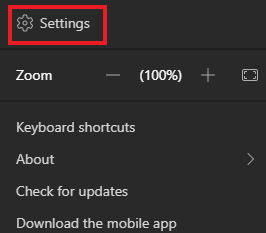](https://docs.northshorecollege.edu/uploads/images/gallery/2022-10/lD19I1M1roX0hZMS-image.png) 2\) You will see a several options with drop down selections. [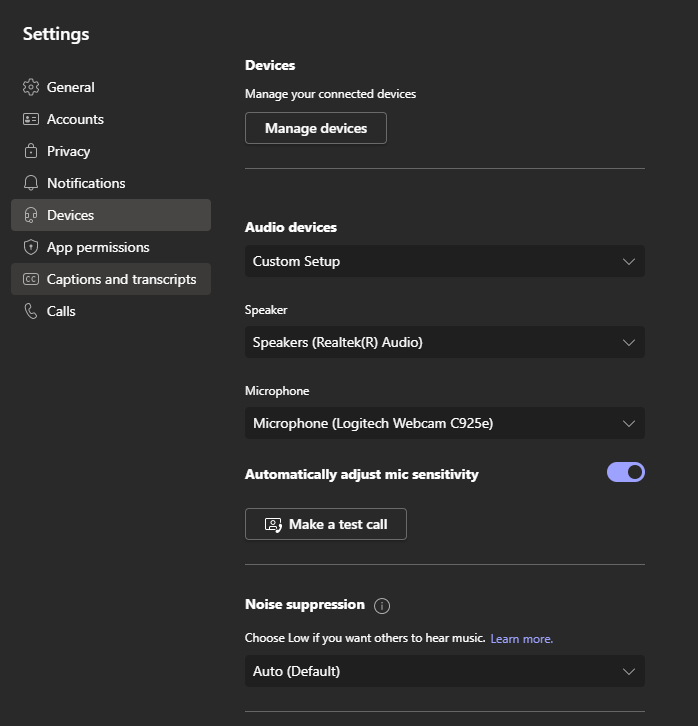](https://docs.northshorecollege.edu/uploads/images/gallery/2022-10/5Uf1FOanYWEeZ1gw-image.png) 3\) Click on the drop down menu for the device you wish to change. 4\) Select your choice. [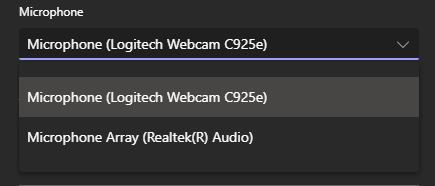](https://docs.northshorecollege.edu/uploads/images/gallery/2022-10/9Yj8esUAS8upNzoI-image.png) 5\) **Optional**: Make a test call to hear how your devices sound. [](https://docs.northshorecollege.edu/uploads/images/gallery/2022-10/qfKvz2xPWl1PKnu3-image.png) ### Set Up When Joining A Call 1\) In the waiting room before a call, click on **Open Device Settings.** [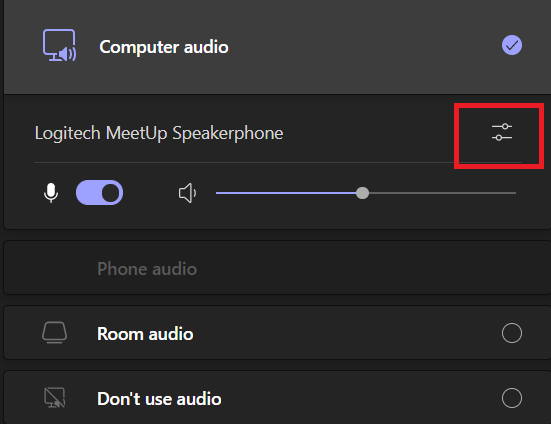](https://docs.northshorecollege.edu/uploads/images/gallery/2022-10/XItfANMJmsznWXOT-image.png) 2\) You will see various setting options depending on your computer set up. [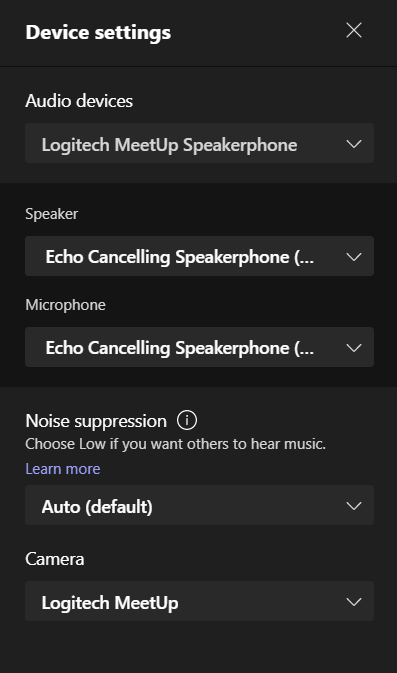](https://docs.northshorecollege.edu/uploads/images/gallery/2022-10/f49W7rzcTbWjEif8-image.png) 3\) Click on the drop down menu for the device you wish to change. 4\) Select your choice. [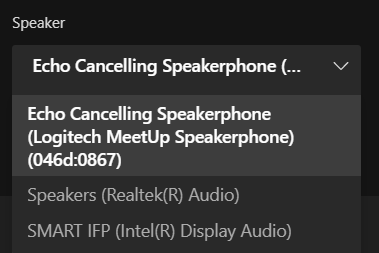](https://docs.northshorecollege.edu/uploads/images/gallery/2022-10/spouoKA4TyDve334-image.png) 5\) Click on **Join now** to enter the call. [](https://docs.northshorecollege.edu/uploads/images/gallery/2022-10/AxTYbbTgWOG1rGuC-image.png)Smartboards are labeled as **SMART IFP**. Large cameras in select rooms are **Logitech MeetUp**.
# Sharing Teams Recordings When you want to share your Team recordings. ### To share a recording from Team through OneDrive. 1.) Log into GatorMail like normal and click on the 9 dots at the top of the webpage. [](https://docs.northshorecollege.edu/uploads/images/gallery/2022-10/mmEJANSLgNzMHDCA-image.png) 2.) Go to OneDrive [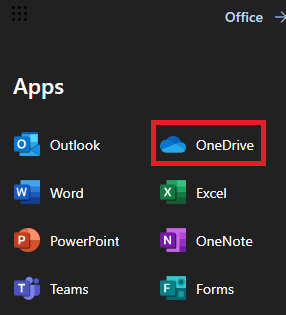](https://docs.northshorecollege.edu/uploads/images/gallery/2022-10/IlN3xGyC2NQpuTvz-image.png) 3.) Find the Recording you wish to share. When hovering over the name of the file, click on the curved arrow icon [](https://docs.northshorecollege.edu/uploads/images/gallery/2022-10/uY2zpEeDrepfkPxx-image.png) 4.) Click on the **Anyone with the link can edit**. [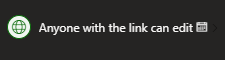](https://docs.northshorecollege.edu/uploads/images/gallery/2022-10/ZkUmEzMzISs6oV0a-image.png) 5.) A selection of options will appear. Here you will make your adjustments such as: - Who will have access to the link. - When the link will expire. - Any passwords you wish to have enabled - If editing is allowed.**Note:** Per policy, all links will expire after 90 days if the **Anyone with the link** options is chosen. You will have to resend the link if you wish for someone to continue to have access. This does not apply to the to the other access options.
6.) Select **Apply**. [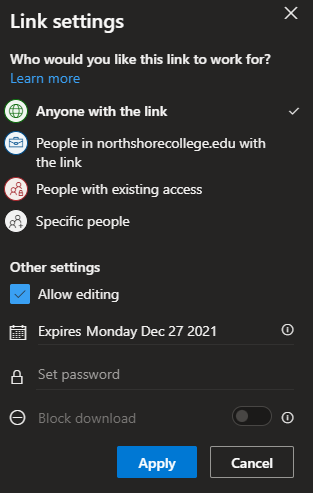](https://docs.northshorecollege.edu/uploads/images/gallery/2022-10/oTNWeRuHwxnu9Jam-image.png) 7.) Add the people you wish to send the link too. If they are within the college system then you can search by typing their name, otherwise add their email. Select **Send.** [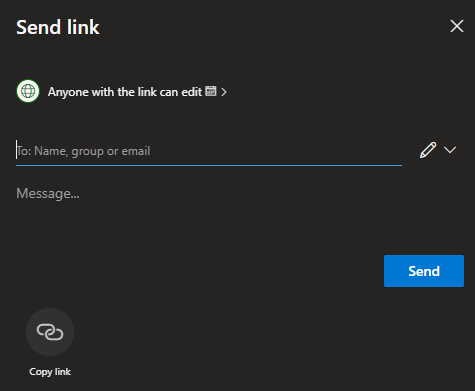](https://docs.northshorecollege.edu/uploads/images/gallery/2022-10/Ub8f88mECP0y9qQU-image.png) #### **Recovering a Recording that appears to be missing.** 1.) Go to OneDrive after signing into GatorMail. 2.) Click on Recycle Bin. [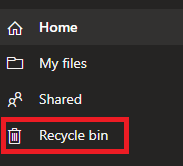](https://docs.northshorecollege.edu/uploads/images/gallery/2023-03/5eNZBdHPC92tGx7p-image.png) 3.) Right click on the item you wish to restore. [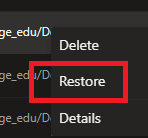](https://docs.northshorecollege.edu/uploads/images/gallery/2023-03/iDqfXgLdj0FZzu49-image.png) 4.) Your recording or file will be returned to the proper location. # Wifi/Internet # Guest wireless internet (WiFi) The NTCC guest wireless internet is available for all students and guests, and personal devices of employees. It should not be used for devices owned by NTCC. Wireless internet coverage covers most of the interior of all NTCC campuses and sites, as well as limited areas in NTCC campus parking lots. Outdoor coverage generally covers the first couple rows of parking lots. We are in the process of expanding indoor coverage and tuning outdoor coverage. ## Wireless settings - Wireless network name: NTCC Guest - Password: gogators (all lowercase, no spaces) To offer the best experience, the guest wireless is delivered via 5Ghz wireless only. Most computers and mobile devices made in the last 10 years should be compatible, but compatibility with your device cannot be guaranteed. If your personal computer has issues connecting to the wireless, you can check a laptop out from Student Services. ## **Important Disclaimers**Wireless internet is provided at a "best-effort" level. While NTCC IT strives to provide complete indoor and outdoor coverage, there may be areas where there is not sufficient coverage to provide a usable internet connection.
Some user's personal devices may not work on the guest wireless internet. NTCC IT provides **NO** support for personal devices for any reason
VPNs will not work on the NTCC Guest wifi. Per Louisiana State Office of Information Technology rules, all ports not directly related to web browsing (ports 80 and 443) are blocked. NTCC IT cannot unblock any other services. This includes both corporate VPNs and personal/privacy VPNs. (Nord, PIA, etc.)
You MUST accept and use the DNS server provided by the NTCC network DHCP server. All other DNS servers such as Google, (8.8.8.8, 8.8.4.4) Cloudflare, (1.1.1.1) or any others will result in your device not having internet.
All websites visited are logged. Only the URLs visited are logged. The content of the page or data you enter is not logged.
Many non web-based email clients will not work
# NTCC VPN When not on one of NTCC's campuses, you should always connect to the NTCC VPN. Connecting to the VPN permits access to many resources and ensures that your computer gets the latest updates and security settings. NTCC has 2 VPNs, one is manual while the other is automatic. The NTCC AlwaysOn VPN is the automatic one, and the NTCC VPN is the manual one. Both are accessible from the network system tray icon by the clock.**NOTE: You MUST be connected to the Internet to use the VPN, such as home WiFi.**
### Automatic connection to NTCC AlwaysOn VPN - This VPN should automatically connect whenever you are off campus and connected to a Wifi. If you do not see this connect, please try the manual version. [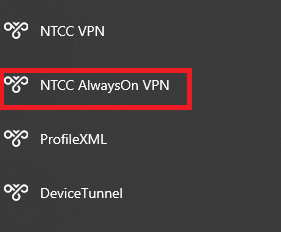](https://docs.northshorecollege.edu/uploads/images/gallery/2023-12/kLanh7QgB8a3nrjs-alwaysonvpn.png) ### Connecting to the NTCC VPN (manual) - Click on the Internet/WiFi icon at the bottom of your taskbar. [](https://docs.northshorecollege.edu/uploads/images/gallery/2022-11/S1kz2BqyclApTEDu-network.png)or - - - # How to connect to a cellular hotspot. When you need to connect to your cellphone's hotspot. ### **To connect to the hotspot:** 1. Set up the hotspot on your cellular device. Follow your device's guide and make sure you confirm with your cellular provider that your plan allows for hotspots. 1. [Share a mobile connection by hotspot or tethering on Android](https://support.google.com/android/answer/9059108?hl=en) 2. [How to set up a Personal Hotspot on your iPhone or iPad](https://support.apple.com/en-us/HT204023) 2. On your laptop, select the option to connect to Wi-Fi. 3. Locate your hotspot's name in the Wi-Fi list. 4. Connect to your hotspot like you would any Wi-Fi connection. #### NOTE: The **Mobile Hotspot** option in Window's Network & Internet setting is **NOT** use to connect to your cellular hotspot. This is used to turn your laptop into a hotspot. College laptops do not allow this option and are correctly blocked. # Forgetting previous WiFi. #### Occasionally when you are unable to connect to a WiFi network, it may be do to your device having to many saved WiFi connections. You can delete networks (such as hotels and airports) that are no longer in use to free up space. 1.) Open up **Network and Internet settings** **[](https://docs.northshorecollege.edu/uploads/images/gallery/2022-11/S1kz2BqyclApTEDu-network.png)** [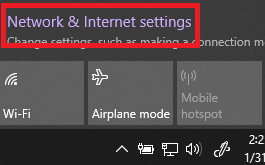](https://docs.northshorecollege.edu/uploads/images/gallery/2023-01/TeJGGmheT53Te74m-image.png) 2.) Click on **WiFi** [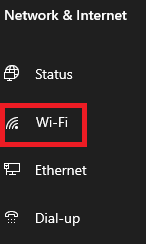](https://docs.northshorecollege.edu/uploads/images/gallery/2023-01/waBHSQcae6k8XIu3-image.png) 3.) Click on **Manage known networks** [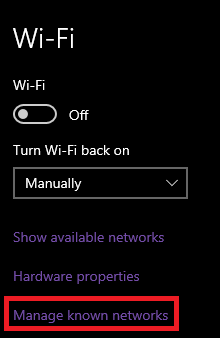](https://docs.northshorecollege.edu/uploads/images/gallery/2023-01/QZ5HWtM6VRhdPkUP-image.png) 4\. Select the WiFi Network you wish to remove then click **Forget.** [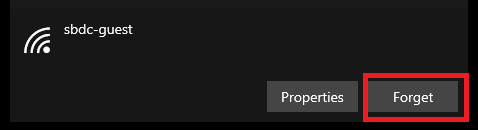](https://docs.northshorecollege.edu/uploads/images/gallery/2023-01/vSmpPdaB6a1fuvAK-image.png) # How to find Shared Drives. If you cannot locate your shared drives, or if the shared drives appear to be missing. 1\) Select the **File Explorer** icon at the bottom of your taskbar. [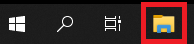](https://docs.northshorecollege.edu/uploads/images/gallery/2022-10/8weAt1nJYOVd1ymN-image.png) 2\) Select **This PC** or select **>** to expand it. [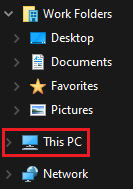 ](https://docs.northshorecollege.edu/uploads/images/gallery/2022-10/hZE8KpjjxbyuWvWF-image.png)[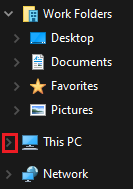](https://docs.northshorecollege.edu/uploads/images/gallery/2022-10/eT9rK8BwZGJ0JwRj-image.png) 3\) Your shared drives will show up under the **Network locations** section. Clicking on the share you want will bring you to the files in that share. [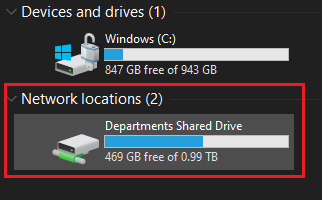](https://docs.northshorecollege.edu/uploads/images/gallery/2022-10/pLeASahX7czfnxmO-image.png) If you selected to expand **This PC** it will show up near the bottom of the list. [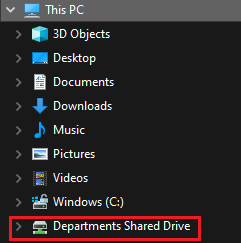](https://docs.northshorecollege.edu/uploads/images/gallery/2022-10/bym82ZYwutDCLVd8-image.png)**NOTE:** The section labeled **NETWORK** is **NOT** connected to the shared drives and is **NOT** how to access the drives. Please do not try to use this to access the shared drives.
[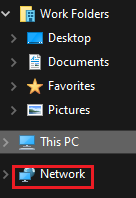](https://docs.northshorecollege.edu/uploads/images/gallery/2022-10/u5W9VxciN3X82WrH-image.png) # What do I do once I get an IT purchase quote. What happens after a purchase quote is given to you through the helpdesk. 1. **After submitting a quote through the helpdesk, the IT staff will reach out to the appropriate vendor.** 2. **The IT staff will submit the quote in the helpdesk as a file that you can download.** 3. **Create the appropriate PO Coversheet to be turned in with the quote to your campus purchasing liaison.** 4. **Your purchasing liaison will submit the requisition for processing and approval.** - IT only submits purchase requests for certain situations that usually involve multi-campus orders. - If you need to order something that is only used by you or your department, unless noted otherwise, you will have to do the purchase request. This includes items such as cables and lamp bulbs.**NOTE:** If you submitted a helpdesk ticket for malfunctioning equipment that IT deems necessary to replace, no other ticket is needed. IT will submit the quote in the original ticket.
# Restoring files and folders. #### Most files and folders can be restored from previous dates/saves. This is helpful if you made saves to a document that you need to fix or if you deleted a file from a folder that you need again.Currently you can only restore from about 1 week prior.
1.) Select the file or folder you wish to restore. [](https://docs.northshorecollege.edu/uploads/images/gallery/2023-06/anEOv5YAqEsS3EY8-folder.png) 2.) Right click on the folder and select **Restore previous versions**. [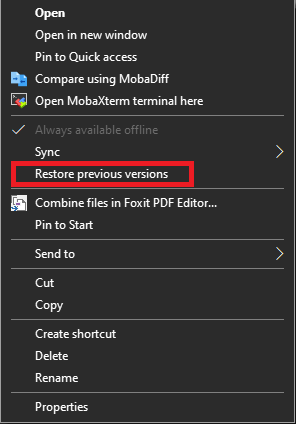](https://docs.northshorecollege.edu/uploads/images/gallery/2023-06/lf9oxpUIGMV3ttSn-restore.png) 3.) Select when you want to restore from. Click **Open**. [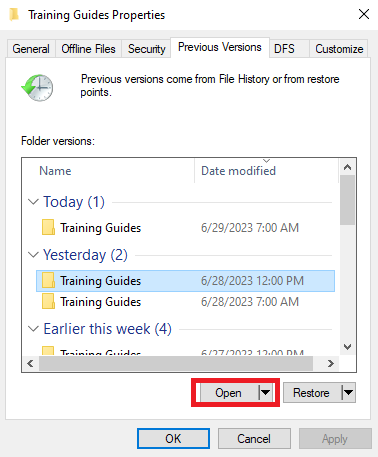](https://docs.northshorecollege.edu/uploads/images/gallery/2023-06/0xIJB2BWLG6RnYyH-previous-version.png) 4.) Right click and copy/paste the file you to the folder you want to restore to. [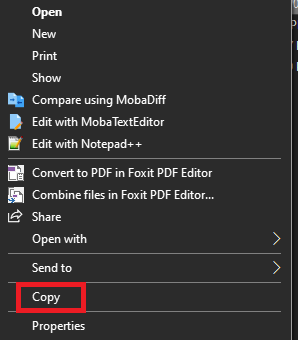](https://docs.northshorecollege.edu/uploads/images/gallery/2023-06/2xhTGrpAFOMods0N-selection.png) 5.) Click **OK** to exit the properties box.Anything needed that is more than a week old will need a helpdesk ticket.
# Helpdesk # Create helpdesk tickets in other departments' projects Users who are agents for a helpdesk project may need to submit tickets to other helpdesk projects. (IT, facilities, etc.) The process to submit a helpdesk ticket is not the same as other users. ## Steps - In your project's screen, look to the left hand side and select **Raise a request**. If you have your screen side dash collapsed, it will look like the + in a box without the words. [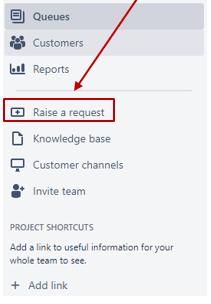](https://docs.northshorecollege.edu/uploads/images/gallery/2022-09/ZhncdvNMVWlaa6lW-image.png) - Next it will bring you to a new webpage. Click on the **NTCC Helpdesk** at the top of the page. [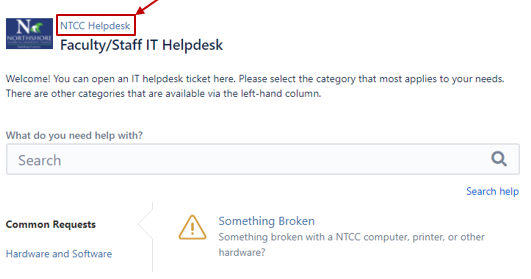](https://docs.northshorecollege.edu/uploads/images/gallery/2022-09/nOWw6z1Wcc2eFq7e-image.png) - It will bring you to the main Helpdesk page where you can choose the correct helpdesk for your ticket. [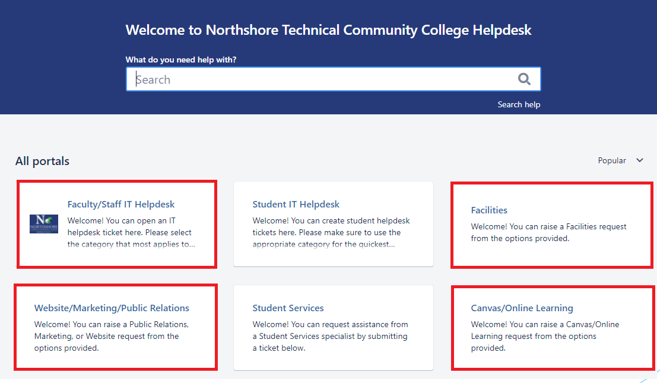](https://docs.northshorecollege.edu/uploads/images/gallery/2022-09/pBYzkQu0QTqf1or7-image.png) # How to use the helpdesk.