# How to schedule Teams meetings in Outlook.

When you need to create Team meetings in your Outlook calendar.

## Outlook on the Desktop

1\) Open Outlook and switch to the **Calendar** <span class="confluence-embedded-file-wrapper">![Meetings button](https://support.content.office.net/en-us/media/f788fe72-7168-45df-98c8-58ceac0a9aac.png)</span>view.

[![image.png](https://docs.northshorecollege.edu/uploads/images/gallery/2022-10/scaled-1680-/GQ9rvAHtEAD3f6U5-image.png)](https://docs.northshorecollege.edu/uploads/images/gallery/2022-10/GQ9rvAHtEAD3f6U5-image.png)

2\) Select **New Teams Meeting** at the top of the view.

[![image.png](https://docs.northshorecollege.edu/uploads/images/gallery/2022-10/scaled-1680-/RhIloik7xyFfosSw-image.png)](https://docs.northshorecollege.edu/uploads/images/gallery/2022-10/RhIloik7xyFfosSw-image.png)

<p class="callout info">**Note:** Even if you begin by selecting **New Meeting** or **New Appointment**, you can make it a Teams meeting by selecting **Teams Meeting** at the top of the new event form.</p>

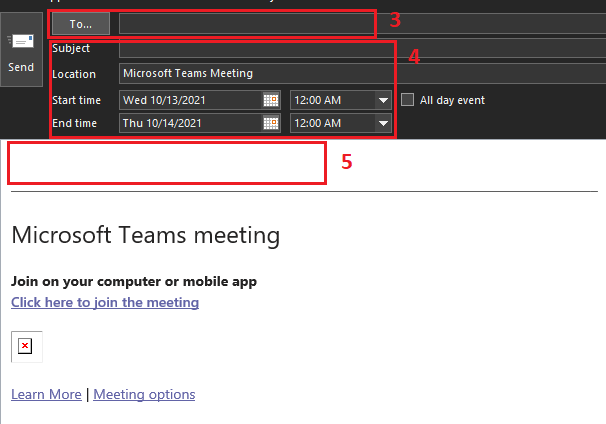
3\) Add your invitees to the<span title=""> </span>**Required**<span title=""> </span><span title="">or</span><span title=""> </span>**Optional**<span title=""> </span><span title="">field(s)—you can even invite entire contact groups (formerly known as distribution lists).</span>

<span title="">4) Add your meeting subject, location (if applicable), start time, and end time.</span>

<span title="">5) Create your message.</span>

[![image.png](https://docs.northshorecollege.edu/uploads/images/gallery/2022-10/scaled-1680-/KyHFHCNPfX2QBYcq-image.png)](https://docs.northshorecollege.edu/uploads/images/gallery/2022-10/KyHFHCNPfX2QBYcq-image.png)

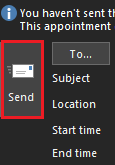
6\) Select **Send**.

<p class="callout info">**Note:** The Teams meeting join details are added to the meeting invite automatically.</p>

[![image.png](https://docs.northshorecollege.edu/uploads/images/gallery/2022-10/scaled-1680-/wzJA0DPTHEg6LVdI-image.png)](https://docs.northshorecollege.edu/uploads/images/gallery/2022-10/wzJA0DPTHEg6LVdI-image.png)

<p class="callout info">If you don’t see the **New Teams Meeting** icon in the desktop version of Outlook, the Teams add-in for Outlook might not be installed properly. Please submit a ticket in the Helpdesk.</p>

###  

### Outlook on the Web

1\) Open Outlook webpage and switch to the **Calendar** <span class="confluence-embedded-file-wrapper">![Meetings button](https://support.content.office.net/en-us/media/f788fe72-7168-45df-98c8-58ceac0a9aac.png)</span>view.

[![image.png](https://docs.northshorecollege.edu/uploads/images/gallery/2022-10/scaled-1680-/3nnl6RUupSiykadV-image.png)](https://docs.northshorecollege.edu/uploads/images/gallery/2022-10/3nnl6RUupSiykadV-image.png)

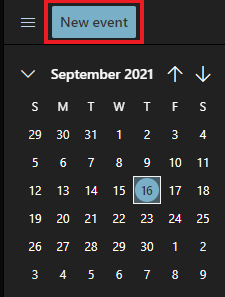
2\) Click on **New event**

[![image.png](https://docs.northshorecollege.edu/uploads/images/gallery/2022-10/scaled-1680-/PEn16x120zrpba2Y-image.png)](https://docs.northshorecollege.edu/uploads/images/gallery/2022-10/PEn16x120zrpba2Y-image.png)
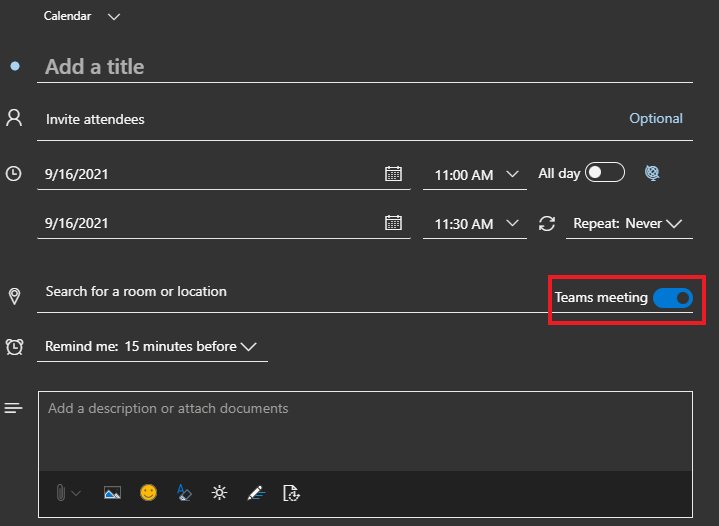
3\) In the new event form, select the **Teams meeting** toggle to turn it on.

4\) Fill out information as needed

[![image.png](https://docs.northshorecollege.edu/uploads/images/gallery/2022-10/scaled-1680-/iKicGhuKRwGZG2AA-image.png)](https://docs.northshorecollege.edu/uploads/images/gallery/2022-10/iKicGhuKRwGZG2AA-image.png)
5\) Click **Save**

[![image.png](https://docs.northshorecollege.edu/uploads/images/gallery/2022-10/scaled-1680-/G24e1qdsQ2bchLaE-image.png)](https://docs.northshorecollege.edu/uploads/images/gallery/2022-10/G24e1qdsQ2bchLaE-image.png)