# How to set up Microphone/Speakers in Teams.
To setup or change how you talk and listen in Teams.
### Pre-Call Set Up
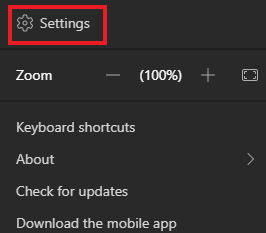
1\) Select **Settings and more**  to the left of your profile picture at the top of the app, then select **Settings>Devices.**
[](https://docs.northshorecollege.edu/uploads/images/gallery/2022-10/lD19I1M1roX0hZMS-image.png)
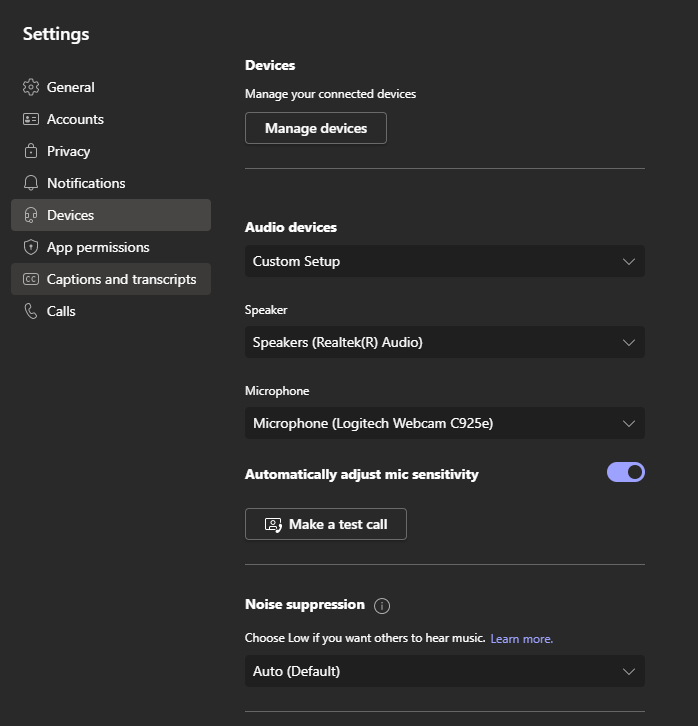
2\) You will see a several options with drop down selections.
[](https://docs.northshorecollege.edu/uploads/images/gallery/2022-10/5Uf1FOanYWEeZ1gw-image.png)
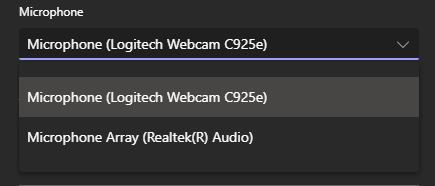
3\) Click on the drop down menu for the device you wish to change.
4\) Select your choice.
[](https://docs.northshorecollege.edu/uploads/images/gallery/2022-10/9Yj8esUAS8upNzoI-image.png)
5) **Optional**: Make a test call to hear how your devices sound.
[](https://docs.northshorecollege.edu/uploads/images/gallery/2022-10/qfKvz2xPWl1PKnu3-image.png)
### Set Up When Joining A Call
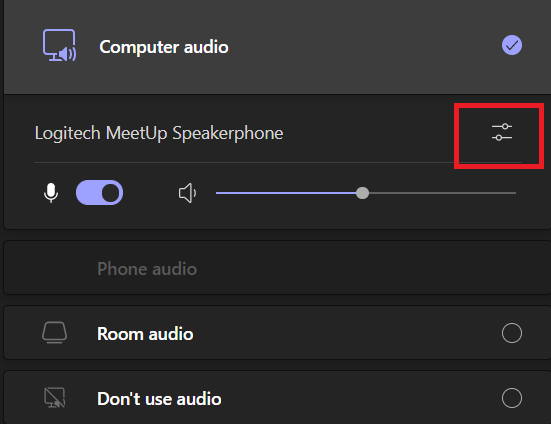
1\) In the waiting room before a call, click on **Open Device Settings.**
[](https://docs.northshorecollege.edu/uploads/images/gallery/2022-10/XItfANMJmsznWXOT-image.png)
2\) You will see various setting options depending on your computer set up.
[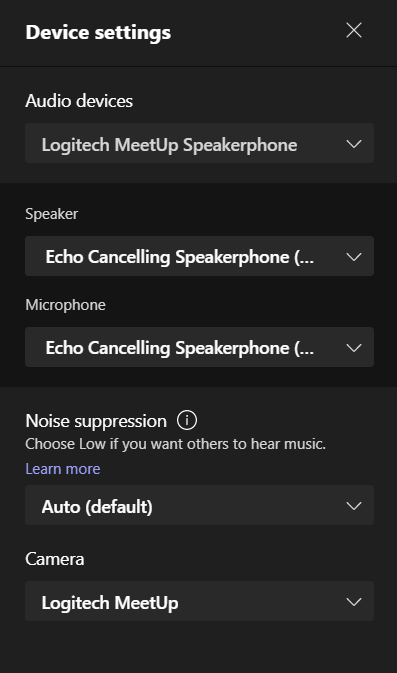](https://docs.northshorecollege.edu/uploads/images/gallery/2022-10/f49W7rzcTbWjEif8-image.png)
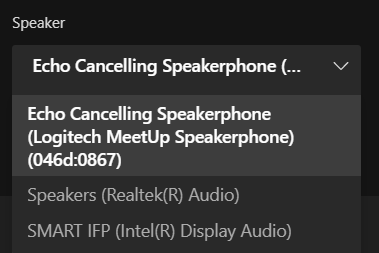
3\) Click on the drop down menu for the device you wish to change.
4\) Select your choice.
[](https://docs.northshorecollege.edu/uploads/images/gallery/2022-10/spouoKA4TyDve334-image.png)
5\) Click on **Join now** to enter the call.
[](https://docs.northshorecollege.edu/uploads/images/gallery/2022-10/AxTYbbTgWOG1rGuC-image.png)
Smartboards are labeled as **SMART IFP**. Large cameras in select rooms are **Logitech MeetUp**.