**If you have not set up your desktop OneDrive, you will be prompted to do so once you clicked on OneDrive. Follow the prompts to sign in.**
[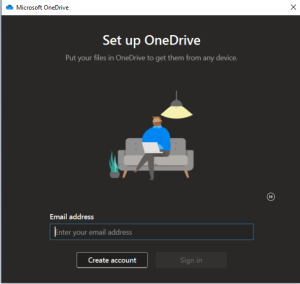](https://docs.northshorecollege.edu/uploads/images/gallery/2022-11/HIiVWBbv4WYnNfir-onedrive-sign-in.png)[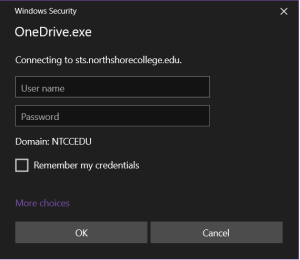](https://docs.northshorecollege.edu/uploads/images/gallery/2022-11/AYAr1cb3HVmUHNuv-od-sign-in.png) 3.) Your desktop OneDrive will look like any File Explorer for Microsoft. What you do in your desktop OneDrive will affect your web version of OneDrive and vise versa. [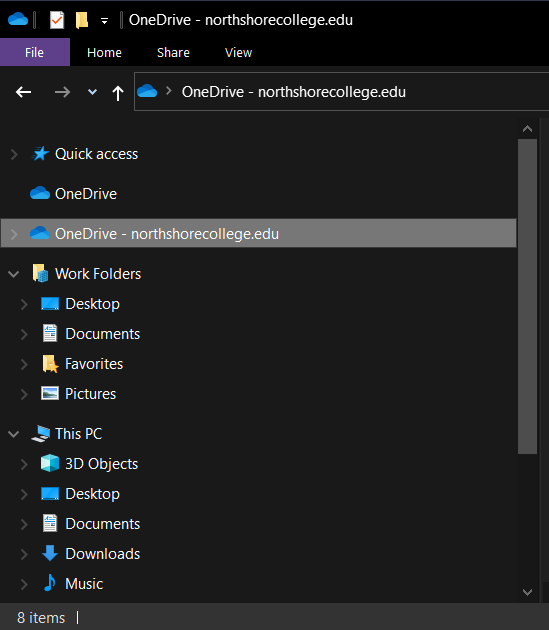](https://docs.northshorecollege.edu/uploads/images/gallery/2022-10/MelNA2Nh5EwHHi4U-onedrive.png) #### ## **Accessing the web version.** 1.) Log into your GatorMail like normal. 2.) Once you are in your Office 365, click on the **OneDrive** icon. [](https://docs.northshorecollege.edu/uploads/images/gallery/2022-11/dWfc57MKNBhauYNo-webversion-onedrive.png) 3.) You are now in your OneDrive and can add/remove/share files as needed. To share: [Sharing OneDrive files](https://kb.northshorecollege.edu:8443/display/ITST/Sharing+Teams+Recordings) Sharing can only be done in the web version. [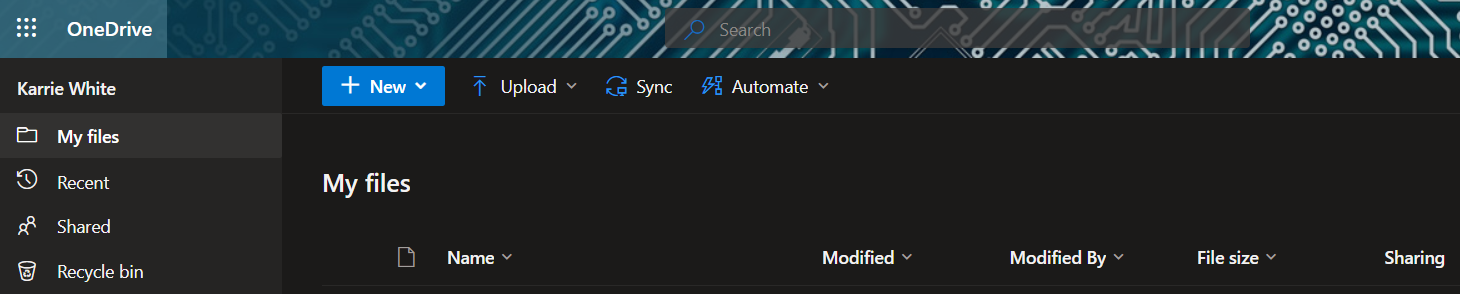](https://docs.northshorecollege.edu/uploads/images/gallery/2022-11/lQRwvfAt5agGkQep-share-web.png)