# Reserving Rooms and Vehicles
#### **Students are only permitted to book Learning Commons Collaboration Rooms (currently only Lacombe-Collaboration Room 201B)**
Click on images to enlarge.
### **Reserving through desktop app.**
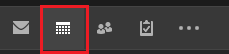
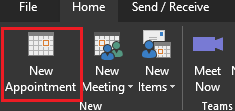
1.) Go to **Calendar** and select **New Appointment** at the top tool bar.
[](https://docs.northshorecollege.edu/uploads/images/gallery/2022-10/1RQsxLjP8WVjY8XQ-outlookcalendar.png)
[](https://docs.northshorecollege.edu/uploads/images/gallery/2022-10/k7CBUbAyeqkZGm5p-new-appointment.png)
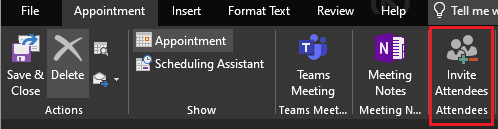
2.) Click **Invite Attendees.**
[](https://docs.northshorecollege.edu/uploads/images/gallery/2022-10/ZPkHgIIb6nnNqqUr-outlook-attendees.png)
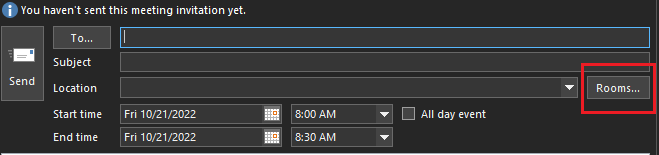
3\. Click **Rooms...** at the end right-hand side of the window under Subject.
[](https://docs.northshorecollege.edu/uploads/images/gallery/2022-10/3jZ5zjADzWOeELdJ-outlook-rooms.png)
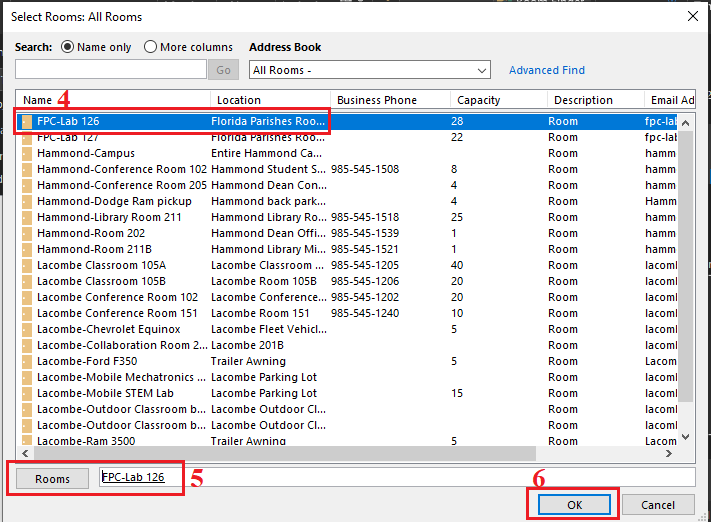
4\. Select the vehicle or room you wish to reserve.
5\. Click **Rooms** so that the bar next to it shows the one you want.
6\. Click **OK**.
7\. Fill out the rest of the details and click **Send**
8\. Once you send the appointment, you will receive an email stating that the appointment has been set on the calendar. If the vehicle or room requires approval, the approver will receive an email notifying him or her of your request. You will be notified once the approver approves or declines the request.
[](https://docs.northshorecollege.edu/uploads/images/gallery/2022-10/iI4zncPq1Fq0DUu7-outlook-room-choice.png)
### **Reserving through webmail.**
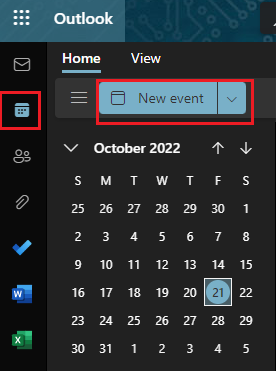
1.) In webmail, go to **Calendar** and select **New Event** at the top tool bar.
[](https://docs.northshorecollege.edu/uploads/images/gallery/2022-10/KLBdhOv52GZVtjBw-web-calendar.png)
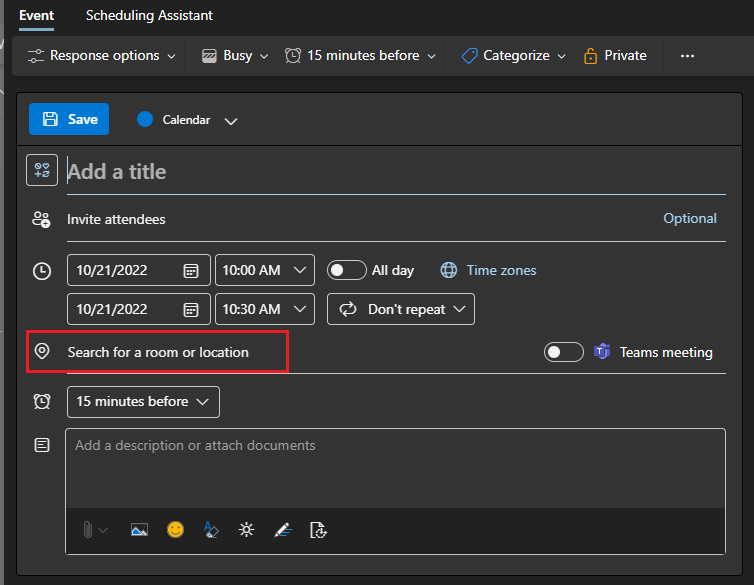
2.) Click **Search for a room or location**.
[](https://docs.northshorecollege.edu/uploads/images/gallery/2022-10/cK6dfcixTdZITSBQ-web-rooms.png)
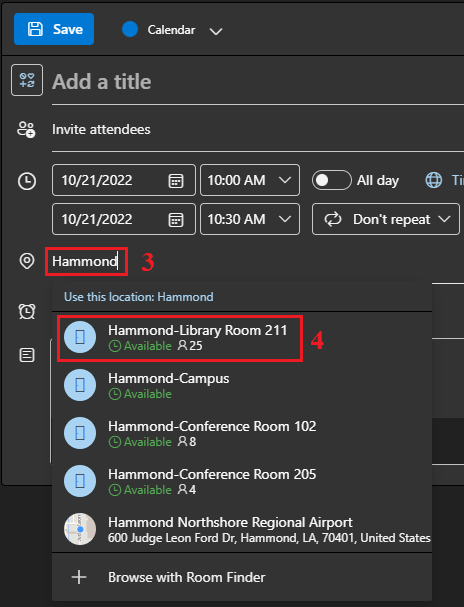
3\. Type in the search bar the room or vehicle you are looking to reserve.
4\. Click on the location to select it.
5\. Fill out the rest of the details and click send.
6\. Once you send the appointment, you will receive an email stating that the appointment has been set on the calendar. If the vehicle or room requires approval, the approver will receive an email notifying him or her of your request. You will be notified once the approver approves or declines the request.
[](https://docs.northshorecollege.edu/uploads/images/gallery/2022-10/lYqhi7W9YQu2pkzK-web-locations.png)