Currently you can only restore from about 1 week prior.
1.) Select the file or folder you wish to restore. [](https://docs.northshorecollege.edu/uploads/images/gallery/2023-06/anEOv5YAqEsS3EY8-folder.png) 2.) Right click on the folder and select **Restore previous versions**. [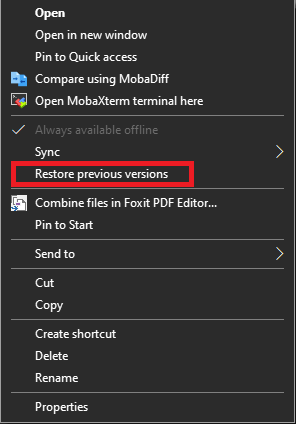](https://docs.northshorecollege.edu/uploads/images/gallery/2023-06/lf9oxpUIGMV3ttSn-restore.png) 3.) Select when you want to restore from. Click **Open**. [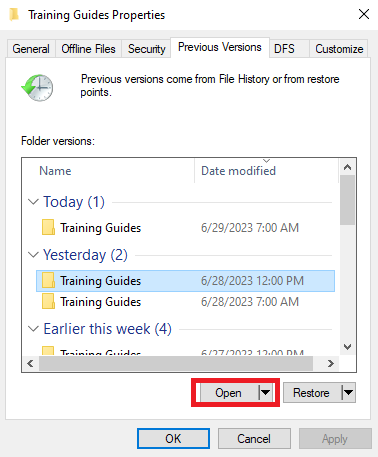](https://docs.northshorecollege.edu/uploads/images/gallery/2023-06/0xIJB2BWLG6RnYyH-previous-version.png) 4.) Right click and copy/paste the file you to the folder you want to restore to. [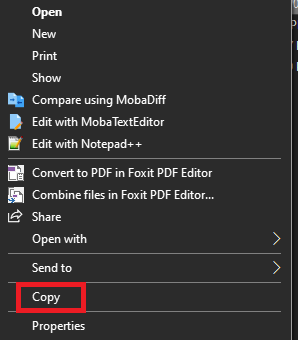](https://docs.northshorecollege.edu/uploads/images/gallery/2023-06/2xhTGrpAFOMods0N-selection.png) 5.) Click **OK** to exit the properties box.Anything needed that is more than a week old will need a helpdesk ticket.