# Web Broswers
Chrome and Edge
# How to clear your browser's cache.
### **Clearing cache in Chrome.**
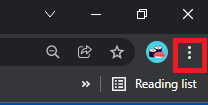
1.) With the Chrome browser open, click **More** (3 dots) at the top right.
[](https://docs.northshorecollege.edu/uploads/images/gallery/2022-10/g1U3z2Fib8Nu2tEu-elipses.png)
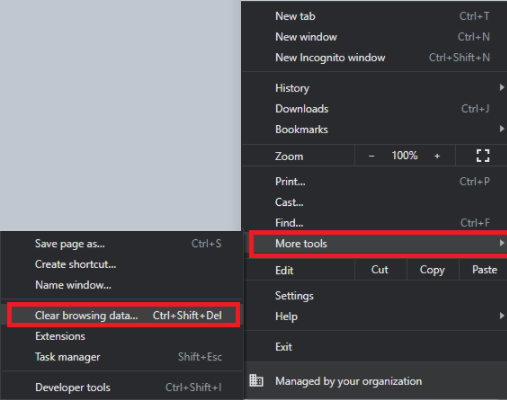
2.) Click **More tools > Clear browsing data...**
**[](https://docs.northshorecollege.edu/uploads/images/gallery/2022-10/yhBxIPiIudqDaz1Y-moretools.png)**
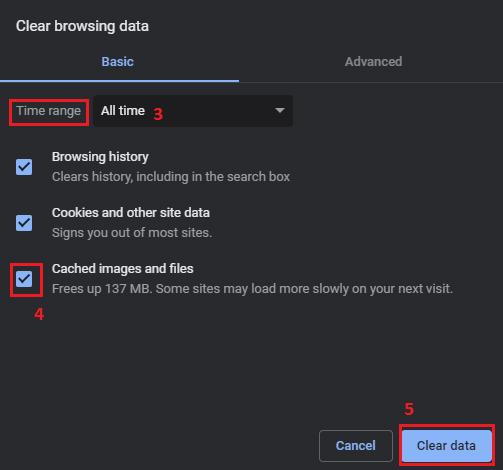
3.) Select the **Time range** you would like to clear. To delete everything select **All time**.
4.) Click **Clear data**.
[](https://docs.northshorecollege.edu/uploads/images/gallery/2022-10/F8mKHM5iFgb0TbAv-clear-cache.png)
### **Clearing cache in Edge.**
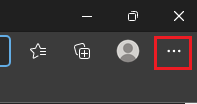
1.) With Edge browser open, select **Menu** (3 dots) at top right.
[](https://docs.northshorecollege.edu/uploads/images/gallery/2022-10/f9pp3PT8aYzrkhJg-edge-elipses.png)
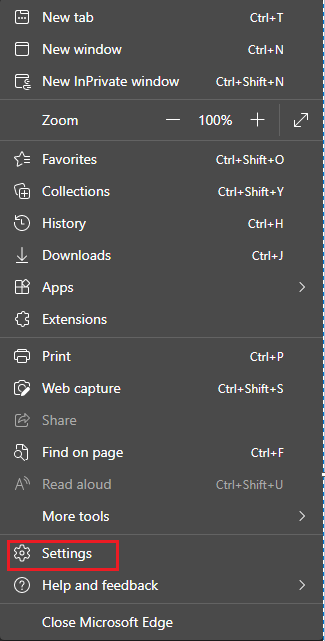
2.) Go to **Settings.**
**[](https://docs.northshorecollege.edu/uploads/images/gallery/2022-10/rTvSQKBOAwUiK10w-edge-settings.png)**
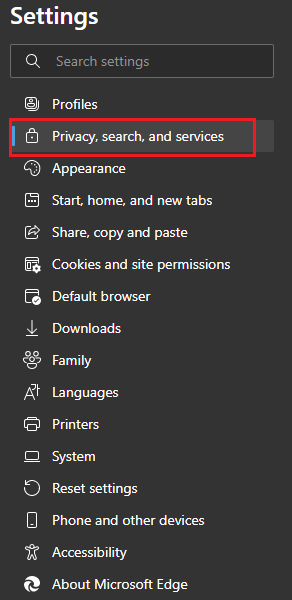
3.) On the left side of the screen, select **Privacy, search, and services.**
**[](https://docs.northshorecollege.edu/uploads/images/gallery/2022-10/7Qz5eDG7yNI2S6Gq-edge-privacy.png)**
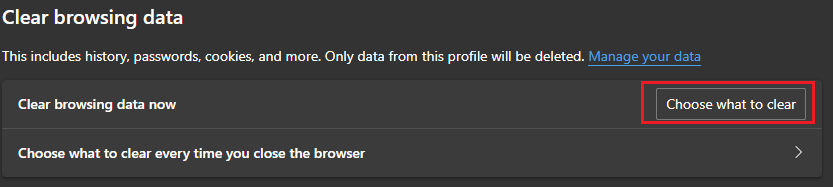
4.) Under **Clear browsing data**, select **Choose what to clear**.
[](https://docs.northshorecollege.edu/uploads/images/gallery/2022-10/cYDj2fGEN1jaKMSH-edge-clear.png)
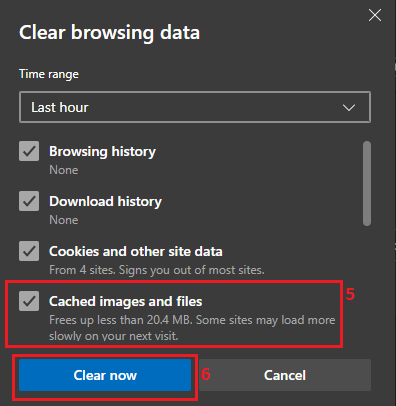
5.) Check the box next to **Cached images and files**. The other categories are optional.
6.) Click **Clear now**.
[](https://docs.northshorecollege.edu/uploads/images/gallery/2022-10/cCWYExzzrAaYcVwS-edge-cache.png)
This is also how you would clear cookies in your browser. You would check the box next to cookies for both browsers.
# Reset Chrome to factory default.
If Google Chrome is not reacting as expected, you may need to reset it back to factory defaults. Examples of issues included popups, unwanted notifications, or not ending up on the expected website. To reset Chrome follow the directions below.
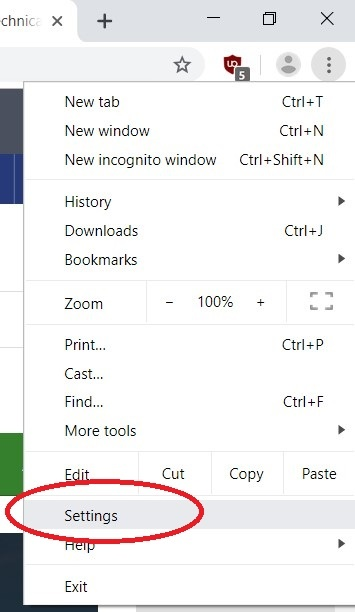
1.) Open Chrome and locate the 3 vertical dots in the upper-right corner then select **Settings**.
[](https://docs.northshorecollege.edu/uploads/images/gallery/2022-10/RpxGBtn3krQIYEkt-image.png)
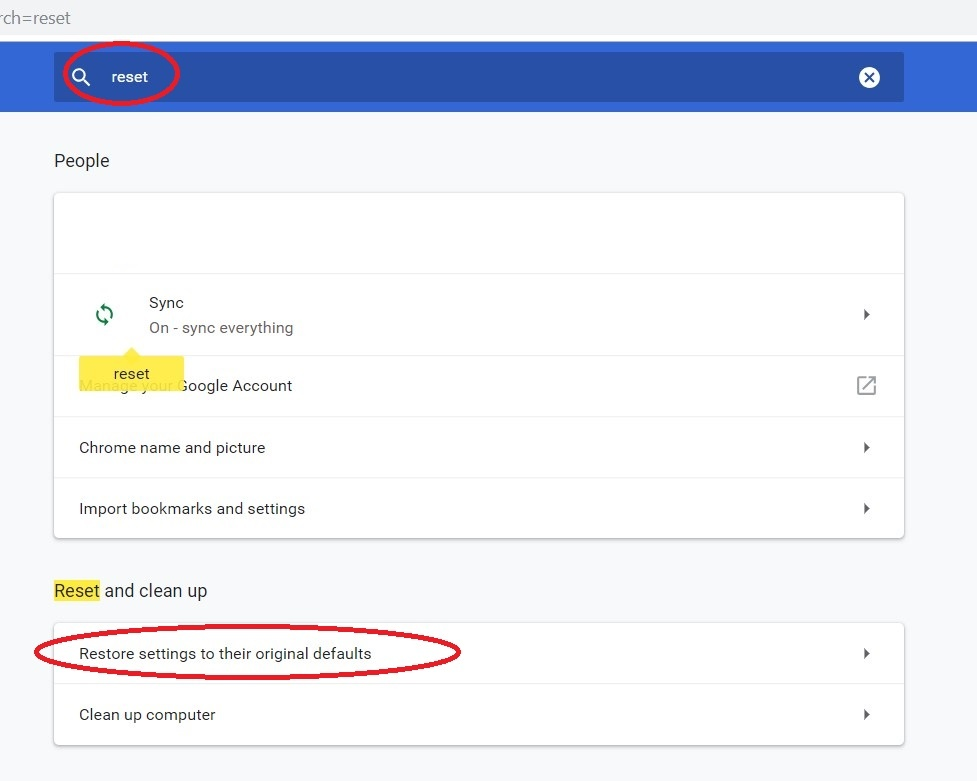
2.) In the search bar at the top of the settings page in the blue bar, search for "reset". Click "Restore settings to their original defaults."
[](https://docs.northshorecollege.edu/uploads/images/gallery/2022-10/BtdO9VtWgwGh8BHC-image.png)
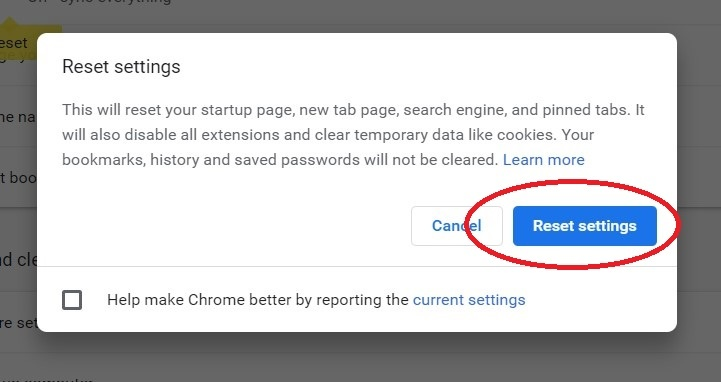
3.) Click the blue reset button to reset Chrome back to default.
[](https://docs.northshorecollege.edu/uploads/images/gallery/2022-10/4T26262i47qvjFUR-image.png)
You may want or need to set your homepage back to [https://www.northshorecollege.edu](https://www.northshorecollege.edu)