Not every employee will have a phone number. Please talk to your supervisor if you get one.
- Your phone number is 985-545-1 plus the 3 digits at the top of your desk phone under the time. Example: 985-545-1500 - Your phone will travel with you if you move around your campus so no need to have your number changed if you have a new office. We can just unplug the phone and move it to the new location. - It will not follow you if you change campuses, and you will need to get a new number. Your supervisor will be the one to request a change of number. - Please confirm with your supervisor if you have a number assigned to you. For more in-depth guide to the desk phone, check out **[Quick Start Guide for Zoom on Polycom phones](https://support.zoom.us/hc/en-us/articles/360038946292).** Please click on the image to view in full. [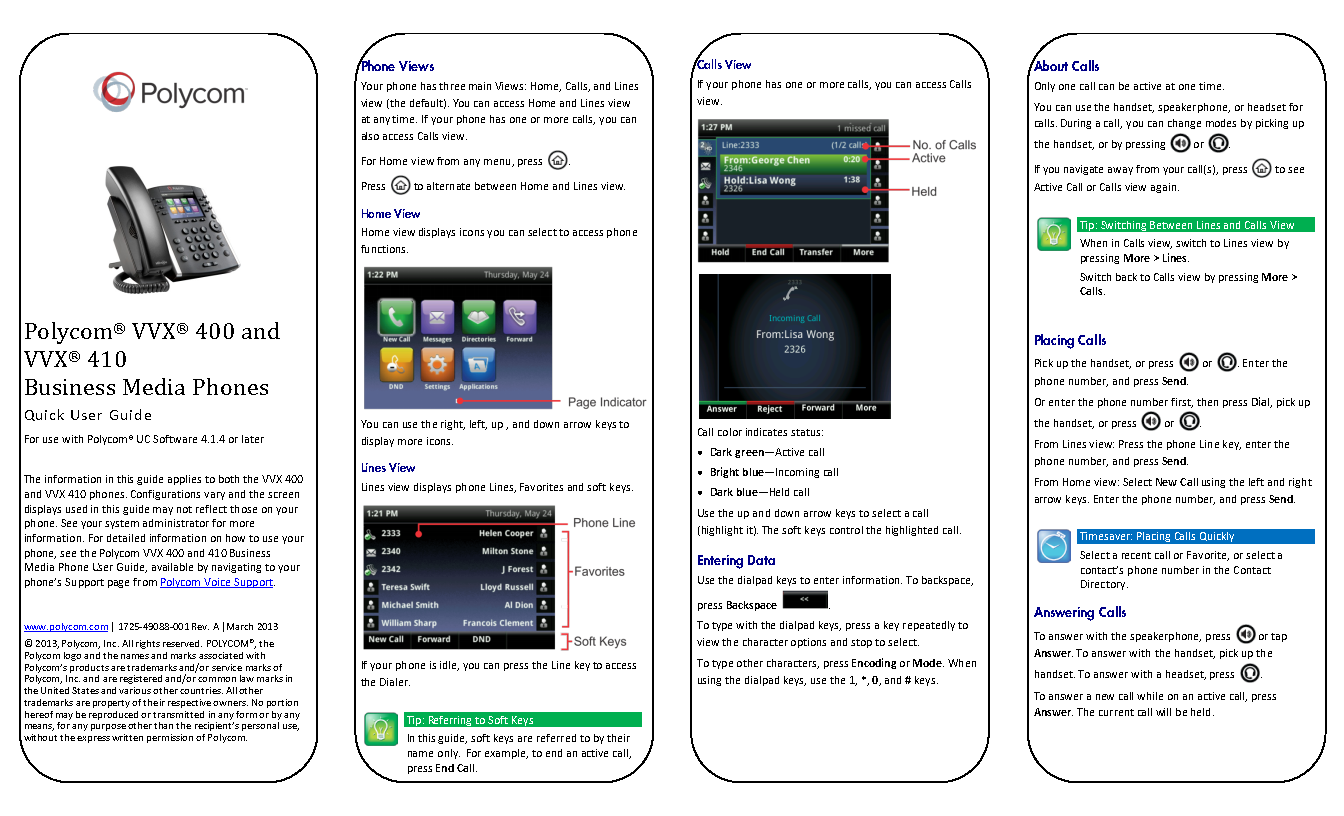](https://docs.northshorecollege.edu/uploads/images/gallery/2022-10/cKPJkvIOwvwrezYT-polycom-user-guide-page1.png) [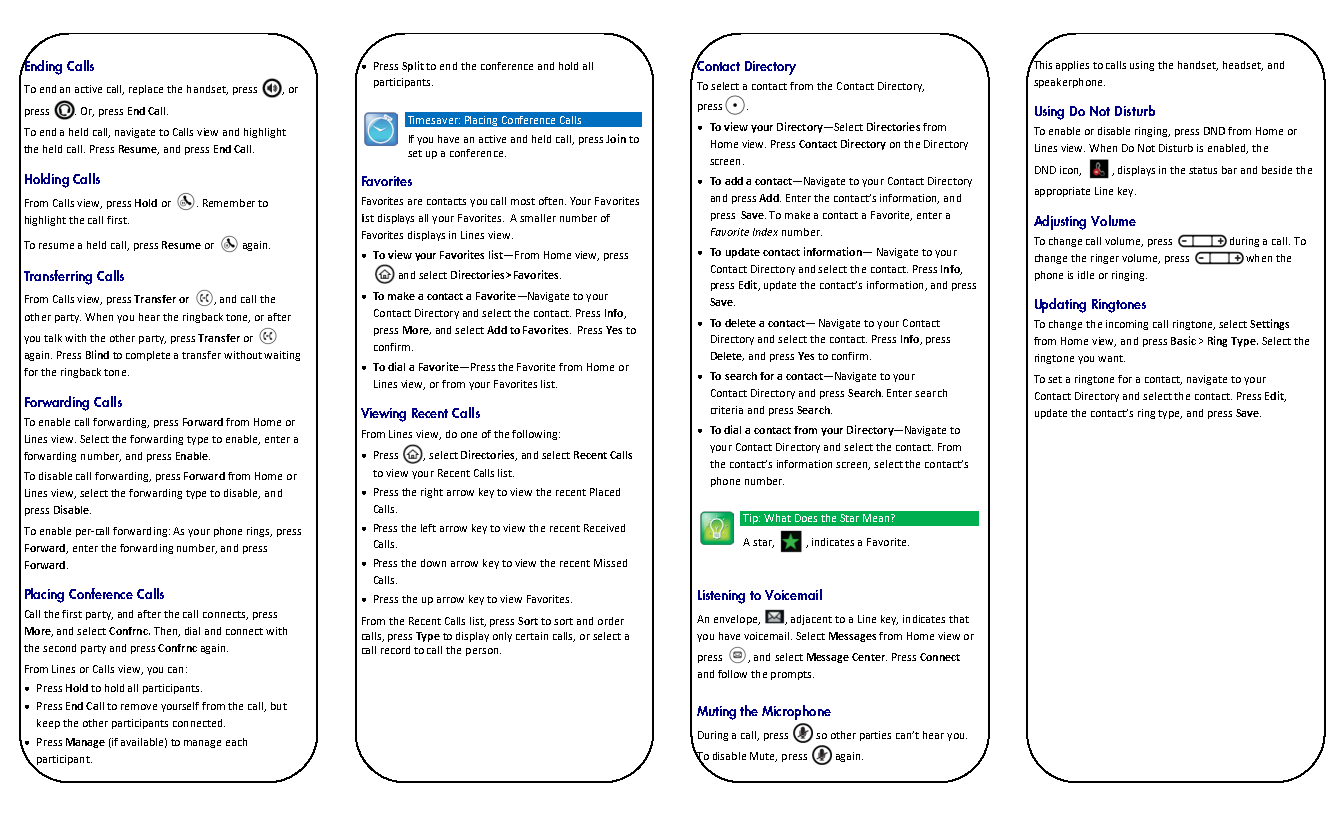](https://docs.northshorecollege.edu/uploads/images/gallery/2022-10/gKJsWmdAy9d27Ywa-polycom-user-guide-page2.png) # How to setup speed-dials/busy line indicators You may want to add speed dials and/or busy line indicators on your phone. The process is now self-serve and easy to do. ### Button labeling Buttons are labeled in columns, starting in the upper-left corner. Your extension will always be in position 1. Position 2 is directly below it. Once the bottom of the column is hit, the column on the right side of the screen is position 7. [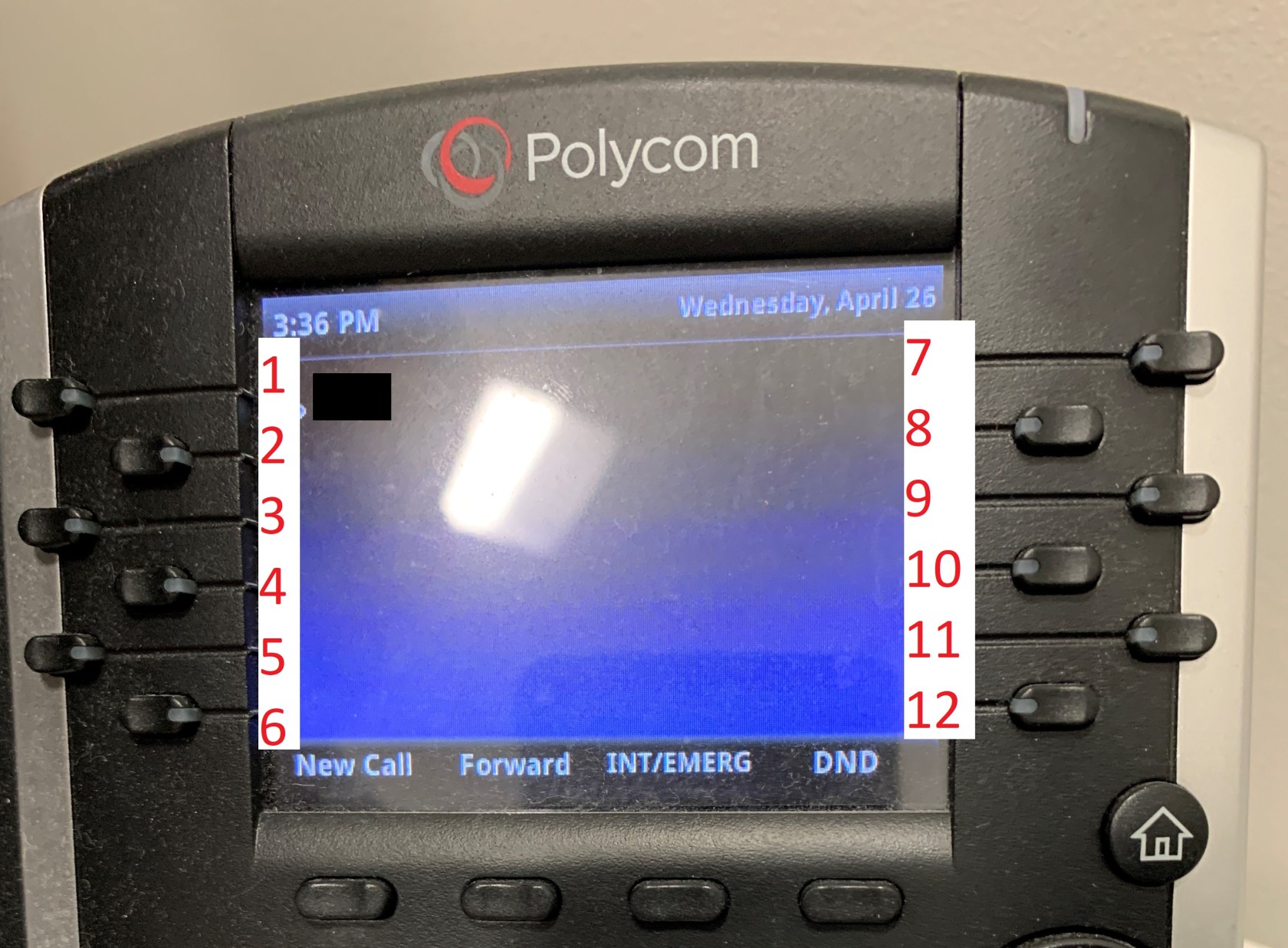](https://docs.northshorecollege.edu/uploads/images/gallery/2023-04/YF7Lr0KVRibFEDu4-vvx410-key-positions.jpg) ##### **To set up Busy Line Indicators (BLF)** 1. Sign in to the Zoom web portal. 2. Click **Phone**. 3. Click the **Settings** tab. 4. In the **Keys & Positions** section, click **View or Edit**. 5. Click **Manage Key**. 6. Click **Set Key**. 7. Search for a name Optional, type an alias for that name. 8. Use the Up/Down arrows to rearrange. **DO NOT CHANGE LINE 1.** 9. Click **Save**. **[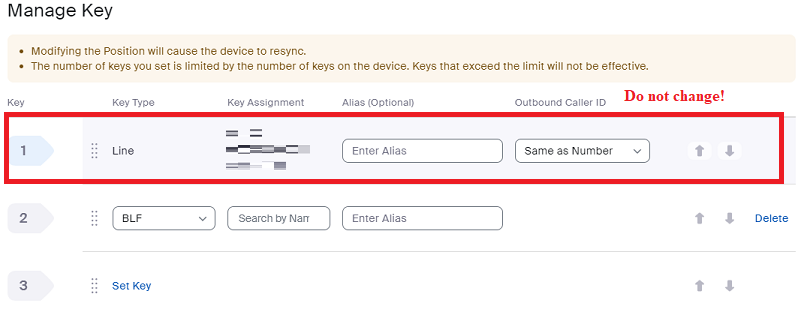](https://docs.northshorecollege.edu/uploads/images/gallery/2023-04/xQBNGsVRSr1Wsqgy-blf.png)** ##### **To set up speed dial** 1. Follow the steps as above for the BLF. 2. Click the drop down option from BLF to Speed Dial. 3. [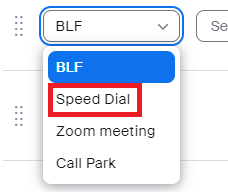](https://docs.northshorecollege.edu/uploads/images/gallery/2023-04/43YpSPWq1Dg2Xd2B-speeddial.png) 4. Enter a phone number using the Country code, Area code, and phone number. Optional type in an alias for the number. 5. **Save.** ##### **How to use speed dial.** 1. Tap the line key on the phone's home screen. The line key light turns solid green to indicate you're using it. 2. (Optional) Pick up the phone's headset. Press the speakerphone button  (usually located to the right of the physical dial pad) to switch back to speakerphone.The BLF works as a speed dial for internal numbers. You do not need both a BLF and a speed dial for the same number.
# Transfer a call. ##### 1. While in a call, press **Transfer** or the transfer button . 2. Choose a transfer method: - **Consultative** transfer (also known as warm transfer): Place the call on hold while you complete the transfer. This option is useful if you need to navigate an automated answering machine for the caller or if you want to speak to the receiving party before your call is transferred. - **Blind** transfer (default): Immediately transfer the call and hang up. 3. Dial or select the number you want to transfer to. To transfer to an internal Zoom Phone user, dial their extension number. 4. Complete the transfer: - **Blind** transfer: Tap the phone icon . - **Consultative** transfer: Press **Transfer**. # Transfer voicemail on phone to another extension. #### If you need to forward a voicemail from the physical phone to another extension. 1. Access the voicemail button on your phone’s keypad. 2. Enter your passcode, followed by the # key. 3. Press 1 to listen to new voicemail messages. 4. After listening to the voicemail message you’d like to forward, press 9 for additional options. 5. Press 2 to forward the message, and you will be prompted to record an intro message. 6. Once you are finished recording your message, press the # key. 7. Press 3 to forward the message. 8. You will then be prompted to enter the extension you want to forward the message to, followed by the # key. 9. Your voicemail is transferred to the new extension.Note: you can only forward to numbers in your extension group. This means if your extension starts with a 4 then only numbers that start with a 4 can a voicemail be forwarded to. If you need to send a voicemail to another extension group, please send the voicemail to someone who has voicemail to email set up within your extension group.
# Desk phone directory ##### **When you need to search for an internal number.** 1. On the phone's home screen, press **Directory**. 2. Navigate to **Corporate Directory**. 3. Enter a name or extension number, then press **Submit** to search your company's directory of Zoom Phone users. **Note**: Search results may take a few seconds to appear. 4. Select a phone user then press **Dial** to call them. # Hot Desking Hot desking is a feature that allows users who work at other users' desks to log into the desk phone and have their phone number and busy lamp field/speed-dials show up. This is especially handy for departments like Student Services Health Sciences, or Library, but is available for all employees who have a NTCC phone number assigned to them. When you are done working at a desk/phone, you are able to sign out of the phone to return it to its original configuration. If you accidentally forget to sign out, the phone will automatically sign you out 9 hours after logging in.Hot desking has to be enabled on the phone you are attempting to log into. While we strive to enable hot desking on all phones, we may have missed a phone. If, when you attempt to log into hot desking on a phone, you receive a message stating :"the requested service is not available on this device," please submit a [helpdesk ticket](https://www.northshorecollege.edu/information-technology/helpdesk) and IT will enable the feature.
This process takes 3-5 minutes to complete. Hot desking is only recommended when you intend to spend more than an hour at a desk.
### How to sign into hot desking on a phone 1. From a NTCC deskphone, dial \*91 2. Enter your 3-digit phone extension followed by the pound (#) sign when prompted 3. Enter your PIN followed by the pound (#) sign when prompted 4. The phone will reboot. This will take 3-5 minutes to complete 5. Once the phone reboots, it should work like your normal office phoneIf your docking station is connected through the phone, you will lose access to the internet and other resources while the phone reboots. This outage typically lasts for less than 1 minute.
### How to sign out of hot desking on a phone 1. Dial \*92 2. The phone will notify you that your are signed off and reboot 3. The phone will reboot. This will take 3-5 minutes to complete 4. Once the phone reboots, it should work like the original user's phone ### How to sign out of hot desking on a phone from the Zoom website 1. Sign in to the [Zoom web portal](https://northshorecollege.zoom.us). 2. In the navigation menu, click [**Phone**](https://zoom.us/pbx/page/telephone/myZoomTelephony#/my-cloud-phone/settings). 3. Scroll down to the **Desk Phone(s)** section. 4. Hover your mouse over the phone that needs to be signed out remotely, then click **Sign out**.