Zoom Phone App
- Logging into Zoom Phone
- Using your Zoom Phone.
- Searching the directory for numbers.
- Call Queue Opt out/in
Logging into Zoom Phone
This page was moved to this Confluence knowledgebase article. Please update any bookmarks you may have.
Using your Zoom Phone.
For more in-depth guide to the computer app, check out the official Zoom Phone guide
The Zoom Phone software is ONLY supported on NTCC-owned laptops. It is not supported on mobile devices or personally-owned computers.
Voicemail
For voicemail pin, please watch the video below.
Forwarding Messages
Customizing call handling settings
Transfer Call
SMS/Text Messages
Call History
Viewing call history and recordings
For a quick basic video guide. This covers only the very basics that can be done in the web portal and app. Use the above guides for more detail explanations.
Zoom Web Portal Video
Zoom App Video
Searching the directory for numbers.
You can use the directory to search for people to call.
On Zoom computer app.
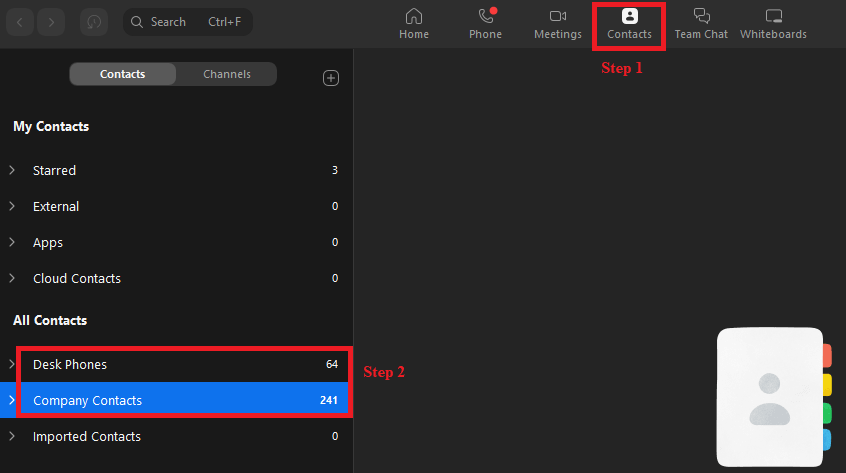
- On the app select Contacts.
- We have 2 sections to choose from
- Desk phones - used in classroom or communal locations.
- Company Contacts - all NTCC employees
- If you are unsure of the name
- Click on the drop down for the category you wish to search.
- All names are in alphabetical order.
- If you know the name
- On the top of the app, click search
- Type the name in the search bar.
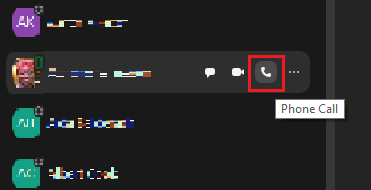
- Hover over the user you wish to call.
- Click on the

Call Queue Opt out/in
If you are a member of a call queue, you can choose to opt out for reason such as lunch break or with a student.
Through the webportal.
- Log into the Zoom website portal at https://northshorecollege.zoom.us
- Go to Phone on the left hand side.
- Go to Settings.
- Scroll down to Membership
- Toggle the Receive Queue Calls option off.
- Toggle back on when returning from break/with student.
Through the Zoom app
- Click on your profile/initials icon.
- Hover over the Receive Queue Calls.
- Toggle the queue off.
- Toggle back on when returning from break/with student.