The Zoom Phone software is ONLY supported on NTCC-owned laptops. It is not supported on mobile devices or personally-owned computers.
##### **Voicemail** **[Customizing audio greetings](https://support.zoom.us/hc/en-us/articles/360028212652)** **[Managing Voicemail messages](https://support.zoom.us/hc/en-us/articles/360021400211)** **For voicemail pin, please watch the video below.** ##### **Forwarding Messages** **[Customizing call handling settings](https://support.zoom.us/hc/en-us/articles/360059966372-Customizing-call-handling-settings)** ##### **Transfer Call** **[How to transfer calls](https://support.zoom.us/hc/en-us/articles/360028786771-Transferring-calls)** ##### **SMS/Text Messages** **[Using SMS](https://support.zoom.us/hc/en-us/articles/360054155112-Using-SMS)** ##### **Call History** **[Viewing call history and recordings](https://support.zoom.us/hc/en-us/articles/360021336671-Viewing-call-history-and-recordings)** **For a quick basic video guide. This covers only the very basics that can be done in the web portal and app. Use the above guides for more detail explanations.** #### **[Zoom Web Portal Video](https://screenpal.com/watch/c0hZF4VAEmj)** #### **[Zoom App Video](https://screenpal.com/watch/c0hZqJVAERZ)** # Searching the directory for numbers. You can use the directory to search for people to call. ##### **On Zoom computer app.** 1. On the app select **Contacts.** 2. We have 2 sections to choose from - Desk phones - used in classroom or communal locations. - Company Contacts - all NTCC employees 3. If you are unsure of the name - Click on the drop down for the category you wish to search. - All names are in alphabetical order. 4. If you know the name - On the top of the app, click search - Type the name in the search bar. 5. Hover over the user you wish to call. 6. Click on the  [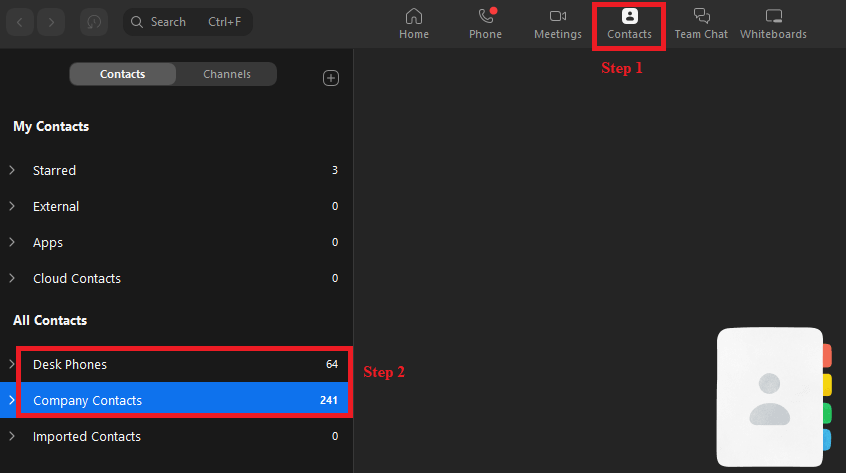](https://docs.northshorecollege.edu/uploads/images/gallery/2023-04/lXa48dyN8LyITGL8-contacts.png) [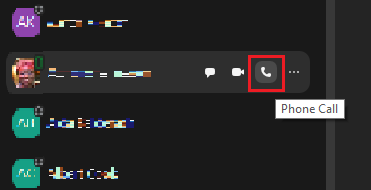](https://docs.northshorecollege.edu/uploads/images/gallery/2023-04/1GS7F3rJOhFwPWhh-directoryphone.png) # Call Queue Opt out/in #### If you are a member of a call queue, you can choose to opt out for reason such as lunch break or with a student. ##### Through the webportal. 1. Log into the Zoom website portal at [https://northshorecollege.zoom.us](https://northshorecollege.zoom.us) 2. Go to **Phone** on the left hand side. 3. Go to **Settings.** 4. Scroll down to **Membership** 5. Toggle the **Receive Queue Calls** option off. 6. Toggle back on when returning from break/with student. ##### Through the Zoom app 1. Click on your profile/initials icon. 2. Hover over the **Receive Queue Calls.** 3. Toggle the queue off. 4. Toggle back on when returning from break/with student.