# How to setup speed-dials/busy line indicators
You may want to add speed dials and/or busy line indicators on your phone. The process is now self-serve and easy to do.
### Button labeling
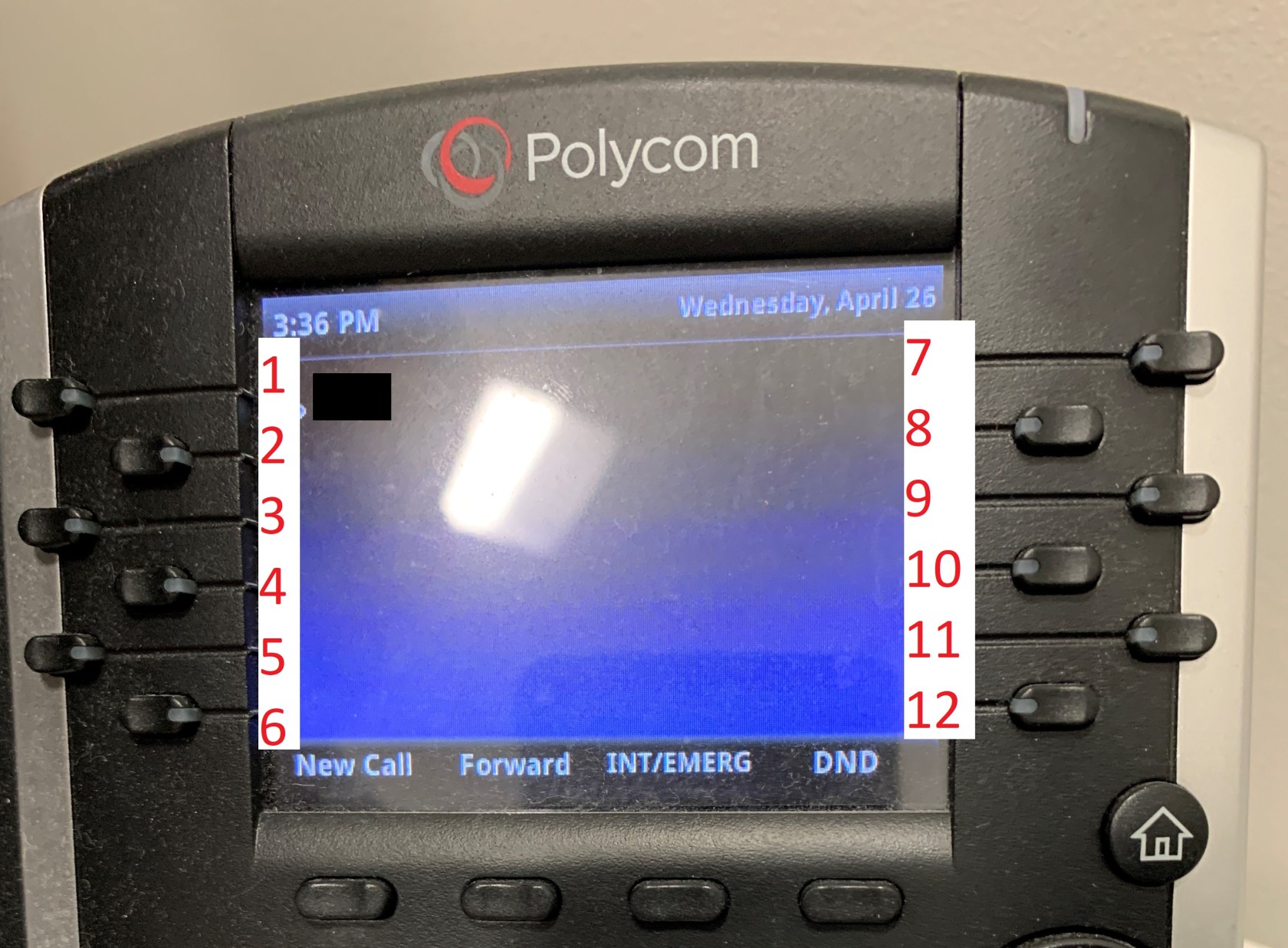
Buttons are labeled in columns, starting in the upper-left corner. Your extension will always be in position 1. Position 2 is directly below it. Once the bottom of the column is hit, the column on the right side of the screen is position 7.
[](https://docs.northshorecollege.edu/uploads/images/gallery/2023-04/YF7Lr0KVRibFEDu4-vvx410-key-positions.jpg)
##### **To set up Busy Line Indicators (BLF)**
1. Sign in to the Zoom web portal.
2. Click **Phone**.
3. Click the **Settings** tab.
4. In the **Keys & Positions** section, click **View or Edit**.
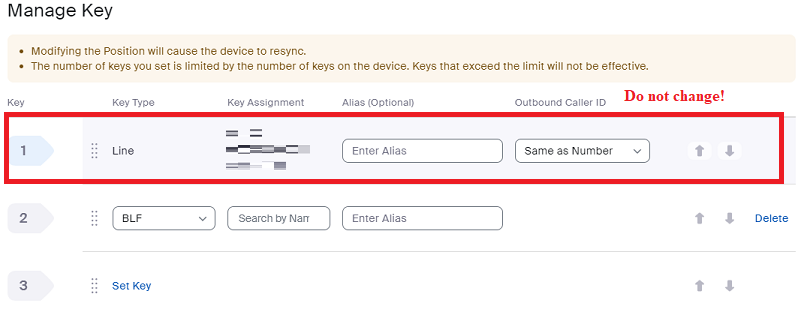
5. Click **Manage Key**.
6. Click **Set Key**.
7. Search for a name Optional, type an alias for that name.
8. Use the Up/Down arrows to rearrange.
**DO NOT CHANGE LINE 1.**
9. Click **Save**.
**[](https://docs.northshorecollege.edu/uploads/images/gallery/2023-04/xQBNGsVRSr1Wsqgy-blf.png)**
##### **To set up speed dial**
1. Follow the steps as above for the BLF.
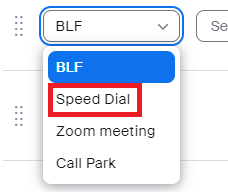
2. Click the drop down option from BLF to Speed Dial.
3. [](https://docs.northshorecollege.edu/uploads/images/gallery/2023-04/43YpSPWq1Dg2Xd2B-speeddial.png)
4. Enter a phone number using the Country code, Area code, and phone number. Optional type in an alias for the number.
5. **Save.**
##### **How to use speed dial.**
1. Tap the line key on the phone's home screen. The line key light turns solid green to indicate you're using it.
2. (Optional) Pick up the phone's headset. Press the speakerphone button  (usually located to the right of the physical dial pad) to switch back to speakerphone.
The BLF works as a speed dial for internal numbers. You do not need both a BLF and a speed dial for the same number.