
Install Software from Software Center
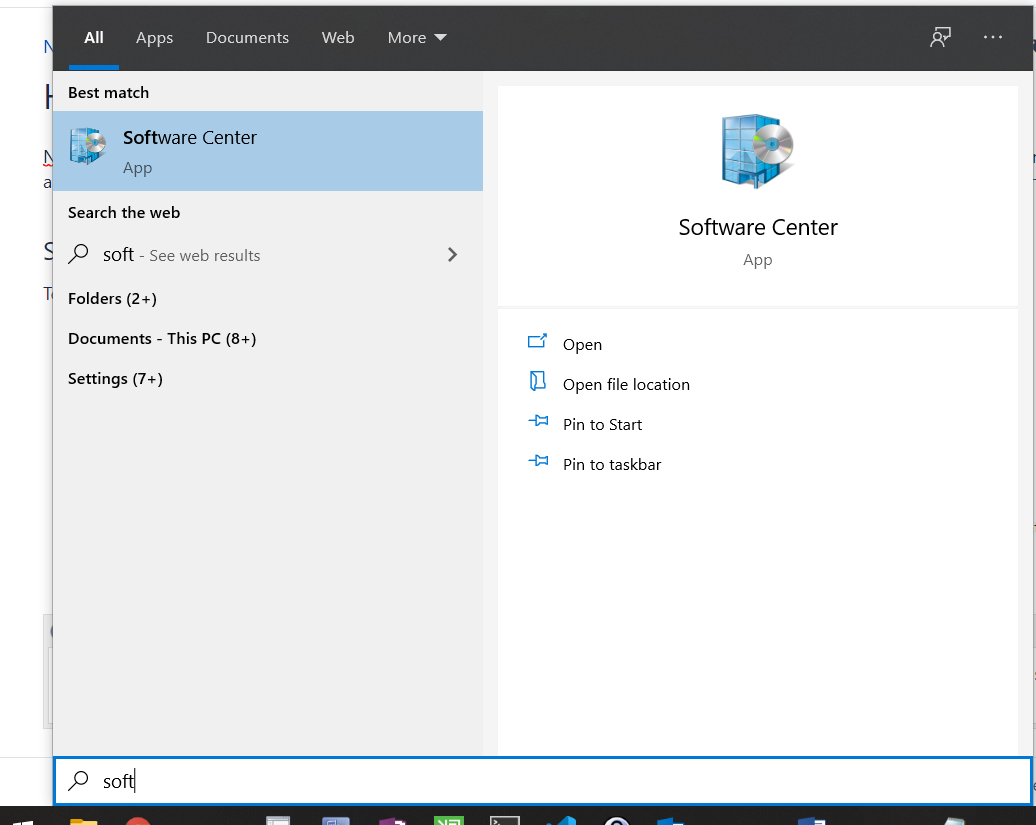
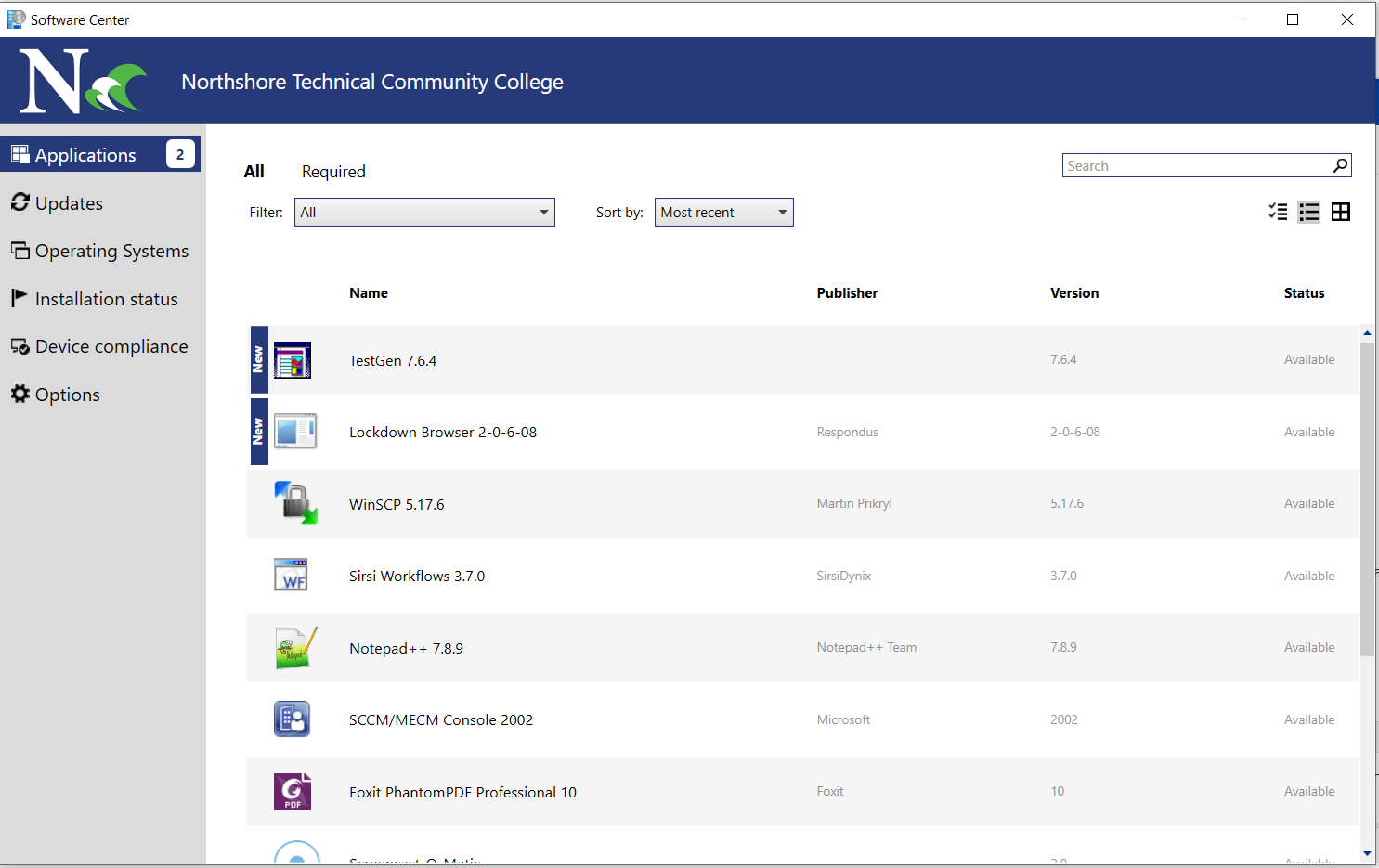
NTCCThis ITknowledgebase providesarticle ahas mechanismbeen formoved employeesto the new knowledgebase. Please follow the link to the new article on how to install software on NTCC-owned computers without IT intervention. This is accomplished through Software Center. The Software Center application shows the user a catalog of applications and allows the user to select applications to install. The list of applications available varies depending on what department the user is a member of, existingfrom software that is installed, available licenses, and other factors.center.
Screencast-O-Matic is used as an example. Please select the software you need to install from the list in Software Center.
Step-by-step guide
To access Software Center


Dymo Software
The Dymo labelmaker software has a known issue where the installation reports as "Failed." This is not the case; the installer is still running. After 1-2 minutes, the Dymo labelmaker application will be successfully installed and Software Center will update its status to "Installed."
Test Banks/Exam View/Test Gen
Exam View replaced Test Gen. You can install Exam View by installing the Test Bank you need for your course. Once you install the Test Bank it will automatically also install Exam View.
Some test banks may initially report that the installation failed. This is not the case and is expected behavior. Clicking retry will result in the software being properly shown in Software Center as "Installed."